Turning the printer off
Important
• Never disconnect the printer's power supply or unplug it during a print job. This may damage the printer.
1
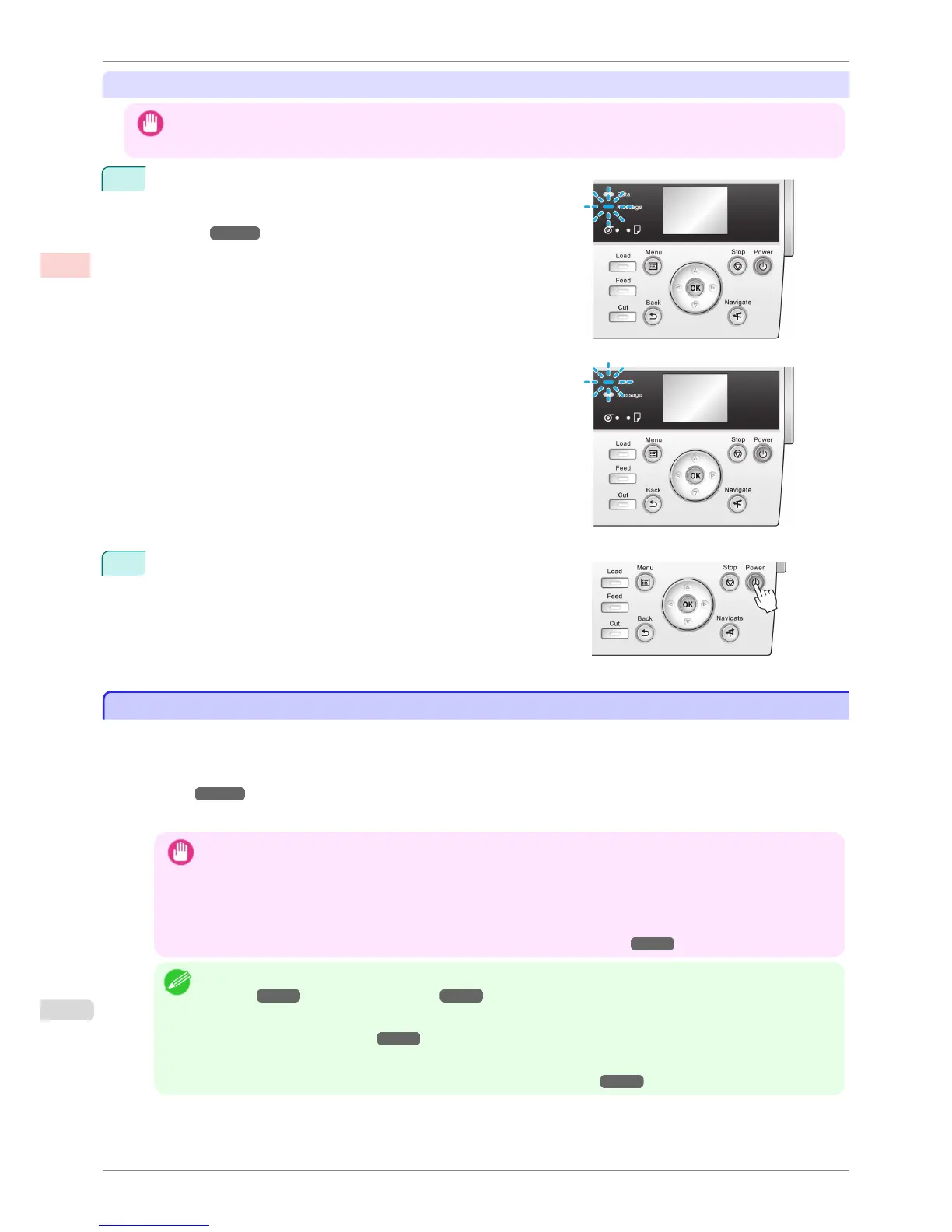
Make sure no print jobs are in progress.
If the Message Lamp is flashing, check the message on the
Display Screen and take action as necessary. (See "Error Mes-
sages.") ➔ P.900
If the Data Lamp is flashing, the printer is receiving a print job.
Turn off the printer only after printing is finished.
2
Hold down the Power button for more than a second.
After "Shut Down.. Please Wait.." is shown on the Display
Screen, the printer shuts off.
Loading and Printing on Rolls
Loading and Printing on Rolls
These are the basic steps for loading and printing on rolls.
Follow these steps to load and print on rolls.
•
If you use the optional Stand, you can store printed documents in the Output Stacker. see "Using the Output
Stacker." ➔ P.508
•
You also can install and use the printer on a table, etc., instead of using the Stand.
Important
• Keeping a roll in the printer for a long time without printing on it may leave a depression on the leading edge.
When printing quality is most important, we recommend setting TrimEdge Reload to On or Automatic so that the
paper edge is automatically cut before printing.
• Before printing banners or other long documents, tap the Output Stacker. We recommend that you spread a clean
cloth or paper on the floor and select Eject as the cutting method for rolls to prevent the printed surface from
becoming dirty or scratched. (See "Specifying the Cutting Method for Rolls.") ➔ P.483
Note
• For details on supported sizes and types of rolls, see Paper Sizes or the Paper Reference Guide. (See "Paper
Sizes.") ➔ P.460 (See "Types of Paper.") ➔ P.460
• To wait until the ink dries after printing before cutting the roll, set Drying Time in the printer driver. (See "Specifying
the Ink Drying Time for Rolls.") ➔ P.482
• Once you have used all the paper on a roll, clean the platen. If the Platen inside the Top Cover becomes dirty, it
may soil the underside of paper. (See "Cleaning Inside the Top Cover.") ➔ P.839
Loading and Printing on Rolls
iPF6400S
User's Guide
Basic Printing Workflow Printing procedure
22













 To Next Page