Important
• Printing without the top and bottom margins is not supported in the following cases.
• If you have chosen poster as the type of page layout
Note
• Even during borderless printing, you can print without the top and bottom margins.
• Printing without the top and bottom margins may cause inconsistency in the size of printed documents, depending
on the layout of images or text in your originals.
For tips on conserving roll paper, refer to the following topics, as appropriate for your computer and operating
system.
•
Conserving Roll Paper by Printing Originals Without Top and Bottom Margins (Windows) ➔ P.133
•
Conserving Roll Paper by Printing Originals Without Top and Bottom Margins (Mac OS) ➔ P.134
Conserving Roll Paper by Printing Originals Without Top and Bottom Margins (Windows)
Conserving Roll Paper by Printing Originals Without Top and Bottom Margins (Windows)
This topic describes how to conserve roll paper when printing originals that have a top and bottom margin, based
on the following example.
•
Document: Any type
•
Page size: A4 (210.0×297.0 mm)/Letter (8.3 × 11.7 in)
•
Paper: Roll
•
Paper type: Plain Paper
•
Roll paper width: A3/A4 roll (297.0 mm [11.7 in])
1
Choose Print in the application menu.
2
Select the printer in the dialog box, and then display the printer driver dialog box. (See "Accessing the Print-
er Driver Dialog Box from Applications .") ➔ P.156
3
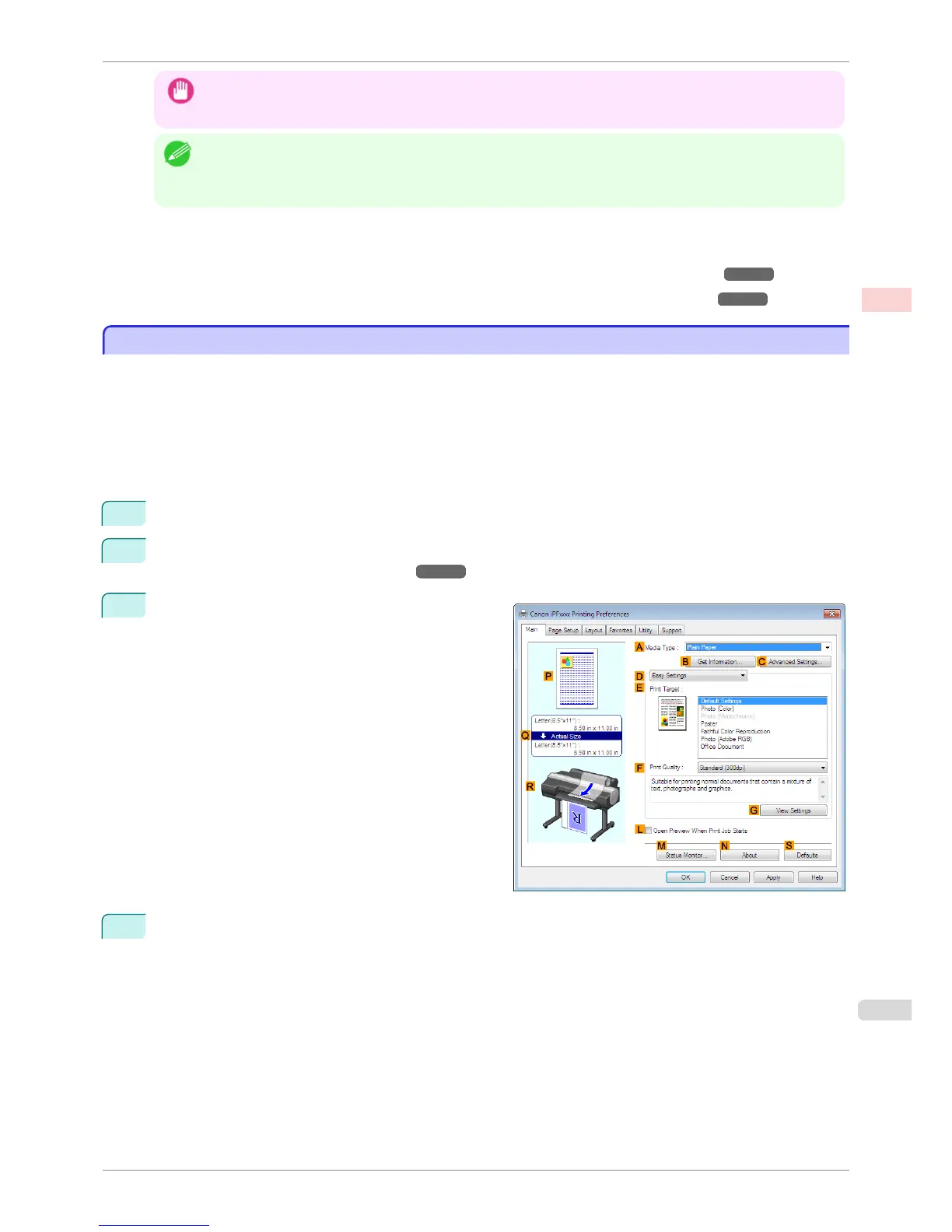
Make sure the Main sheet is displayed.
4
In the A Media Type list, select the type of paper that is loaded. In this case, click Plain Paper.
iPF6400S
Conserving Roll Paper by Printing Originals Without Top and Bottom Margins (Windows)
User's Guide
Enhanced Printing Options Conserving roll paper
133













 To Next Page