Manual Adjustment to Straighten Lines and Colors
Manual Adjustment to Straighten Lines and Colors
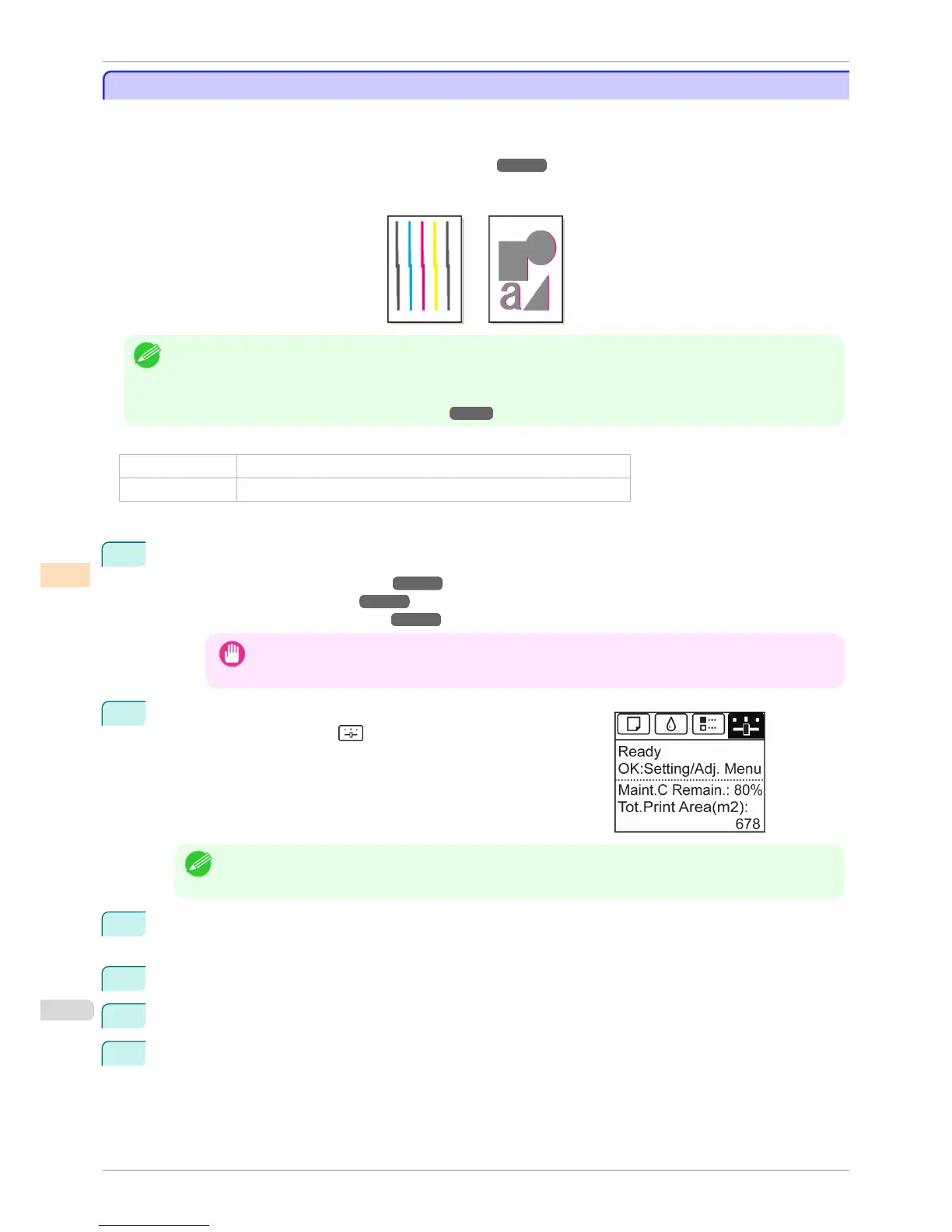
If printed vertical lines are warped or colors are out of alignment, execute Head Posi. Adj. to adjust the Printhead
alignment.
Normally, execute Standard.
(See "Automatic Adjustment to Straighten Lines and Colors.") ➔ P.708
However, when printing on special paper, or if printing is not improved after Standard, try Manual.
Manual adjustment requires you to examine the printed test pattern and enter an adjustment value.
Note
• We recommend using the type of paper you use most often for adjustment.
• If the printhead position was not adjusted during initial setup or when the printhead was replaced, execute Initial ad-
justmt.
(See "Adjustment When Installing the Printhead.") ➔ P.711
Items to Prepare
When Using Rolls An unused roll at least 254.0 mm (10.00 in) wide
When Using Sheets Two sheets of unused paper, A4/Letter size (or one sheet when using A2)
Perform adjustment as follows.
1
Load paper.
•
Loading Rolls on the Roll Holder ➔ P.471
•
Loading Rolls in the Printer ➔ P.473
•
Loading Sheets in the Feed Slot ➔ P.495
Important
• Always make sure the loaded paper matches the type of paper specified on the printer. Adjustment can-
not be completed correctly unless the loaded paper matches the settings.
2
On the Tab Selection screen of the Control Panel, press ◀ or ▶ to
select the Settings/Adj. tab ( ).
Note
• If the Tab Selection screen is not displayed, press the Menu button.
3
Press the OK button.
The Set./Adj. Menu is displayed.
4
Press ▲ or ▼ to select Adjust Printer, and then press the OK button.
5
Press ▲ or ▼ to select Head Posi. Adj., and then press the OK button.
6
Press ▲ or ▼ to select Other, and then press the OK button.
Manual Adjustment to Straighten Lines and Colors
iPF6400S
User's Guide
Adjustments for Better Print Quality Adjusting the Printhead
710













 To Next Page