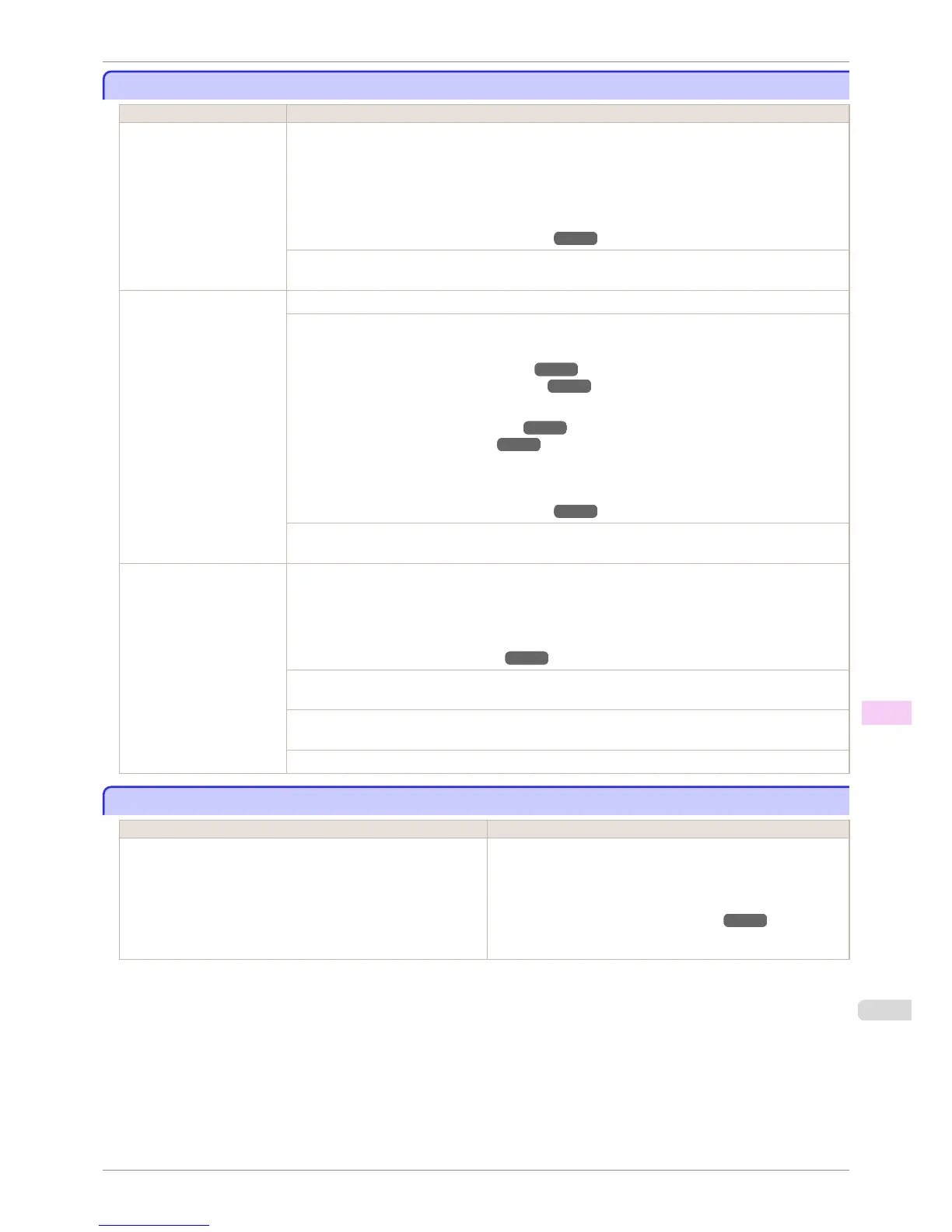
Borderless printng not possible.
Borderless printng not possible.
Cause Corrective Action
The print job received speci-
fies a type or width of paper
that is not compatible with
borderless printing.
Follow these steps to change the settings of the print job to enable borderless printing.
1.
Press ▲ or ▼ to select Stop Printing, and then press the OK button.
2.
Make sure the correct printer driver for the printer is selected and try printing again.
For information on types of paper compatible with borderless printing, refer to the Paper Reference
Guide.
(See "Displaying the Paper Reference Guide.") ➔ P.464
Press ▲ or ▼ to select Print With Border, and then press the OK button to continue printing. The docu-
ment will be printed with a border.
The loaded paper is a size
not compatible with border-
less printing.
Press ▲ or ▼ to select Stop Printing, and then press the OK button.
Replace the paper with paper compatible for borderless printing as follows.
1.
Press ▲ or ▼ to select Change Paper, and then press the OK button.
(See "Removing the Roll from the Printer.") ➔ P.478
(See "Removing Rolls From the Roll Holder.") ➔ P.480
2.
Replace the paper with paper compatible for borderless printing.
(See "Loading Rolls on the Roll Holder.") ➔ P.471
(See "Loading Rolls in the Printer.") ➔ P.473
The printer now starts printing the print job.
For information on types of paper compatible with borderless printing, refer to the Paper Reference
Guide.
(See "Displaying the Paper Reference Guide.") ➔ P.464
Press ▲ or ▼ to select Print With Border, and then press the OK button to continue printing. The docu-
ment will be printed with a border.
The paper is loaded askew. Press ▲ or ▼ to select Change Paper and straighten the paper so that the edges are between the ink
grooves for borderless printing.
Insert the roll firmly until it touches the flange of the Roll Holder.
For borderless printing on A1 (594 mm or 23.4 in) or A2 (420 mm or 16.5 in) rolls, attach the included
Spacer for Borderless Printing to the Roll Holder.
(See "Loading Rolls on the Roll Holder.") ➔ P.471
Select None when you have set Detect Mismatch in the Control Panel menu to Warning.
However, note that this error may affect the printing quality.
Press ▲ or ▼ to select Print With Border, and then press the OK button to continue printing. The docu-
ment will be printed with a border.
Press ▲ or ▼ and select Stop Printing or press the Stop button to stop printing.
Roll paper is not securely in contact with roll holder.
Roll paper is not securely in contact with roll holder.
Cause Corrective Action
Skew Check Lv. on the Control Panel menu is set to something oth-
er than Off and the roll paper is not placed securely in the Roll Hold-
er during loading.
Follow these steps to reload the roll.
1.
Press the OK button and remove the roll holder from the printer.
2.
Insert the roll firmly on the Roll Holder until it touches the flange.
(See "Loading Rolls on the Roll Holder.") ➔ P.471
3.
Load the Roll Holder in the printer.
iPF6400S
Borderless printng not possible.
User's Guide
Error Message Messages regarding paper
909













 To Next Page