•
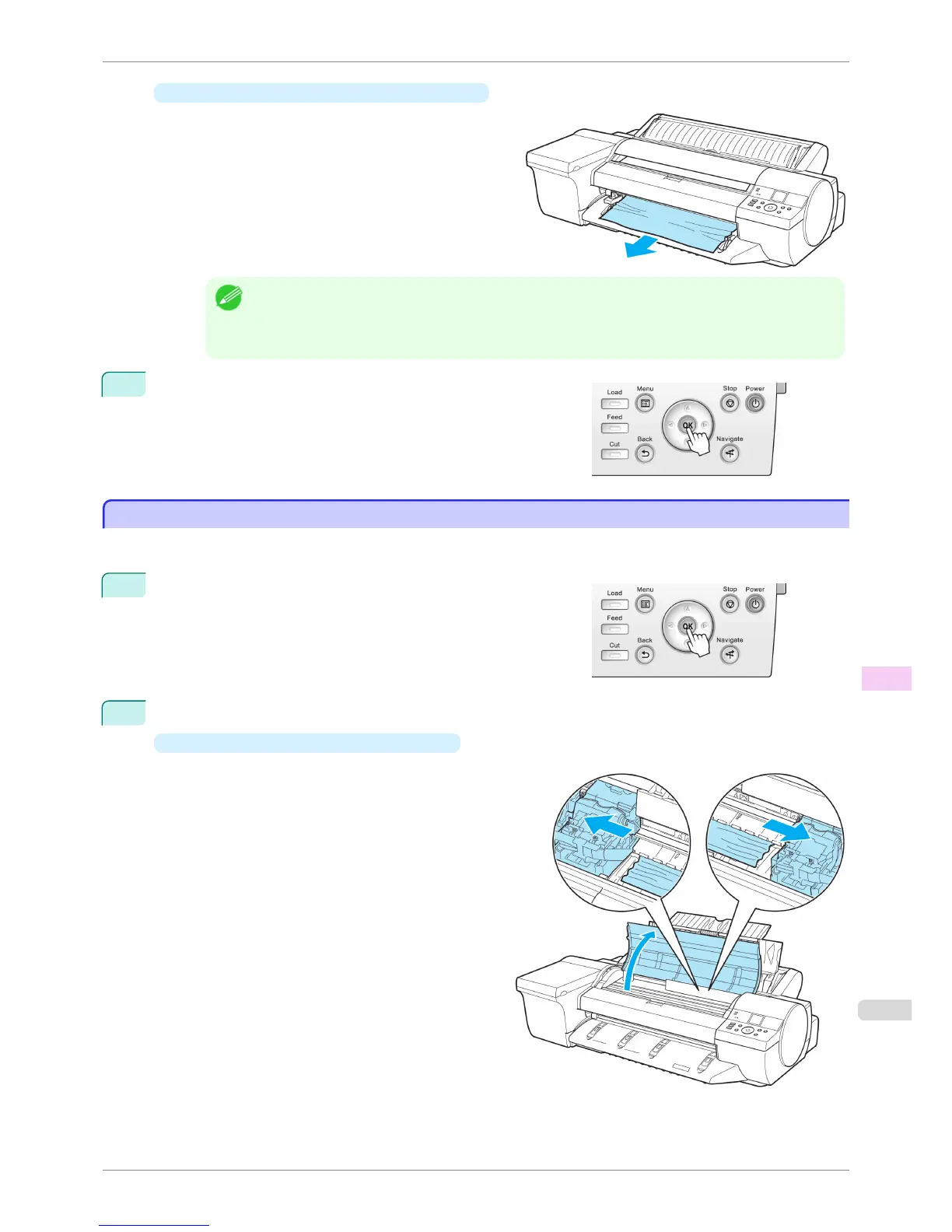
If the paper is jammed by the Ejection Guide
Remove the jammed paper from the Output Tray.
After removing the paper, make sure there are no
other scraps of paper in the printer.
Note
• If the Up-down Unit of the Spectrophotometer Unit (optional) is lowered, lift up the Up-down Unit before
removing the paper.
When the Up-down Unit is raised, handle the central part (near the blue label). Handling the ends may
cause damage.
4
Press the OK button.
Clearing a Jammed Sheet, Fed Manually
Clearing a Jammed Sheet, Fed Manually
If a sheet you have fed manually becomes jammed, "Paper jam" is shown on the Display Screen of the Control
Panel. Remove the jammed paper as follows.
1
Press the OK button.
2
Remove the jammed paper.
•
If paper is jammed inside the Top Cover
1.
Open the Top Cover and manually move
the Carriage to the side.
2.
Clear any jammed paper from inside the Top Cover.
After removing the paper, make sure there are no other scraps of paper in the printer.
iPF6400S
Clearing a Jammed Sheet, Fed Manually
User's Guide
Troubleshooting Problems Regarding Paper
873













 To Next Page