Using the Same Type of Paper Regularly
Configure this setting so that current media type settings will be automatically selected when you load the same
type of paper later.
1
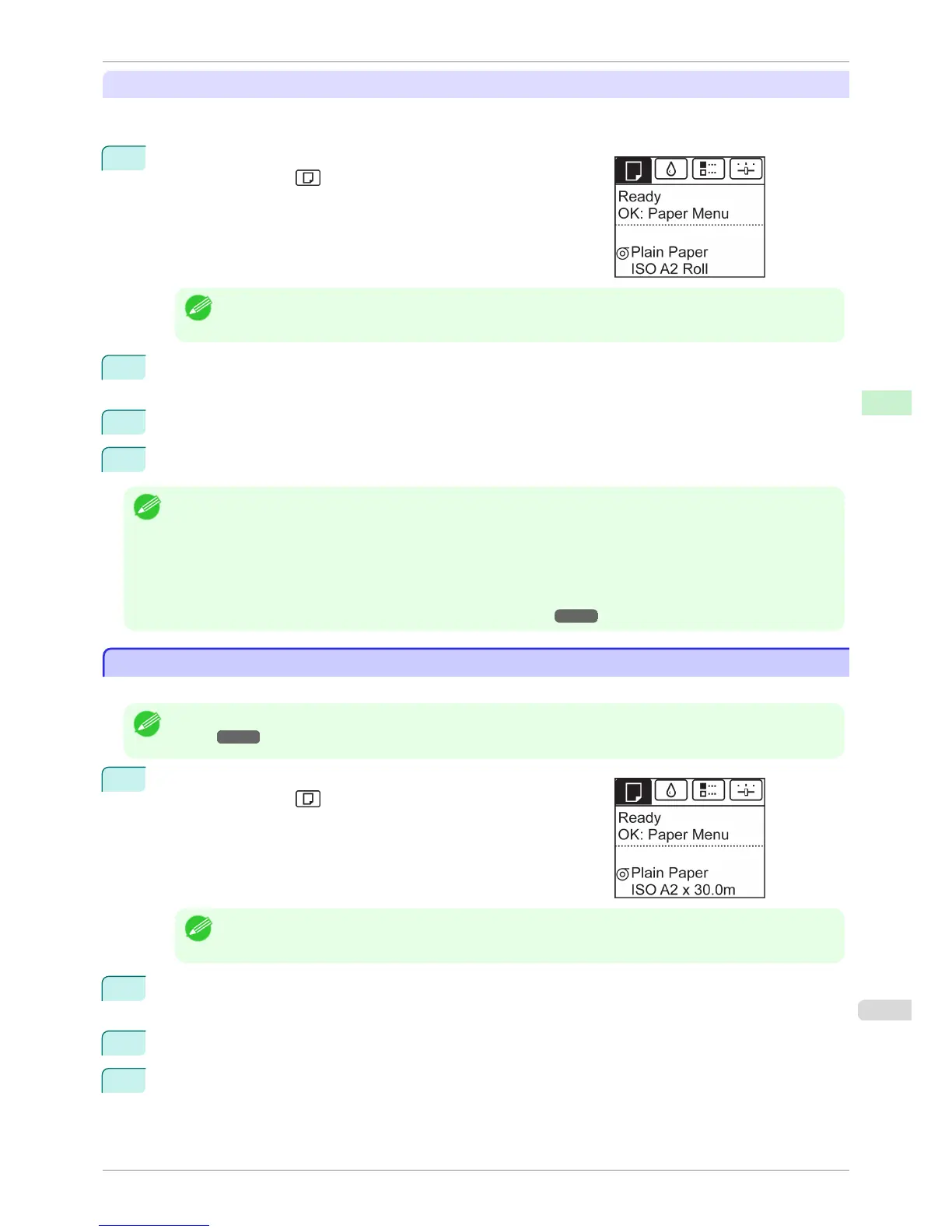
On the Tab Selection screen of the Control Panel, press ◀ or ▶ to
select the Paper tab (
).
Note
• If the Tab Selection screen is not displayed, press the Menu button.
2
Press the
OK button.
The Paper Menu is displayed.
3
Press ▲ or ▼ to select Keep Paper Type, and then press the OK button.
4
Press ▲ or ▼ to select On, and then press the OK button.
Note
• The specified media type setting is updated in the following situations.
• When using sheets, if you send a print job before loading a sheet, the media type setting is updated to match the type
of paper specified by the print job.
• When you have selected ManageRemainRoll > On on the Control Panel and a barcode is printed on the roll, the
media type setting is updated to match the type of paper specified by the barcode.
• To change the media type setting, see "Changing the Type of Paper." ➔ P.476
Specifying the Paper Length
Specifying the Paper Length
When changing the length of paper after the paper has been advanced, specify the length as follows.
Note
• Specify the paper length when you have set ManageRemainRoll to On. (See "Keeping Track of the Amount of Roll Paper
Left.") ➔ P.481
1
On the Tab Selection screen of the Control Panel, press ◀ or ▶ to
select the Paper tab ( ).
Note
• If the Tab Selection screen is not displayed, press the Menu button.
2
Press the OK button.
The Paper Menu is displayed.
3
Press ▲ or ▼ to select Chg. Paper Size, and then press the OK button.
4
Press ▲ or ▼ to select Roll Length, and then press the OK button.
iPF6400S
Specifying the Paper Length
User's Guide
Handling and Use of Paper Handling rolls
477













 To Next Page