4
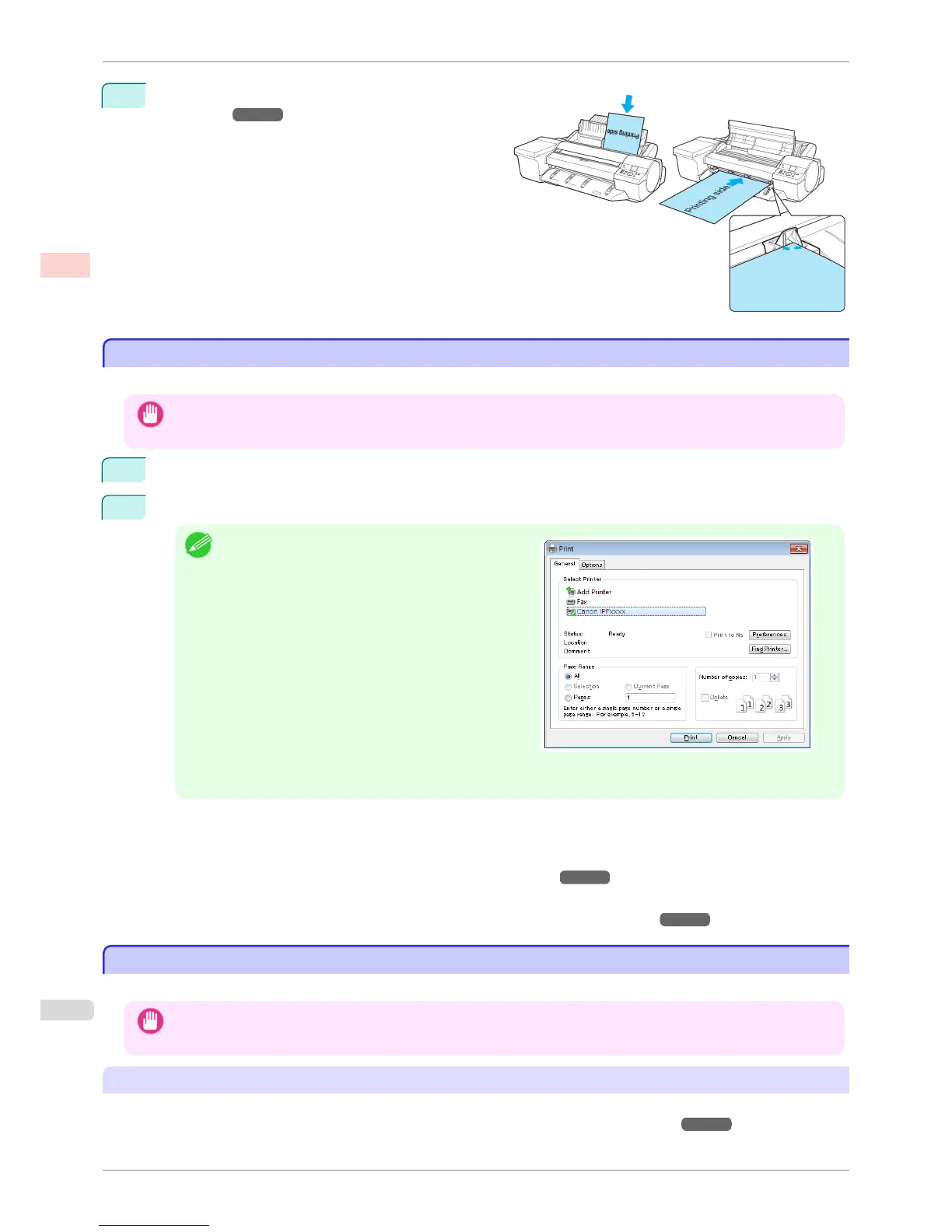
Load a sheet manually. (See "Loading Sheets in the
Feed Slot.")
➔P.495
(Top Paper Feed Slot)
(Front Paper Feed Slot)
The printer now starts printing the print job.
Printing in Windows
Printing in Windows
Print from the application menu.
Important
• We recommend exiting unnecessary applications before printing. Running several applications while printing may inter-
rupt the transfer of print data and affect printing quality.
1
In the source application, select Print from the File menu to display the dialog box for printing conditions.
2
After confirming that the printer is selected in the dialog box, click Print or OK to start printing.
Note
•
The appearance of the dialog box varies depending on
the software application. In most cases, the dialog box
includes basic printing options and enables you to
choose the printer, specify the range of pages, number
of copies, and so on.
Example: Print dialog box displayed by the application
• If another printer is selected, select the printer you want to use under Select Printer or in the dialog box dis-
played after clicking Printer.
Settings for many printing methods (including enlarged or reduced printing, borderless printing, and so on) are dis-
played in the printer driver dialog box. There are two ways to access the printer driver dialog box, as follows.
•
From the application
(See "Accessing the Printer Driver Dialog Box from Applications .") ➔ P.156
•
From the operating system menu
(See "Accessing the Printer Driver Dialog Box from the Operating System Menu .") ➔ P.157
Printing from Mac OS
Printing from Mac OS
Print from the application menu after registering the printer.
Important
• We recommend exiting unnecessary applications before printing. Running several applications while printing may inter-
rupt the transfer of print data and affect printing quality.
Registering the printer
Before printing, you must register the printer in Print & Scan in System Preferences (or Print & Fax).
For instructions on registering the printer, see "Configuring the Printer Driver Destination ." ➔ P.629
Printing in Windows
iPF6400S
User's Guide
Basic Printing Workflow Printing procedure
26













 To Next Page