•
Import button
Click the button to import print history saved as a file.
•
Export button
Click the button to save print history as a file that is stored in print preferences.
•
Delete button
Click the button to delete print history stored in print preferences.
•
Settings
Displays the print history settings selected from the
Print History or Favorites.
Setting Details
Main When you select this the Main sheet settings are displayed.
Page Setup When you select this the Page Setup sheet settings are displayed.
Color Settings When you select this the Color Settings sheet settings are displayed.
Utilize Three Types of Previews
Utilize Three Types of Previews
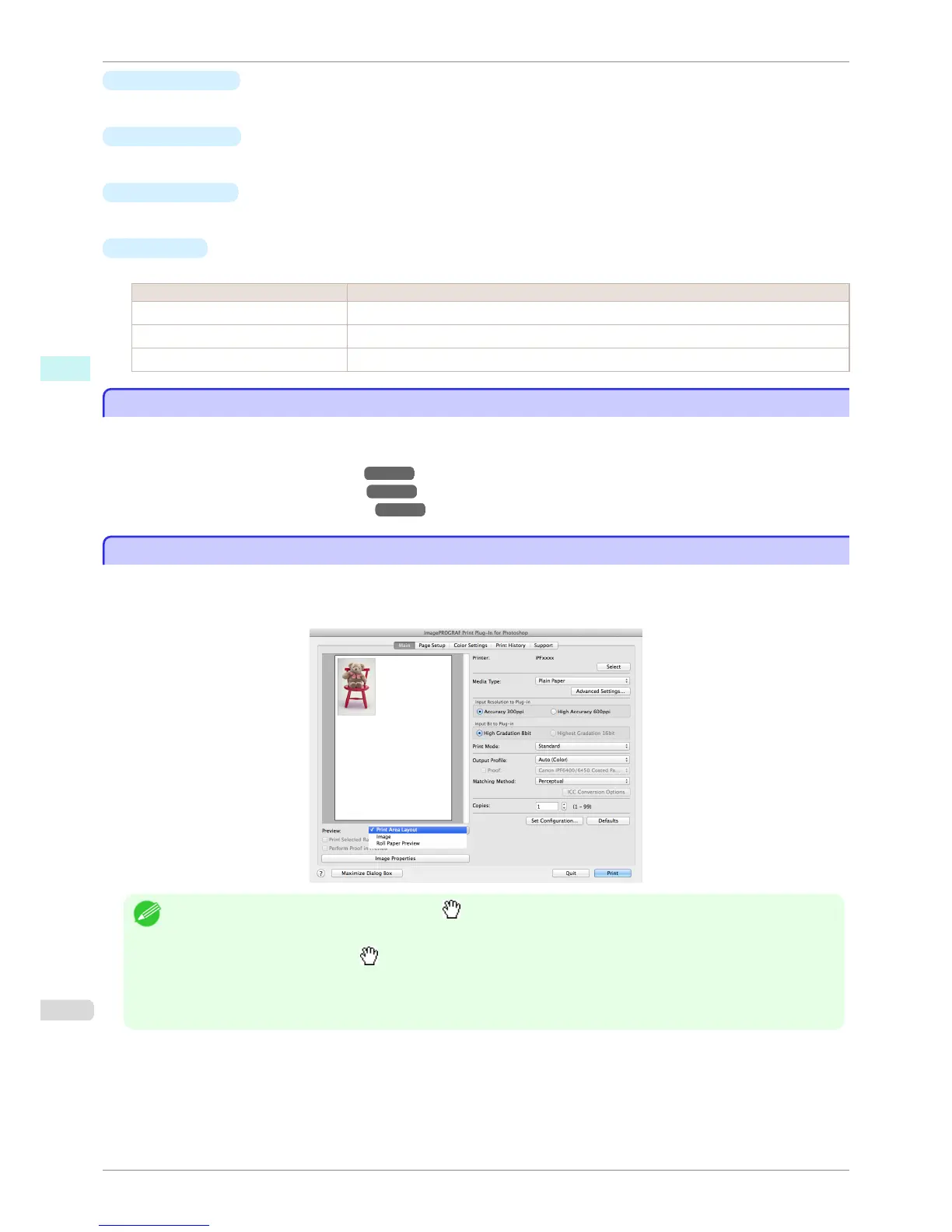
You can use Print Plug-In to check an image in three types of previews.
The preview types are as follows.
•
Check Image with Print Area Layout ➔ P.426
•
Check the original image with Image ➔ P.427
•
Check Image with Roll Paper Preview ➔ P.427
Check Image with Print Area Layout
Check Image with Print Area Layout
Displays the print range and the area out of the print range in the layout matching the media size set in the print
area layout.
Select Print Area Layout in Preview.
Note
• When the cursor on the preview is displayed as on the preview, you can specify the print position by dragging the
image.
• When the cursor is displayed as on the preview, the below conditions on the Page Setup sheet have all been met.
• There is no checkmark in Borderless Printing.
• There is no checkmark in Enlarged/Reduced Printing or Scaling has been selected.
Utilize Three Types of Previews
iPF6400S
User's Guide
Mac OS Software Print Plug-In for Photoshop / Digital Photo Professional
426













 To Next Page