Setting Item Description, Instructions
Admin.
Menu
Change Password Time Zone
Use RemoteUI
Etc.
Init.Admin.Pswd Choose OK to restore the Admin. Menu password to the de-
fault values.
Adj. Fine Feed (*3) (*4) Displayed when you have selected Feed Priority > Adj. Pri-
ority > Automatic or Print Quality. Fine-tune the feed
amount manually.
Printer
Info (*3)
Paper Info Indicates the current paper size, type, and related printer set-
tings.
Ink Info Indicates ink levels and maintenance cartridge capacity.
Head In-
fo
Printhead L Indicates information about the printhead.
Printhead R
System Info Indicates the firmware version, serial number, and interface
information.
Error Log Indicates the most recent error messages (up to five).
Other Counter Indicates the total printing volume of the printer.
*1: A rough estimate of how much ink was consumed per job is displayed. Actual ink consumption may be different. The average
margin of error for estimates calculated according to Canon measurement conditions for ink costs is ±15%. Canon does not guar-
antee the accuracy of these estimates. Estimates may vary depending on conditions of use. Calculation of these estimates does
not include ink consumed when cleaning printheads by forceful ejection of ink.
*2: Displayed only when the Spectrophotometer Unit is present.
*3: Displayed as the menu during printing while printing is in progress.
*4: Not displayed in the regular menu.
Status Print
Status Print
You can print a Status Print report indicating the current status of the printer.
With Status Print, information is printed regarding the printer firmware version, various settings, and the status of
consumables.
Printing Status Print reports
1
Load paper.
When using sheets, load paper of A4/Letter size. You will need at least four sheets.
The required sheet quantity varies depending on the execution log quantity of unique calibration.
2
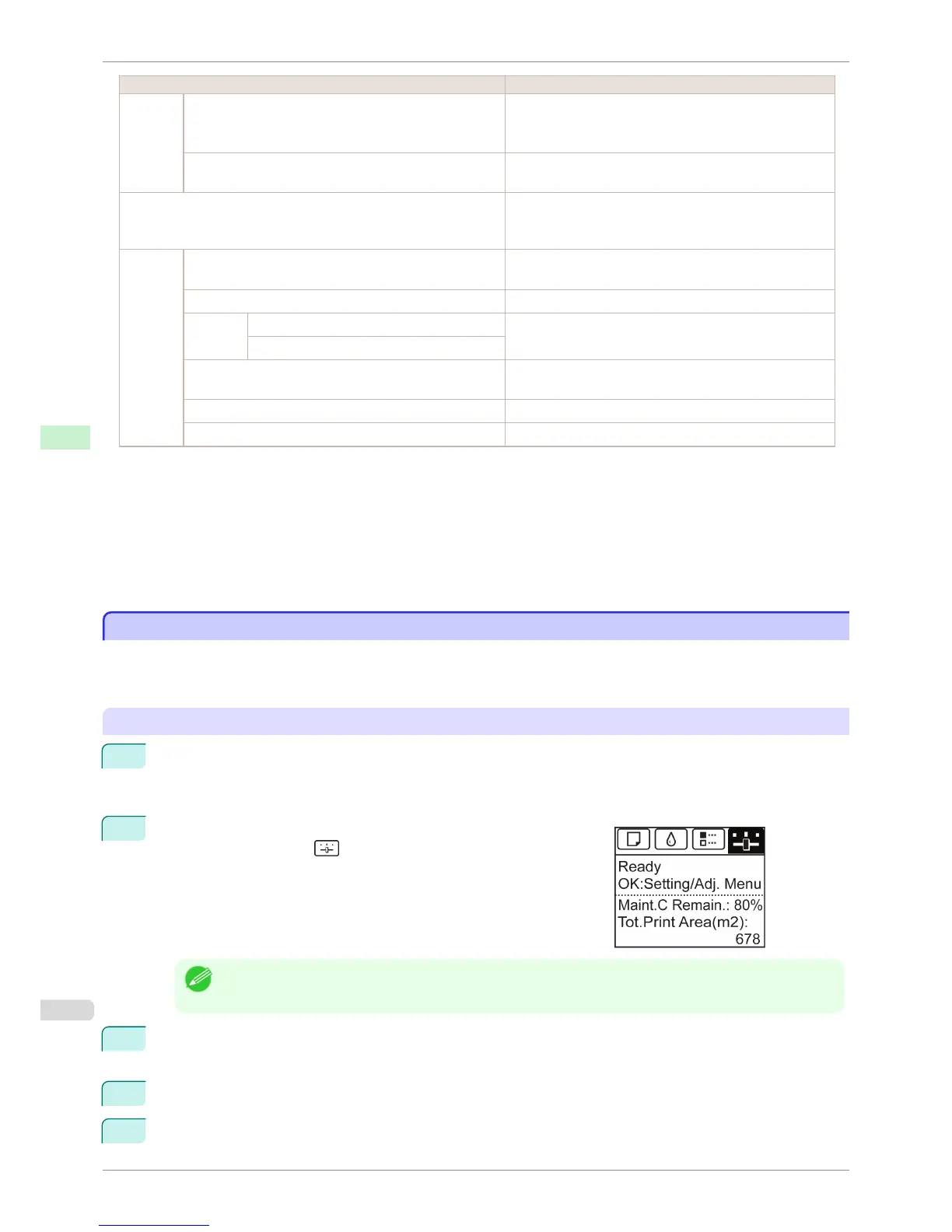
On the Tab Selection screen of the Control Panel, press ◀ or ▶ to
select Settings/Adj. tab ( ).
Note
• If the Tab Selection screen is not displayed, press the Menu button.
3
Press the OK button.
The Set./Adj. Menu is displayed.
4
Press ▲ or ▼ to select Test Print, and then press the OK button.
5
Press ▲ or ▼ to select Status Print, and then press the OK button.
Status Print
iPF6400S
User's Guide
Control Panel Printer Menu
596













 To Next Page