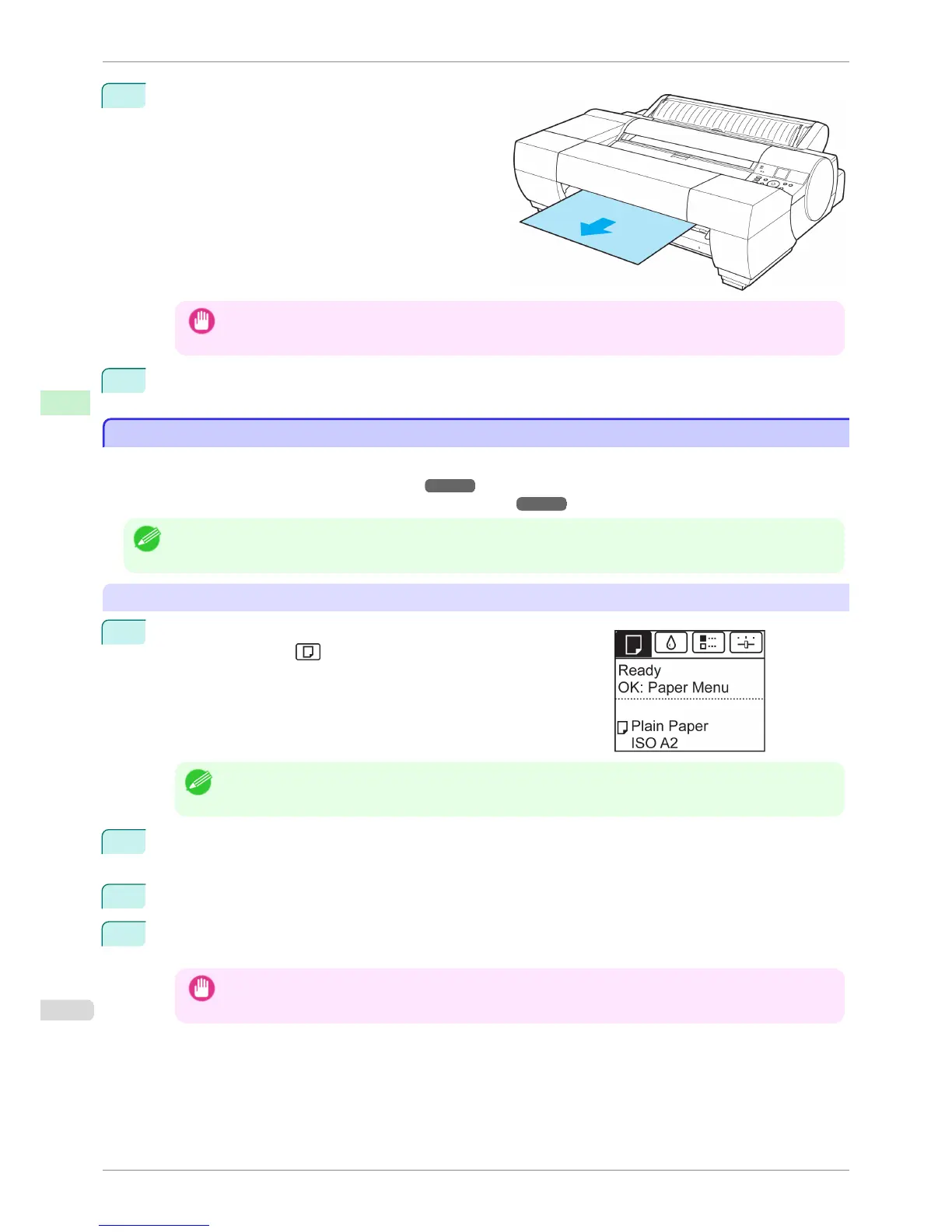
9
Remove the sheet, keeping the front edge level as
you pull it out.
Important
• If POP Board is accidentally removed at an angle, it may scratch the printed surface.
10
Press the OK button.
Removing Sheets
Removing Sheets
Remove sheets from the printer as follows.
•
Removing sheets from the top paper feed slot ➔ P.504
•
Removing heavyweight sheets from the front paper feed slot ➔ P.505
Note
• The operations for a printer with a Spectrophotometer Unit (option) are the same as for a printer with no Spectrophotome-
ter Unit (option).
Removing sheets from the top paper feed slot
1
On the Tab Selection screen of the Control Panel, press ◀ or ▶ to
select the Paper tab ( ).
Note
• If the Tab Selection screen is not displayed, press the Menu button.
2
Press the OK button.
The Paper Menu is displayed.
3
Press ▲ or ▼ to select Eject Paper, and then press the OK button.
4
Press ▲ or ▼ to select Yes, and then press the OK button.
The paper is ejected from the front of the printer.
Important
• If the trailing edge of a sheet is not ejected, pull the sheet out, keeping the front edge level. Accidentally re-
moving the sheet at an angle may scratch the printed surface.
Removing Sheets
iPF6400S
User's Guide
Handling and Use of Paper Handling sheets
504













 To Next Page