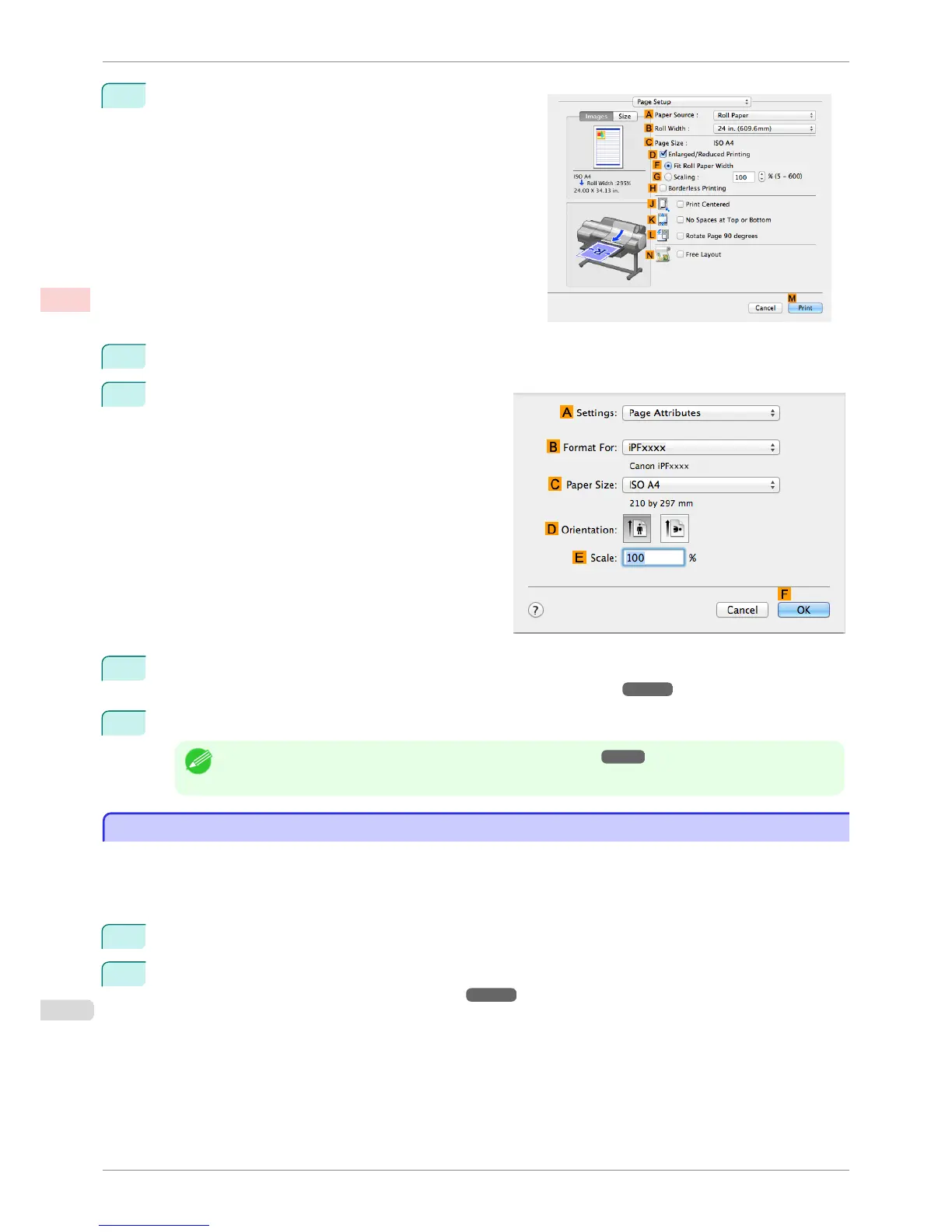
9
Access the Page Setup pane.
10
Click Manual in the A Paper Source list.
11
Make sure the C Page Size setting matches the orig-
inal size as selected in C Paper Size in the Page At-
tributes dialog box—in this case, ISO A4 - for Paper
Tray (Large Margins).
12
Specify additional printing conditions.
For details on available printing conditions, see "Printer Driver Settings ." ➔ P.318
13
Confirm the print settings, and then click M Print to start printing.
Note
• For tips on confirming print settings, see "Confirming Print Settings ." ➔ P.321
Using PosterArtist to Compose Originals
Using PosterArtist to Compose Originals
You can print a variety of source documents from word-processing or spreadsheet programs or screen shots from
web browsers after composing an original with them using PosterArtist.
This topic describes how to use PosterArtist to compose originals from multiple applications, creating a poster lay-
out for printing.
1
Choose Print in the application menu.
2
Select the printer in the dialog box, and then open the printer driver dialog box. (See "Accessing the Printer
Driver Dialog Box from Applications (Windows).") ➔ P.156
Using PosterArtist to Compose Originals
iPF6400S
User's Guide
Enhanced Printing Options Printing Photos and Office Documents
48













 To Next Page