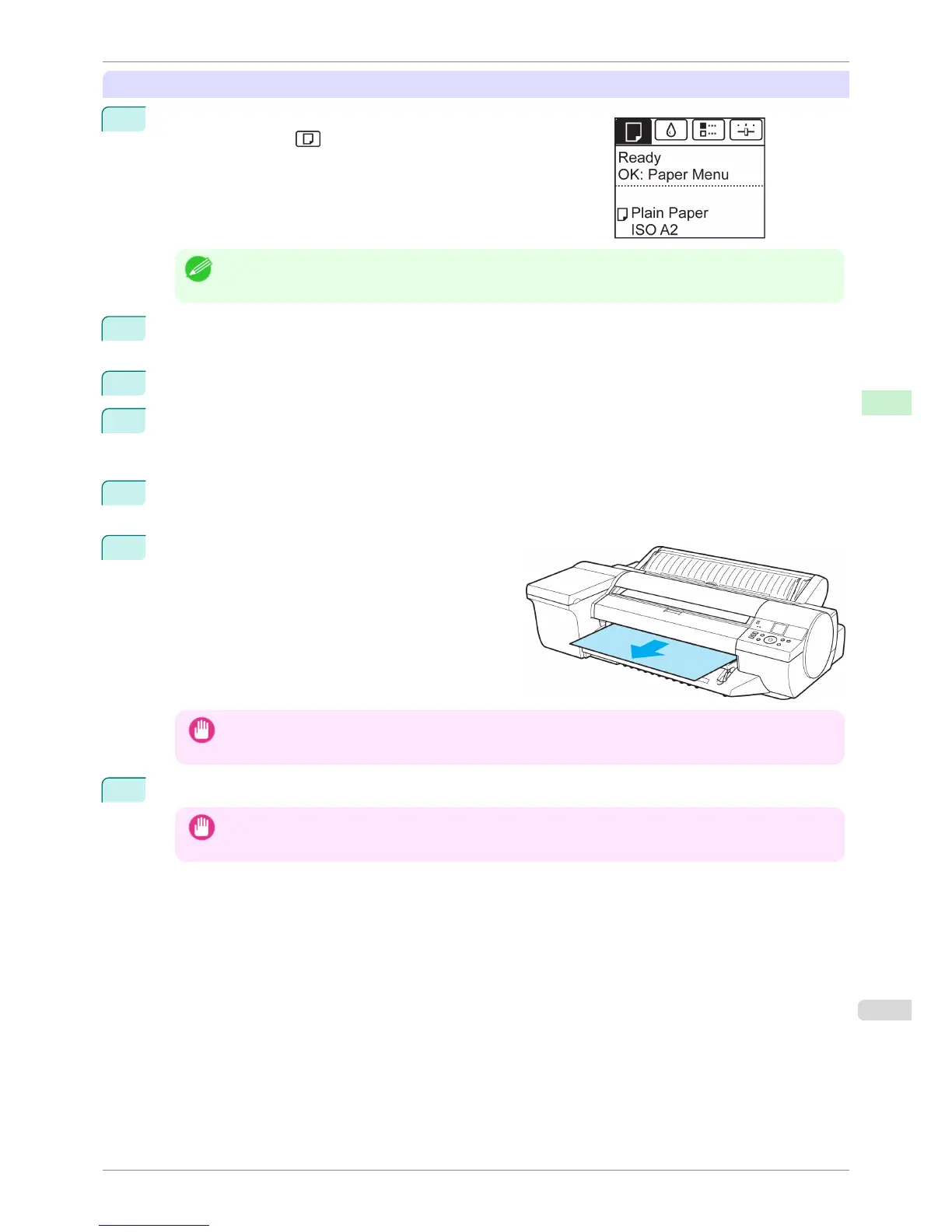
Removing heavyweight sheets from the front paper feed slot
1
On the Tab Selection screen of the Control Panel, press ◀ or ▶ to
select the Paper tab ( ).
Note
• If the Tab Selection screen is not displayed, press the Menu button.
2
Press the
OK button.
The Paper Menu is displayed.
3
Press ▲ or ▼ to select Eject Paper, and then press the OK button.
4
Press ▲ or ▼ to select Yes, and then press the OK button.
As the printer ejects the paper, the paper is stopped momentarily with the trailing edge still held in the roll-
ers.
5
Press the OK button.
The sheet can now be removed.
6
Remove the sheet, keeping the front edge level as you
pull it out.
Important
• If POP Board is accidentally removed at an angle, it may scratch the printed surface.
7
Press the OK button.
Important
• Always remove the sheet before pressing the OK button. If you do not remove the sheet before step 7, it may
go back inside the printer, leaving roller marks across the trailing edge of paper.
iPF6400S
Removing Sheets
User's Guide
Handling and Use of Paper Handling sheets
505













 To Next Page