8
In the A Media Type list, select the type of paper that is loaded. In this case, click Plain Paper.
9
Make your selection in the E Print Target list.
10
Make your selection in the F Print Quality list.
11
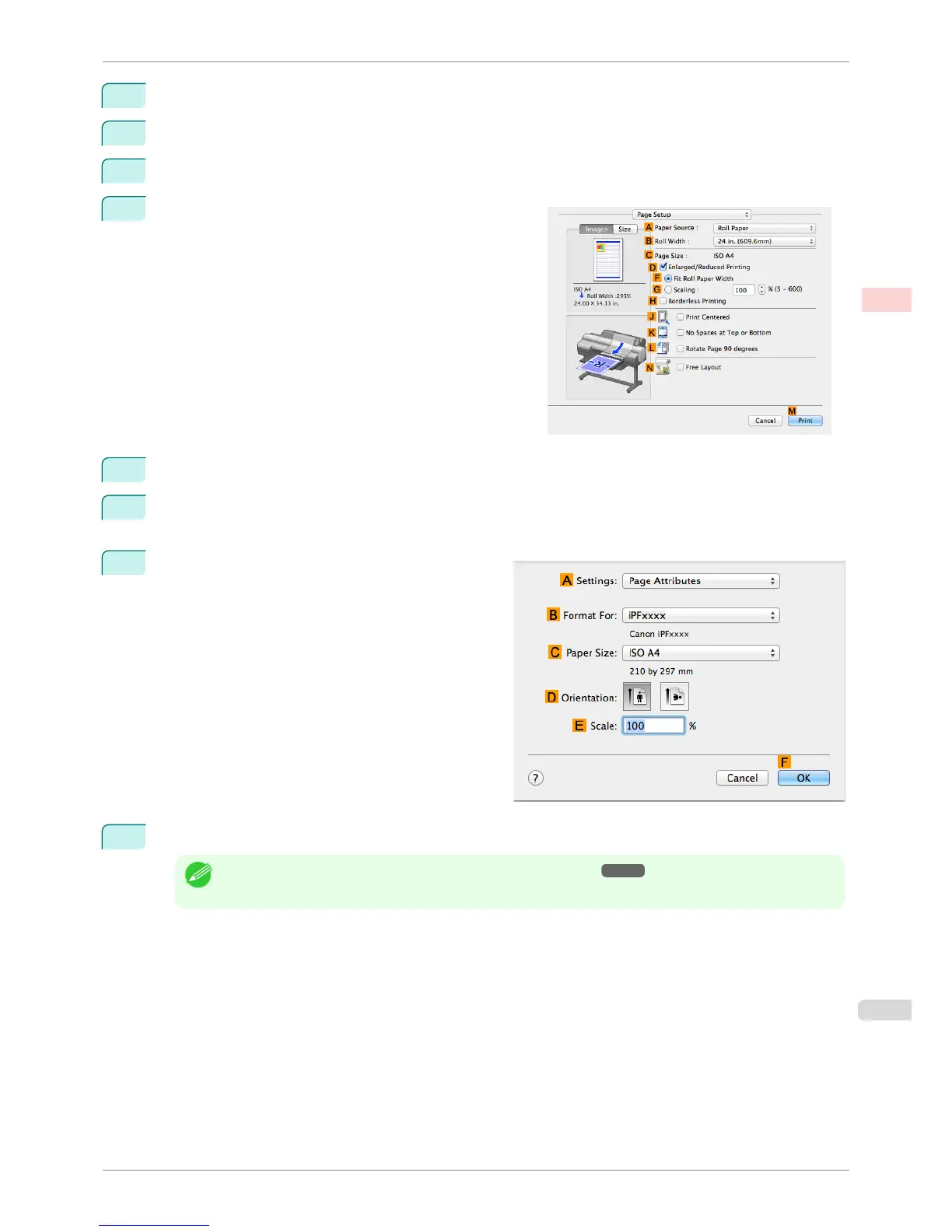
Access the Page Setup pane.
12
Select and click a roll paper in the A Paper Source list.
13
Select the paper width of the roll loaded in the printer for B Roll Width. In this case, ISO A2/A3 (420.0mm)
is selected.
14
Make sure C Page Size shows the original size as
specified in C Paper Size in the Page Attributes di-
alog box—in this case, ISO A3.
15
Confirm the print settings, and then click M Print to start printing.
Note
• For tips on confirming print settings, see "Confirming Print Settings ." ➔ P.321
iPF6400S
Printing Multiple Pages Per Sheet (Mac OS)
User's Guide
Enhanced Printing Options Tiling and multiple pages per sheet
117













 To Next Page