2
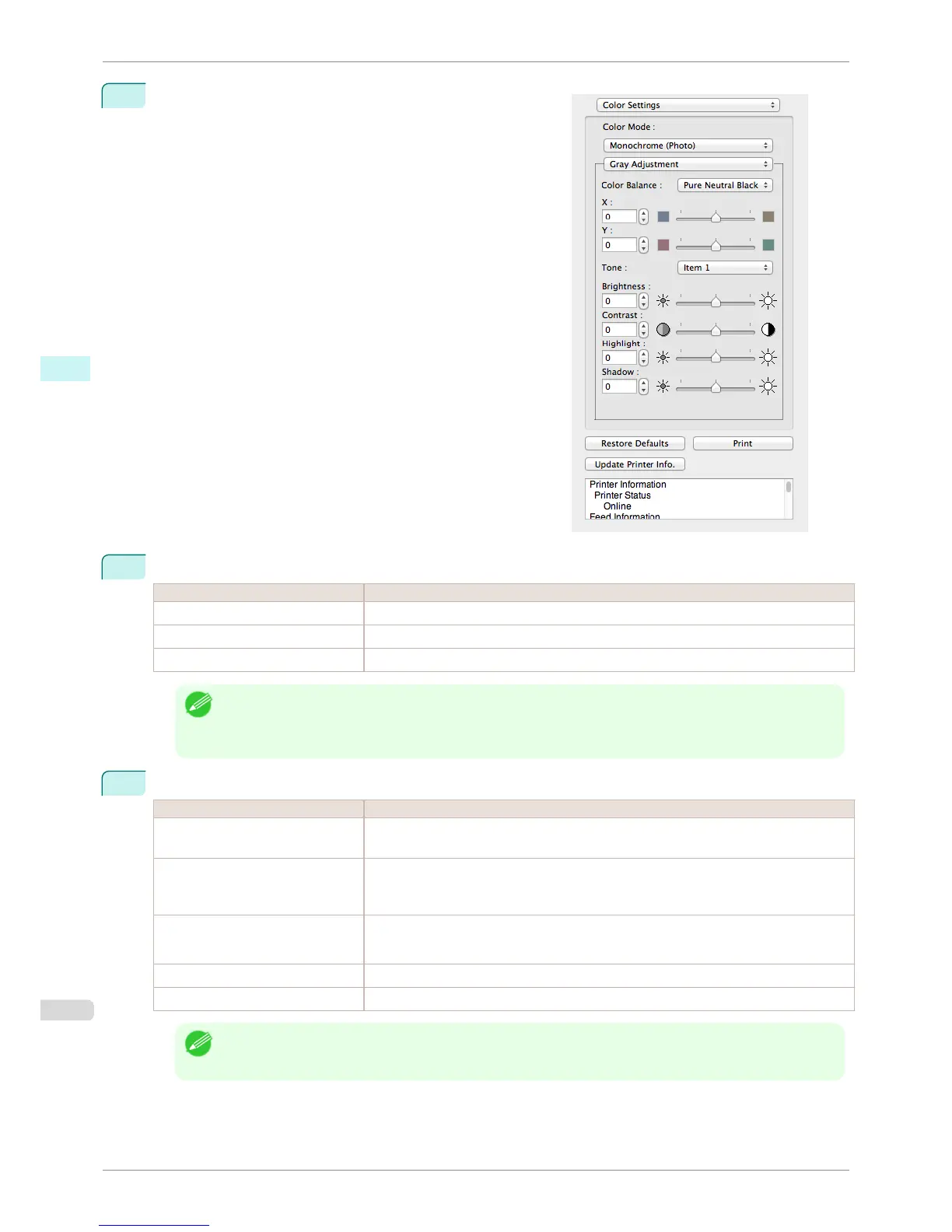
Select Gray Adjustment.
3
Click the Color Balance list and select the color settings.
Setting Details
Cool Black Adjusts cool black (blue tones) to gray.
Pure Neutral Black Adjusts to neutral gray.
Warm Black Adjusts warm black (red tones) to gray.
Note
• To perform the adjustments, drag the X or Y slide bar left and right.
• You can also click the up or down arrow, or enter the number directly to increase or decrease the value by X
and Y.
4
Drag each slider to the left or right to adjust.
Setting Details
Tone You can adjust the brightness of intermediate tones in an image. Selecting Hard tone gives
a hard impression with more definition. Selecting Soft tone gives a soft impression.
Brightness Adjusts the brightness of the entire image. When the results of the printout are brighter than
the original images such as the original photo before scanning and graphics created on the
display, or when you want to print in different degrees of brightness, use this feature.
Contrast Adjusts the relative brightness between the brightest and darkest portions of the image.
*For soft gradation, decrease the contrast. For hard gradation, increase the contrast.
Highlight Adjusts the brightness of the brightest areas.
Shadow Adjusts the brightness of the darkest areas.
Note
• You can also click the up or down arrow, or enter the number directly to increase or decrease the value.
• The availability of settings depends on the selected the media type.
Gray Adjustment
iPF6400S
User's Guide
Mac OS Software Free Layout
370













 To Next Page