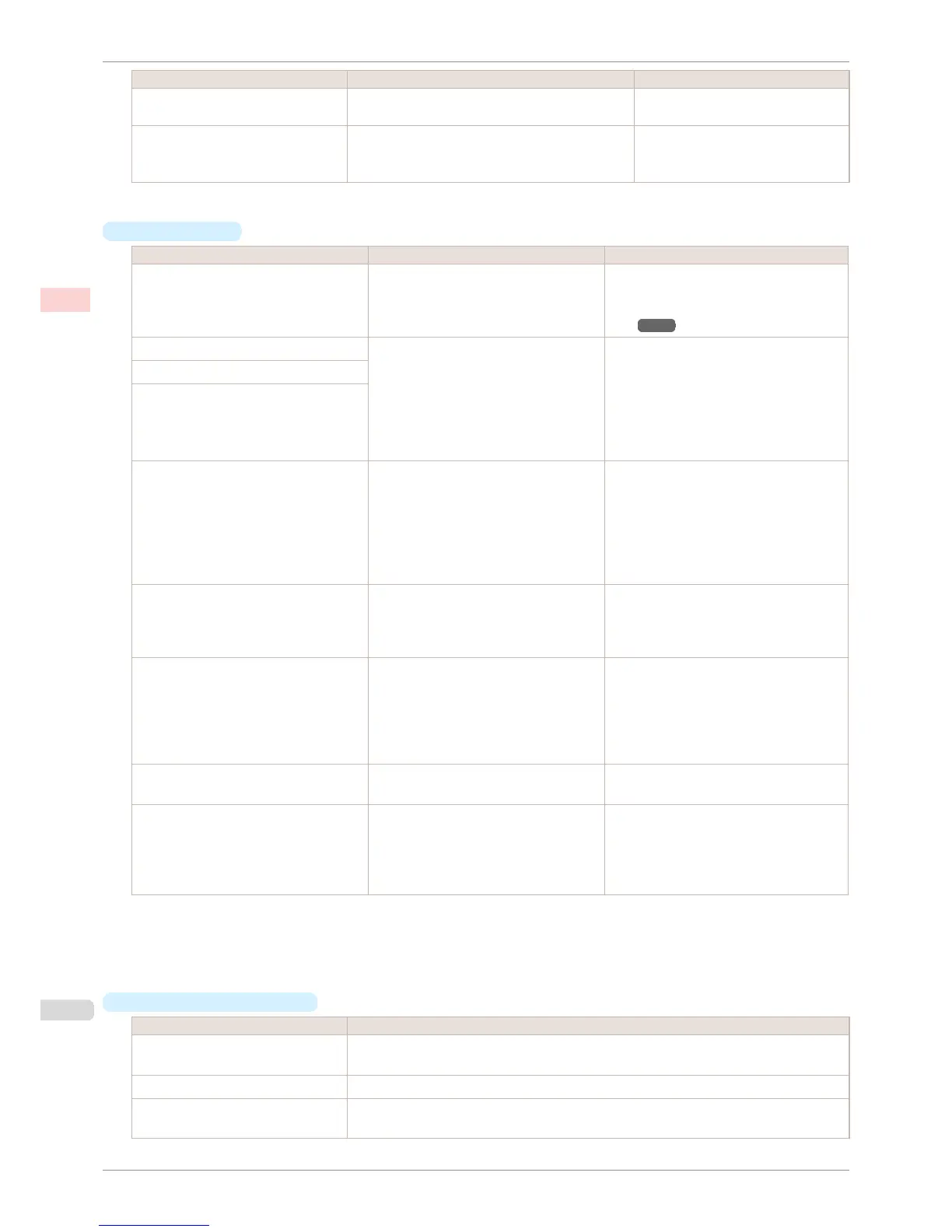
Print Quality (*1) Description Print Priority
Standard Printing takes less time than in Highest or High
mode.
Proof
Fast Choose this setting to print faster.
Printing in draft mode can help you work more effi-
ciently when checking layouts.
Image
Line Drawing/Text
*1: Options suitable for the selected Print Priority are listed under Print Quality.
•
Color Settings
Setting Item Options Description
Color Mode (*1) Color
Monochrome (Photo)
Monochrome
No color correction
Choose whether to print in color or mono-
chrome.
(See "Adjusting the Color in the Printer Driv-
er.") ➔ P.51
Color Adjustment (Images) Cyan
Magenta
Yellow
Gray Tone
Brightness
Contrast
Saturation
You can adjust the levels of cyan, magenta,
and yellow as well as the brightness, con-
trast, saturation, and gray tone separately
for images, graphics, and text documents.
If you choose Monochrome in Color Mode
only Brightness and Contrast can be ad-
justed.
Color Adjustment (Graphics)
Color Adjustment (Text)
Gray Adjustment Color Balance
Tone
Brightness
Contrast
Highlight
Shadow
Choose the gray tone color balance ( Cool
Black or Warm Black ) and adjust levels of
brightness, the brightness of intermediate
tones, contrast, highlight, and shadow as
desired.
These levels can be adjusted when Mono-
chrome (Photo) is selected in Color Mode.
Color-Matching Modes Driver Matching Mode
ICC Matching Mode
Choose the color-matching mode. Other col-
or-matching modes may be provided by the
computer operating system, such as ICM
and ColorSync.
Color-Matching Method (*2) Auto
Perceptual
Saturation
Monitor Matching
Colorimetric
other
Choose the color-matching method. The
available options vary depending on your
selection in Color-Matching Mode.
Color Space (*3) sRGB
Adobe RGB
Choose a standard color space (sRGB ) or
an expanded color space ( Adobe RGB).
Gamma 2.2
1.8
You can adjust the gradation of intermediate
tones in an image.
You can select only after Driver Matching
Mode has been selected in Matching
Mode.
*1: Options suitable for the selected Print Priority and Media Type are listed under Color ModePrint Priori-
ty.
*2: The order of options displayed varies depending on the operating system.
*3: Adobe RGB is not available if an incompatible combination of the paper type and print quality is selected.
•
Enhancing printing quality
Setting Item Description
Highest quality This prints at the highest resolution. Printing takes longer and consumes more ink than in other
modes, but this mode offers superior printing quality.
Thicken Fine Lines Prints making fine lines appear thicker.
Unidirectional Printing Prints by suppressing color variations and misaligned ruled lines. However, this takes more
time than regular printing.
Giving Priority to Particular Graphic Elements and Colors for Printing
iPF6400S
User's Guide
Enhanced Printing Options Adjusting Images
58













 To Next Page