Using the Control Panel
1
On the Tab Selection screen of the Control Panel, press ◀ or ▶ to
select the Job tab ( ).
Note
• If the Tab Selection screen is not displayed, press the Menu button.
2
Press the OK button.
The Job Menu is displayed.
3
Manage the job queue as needed.
•
Deleting jobs
1.
Press ▲ or ▼ to select Print Job, and then press the OK button.
2.
Press ▲ or ▼ to select the print job to delete, and then press the OK button.
3.
Press ▲ or ▼ to select Delete, and then press the OK button.
•
Preempting other jobs
1.
Press ▲ or ▼ to select Print Job, and then press the OK button.
2.
Press ▲ or ▼ to select the job to print first, and then press the OK button.
3.
Press ▲ or ▼ to select Preempt Jobs, and then press the OK button.
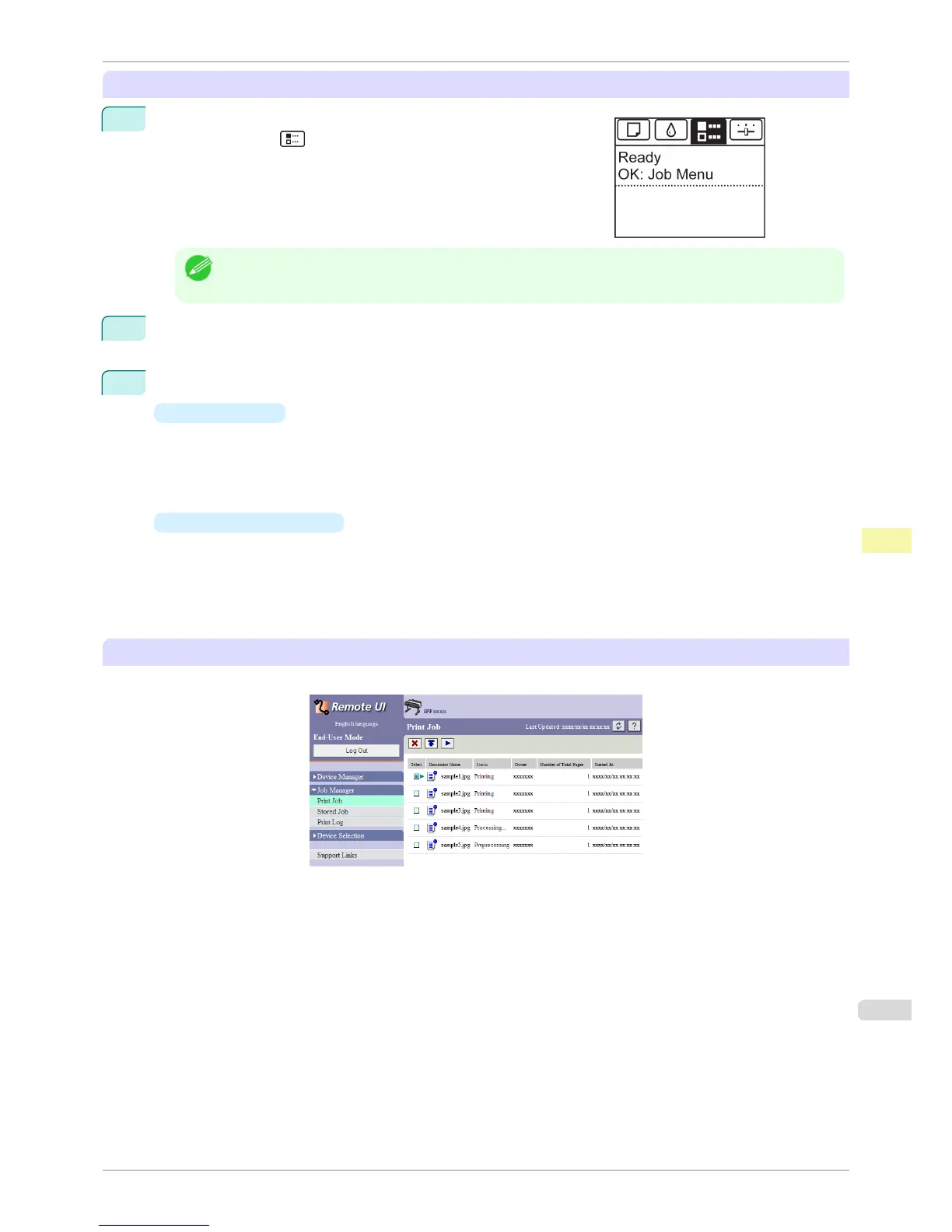
Using RemoteUI
Manage jobs as needed on the Print Job page. For details, refer to the RemoteUI help.
iPF6400S
Managing the Job Queue (Deleting or Preempting Other Jobs)
User's Guide
Print Job Management Basic Print Job Operations
671













 To Next Page