Using the Control Panel
1
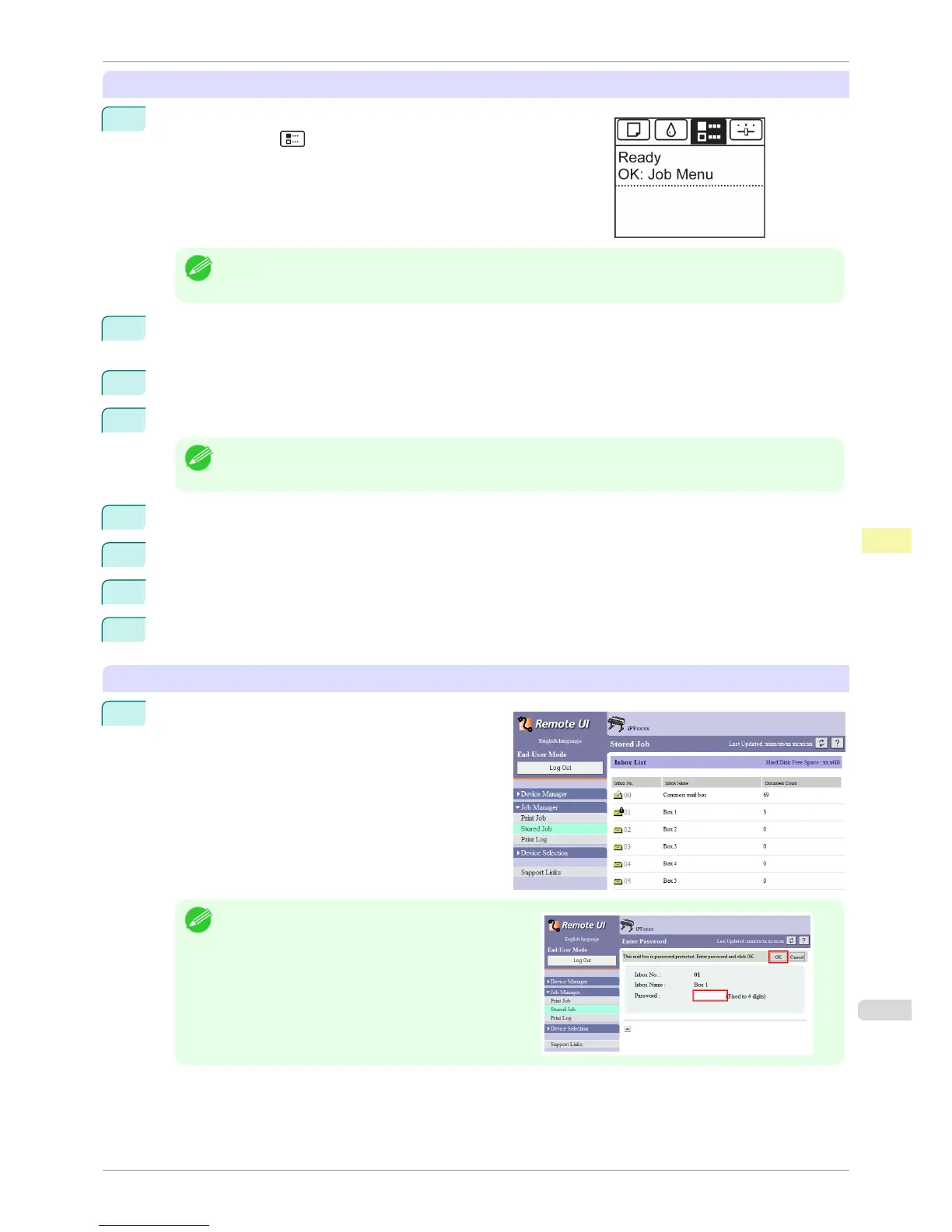
On the Tab Selection screen of the Control Panel, press ◀ or ▶ to
select the Job tab ( ).
Note
• If the Tab Selection screen is not displayed, press the Menu button.
2
Press the OK button.
The Job Menu is displayed.
3
Press ▲ or ▼ to select Stored Job, and then press the OK button.
4
Press ▲ or ▼ to select the box number (in the range 00–29), and then press the OK button.
Note
• Enter a password if one has been set, and then press the OK button.
5
Press ▲ or ▼ to select Job List, and then press the OK button.
6
Press ▲ or ▼ to select the saved job, and then press the OK button.
7
Press ▲ or ▼ to select Delete, and then press the OK button.
8
Press ▲ or ▼ to select Yes, and then press the OK button.
Using RemoteUI
1
On the Stored Job page, choose the mail box.
Note
•
Enter a password if one has been set.
iPF6400S
Deleting Saved Jobs
User's Guide
Print Job Management Basic Print Job Operations
679



 To Next Page