4
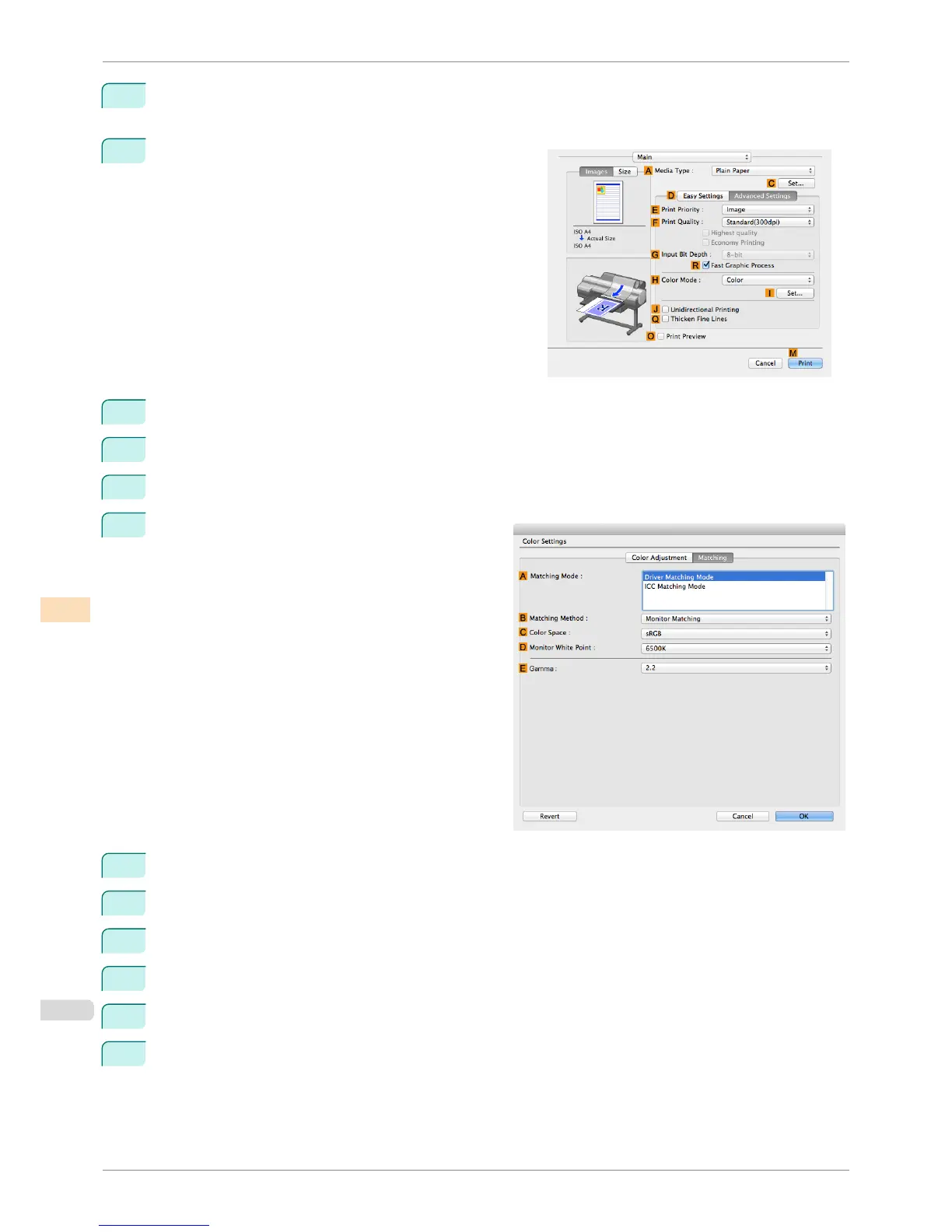
In the A Media Type list, select the type of paper that is loaded (for example, Canon Premium Glossy
Paper 2 280).
5
Click D Advanced Settings to switch the print mode.
6
In F Print Quality, click High.
7
Click Color in the H Color Mode list.
8
Click I Set to display the Color Settings dialog box.
9
Click the Matching tab to display the Matching pan-
el.
10
Make sure Driver Matching Mode is selected in A Matching Mode.
11
In B Matching Method, select Monitor Matching.
12
In C Color Space, select the color space used when displaying the file in the source application.
13
In D Monitor White Point, select the white point set on the monitor.
14
Click OK.
15
Confirm the print settings and print as desired.
Printing Images to Match Monitor Colors (Mac OS)
iPF6400S
User's Guide
Color Management Monitor Matching
728













 To Next Page