(See "Executing Color Calibration (Mac OS).") ➔ P.800
•
Preparing the Printer
1
You can confirm whether the paper to be loaded can be used in color calibration.
(See "Displaying the Paper Reference Guide.") ➔ P.464
2
Load the paper.
(See "Loading Rolls on the Roll Holder.") ➔ P.471
(See "Loading Rolls in the Printer.") ➔ P.473
(See "Loading Sheets in the Feed Slot.") ➔ P.495
•
Executing Color Calibration from the Control Panel on the Printer
1
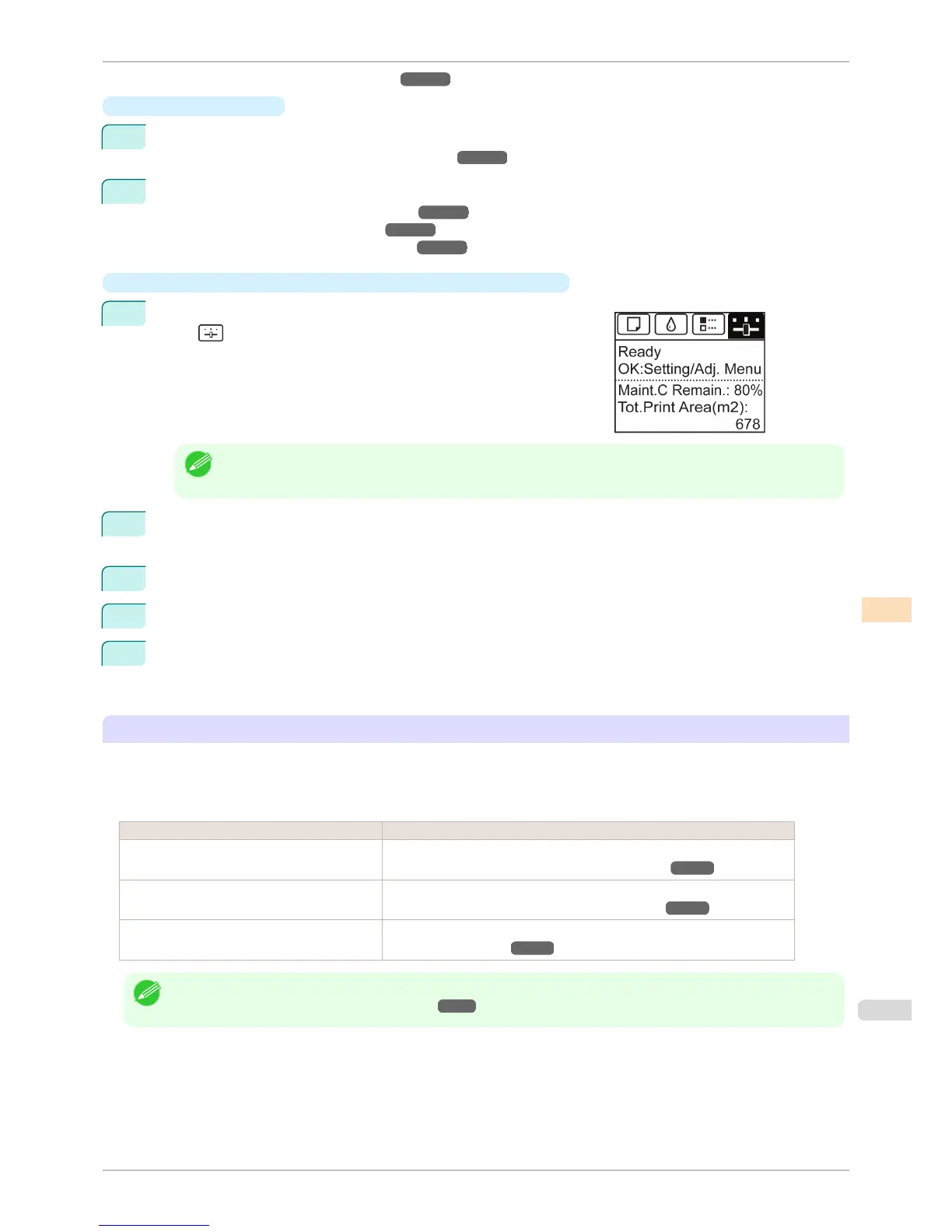
On the Tab Selection screen of the Control Panel, press ◀ or ▶ to
select (Settings/Adj. tab).
Note
• If the Tab Selection screen is not displayed, press the Menu button.
2
Press the OK button.
Set./Adj. Menu is displayed.
3
Press ▲ or ▼ to select Adjust Printer, and then press the OK button.
4
Press ▲ or ▼ to select Calibration, and then press the OK button.
5
Press ▲ or ▼ to select Auto Adjust, and then press the OK button.
After the environment measurements and paper are confirmed, and color calibration is executed, the cali-
bration adjustment value is set automatically.
Applying Calibration Adjustment Values During Printing
The application of the calibration adjustment values when printing can be set in the printer driver or on the menu of
the Control Panel.
However, when the setting value of the printer driver and the setting value of the Control Panel differ, the setting of
the printer driver is prioritized.
How to Apply How to Operate
Configure on the printer driver menu. (Windows) Configure Calibration Value.
(See "Paper Detailed Settings Dialog Box (Windows).") ➔ P.161
Configure on the printer driver menu. (Mac OS) Configure Calibration Value.
(See "Paper Detailed Settings Dialog Box (Mac OS).") ➔ P.326
Configure on the menu of the Control Panel. From Set./Adj. Menu, select Adjust Printer > Calibration > Use Adj. Value.
(See "Menu Settings.") ➔ P.587
Note
• After color calibration, you can use the printer driver to make further color adjustments as necessary.
(See "Adjusting the Color in the Printer Driver.") ➔ P.51
iPF6400S
Color Calibration Using the Printer Sensor
User's Guide
Color Management Color Calibration
737













 To Next Page