Important
• Your hands may become dirty during Printhead replacement. Use the gloves provided with the new Printhead for re-
placement.
Note
• Prepare a new Ink Tank when ink levels are low.
• When the remaining capacity of Maintenance cartridge is low, prepare a new Maintenance cartridge.
1
Remove any paper that has been advanced by selecting Eject Paper in the Control Panel menu.
•
When using a roll, rewind it.
(See "Removing the Roll from the Printer.") ➔ P.478
•
When using sheets, remove the sheet.
(See "Removing Sheets.") ➔ P.504
2
Clean inside the Top Cover. (See "Cleaning Inside the Top Cover.") ➔ P.839
3
On the Tab Selection screen of the Control Panel, press ◀ or ▶ to
select the Settings/Adj. tab ( ).
Note
• If the Tab Selection screen is not displayed, press the Menu button.
4
Press the OK button.
The Set./Adj. Menu is displayed.
5
Press ▲ or ▼ to select Maintenance, and then press the OK button.
6
Press ▲ or ▼ to select Replace P.head, and then press the OK button.
7
Press ▲ or ▼ to select the Printhead for replacement.
Select Printhead L when replacing the left printhead and Printhead R when replacing the right printhead.
Make sure your selection is correct.
8
Press the OK button.
The ink begins to be drawn in, and instructions appear on the Display Screen after this has finished.
It takes about three minutes for the ink to be drawn in.
Replace the Printhead
1
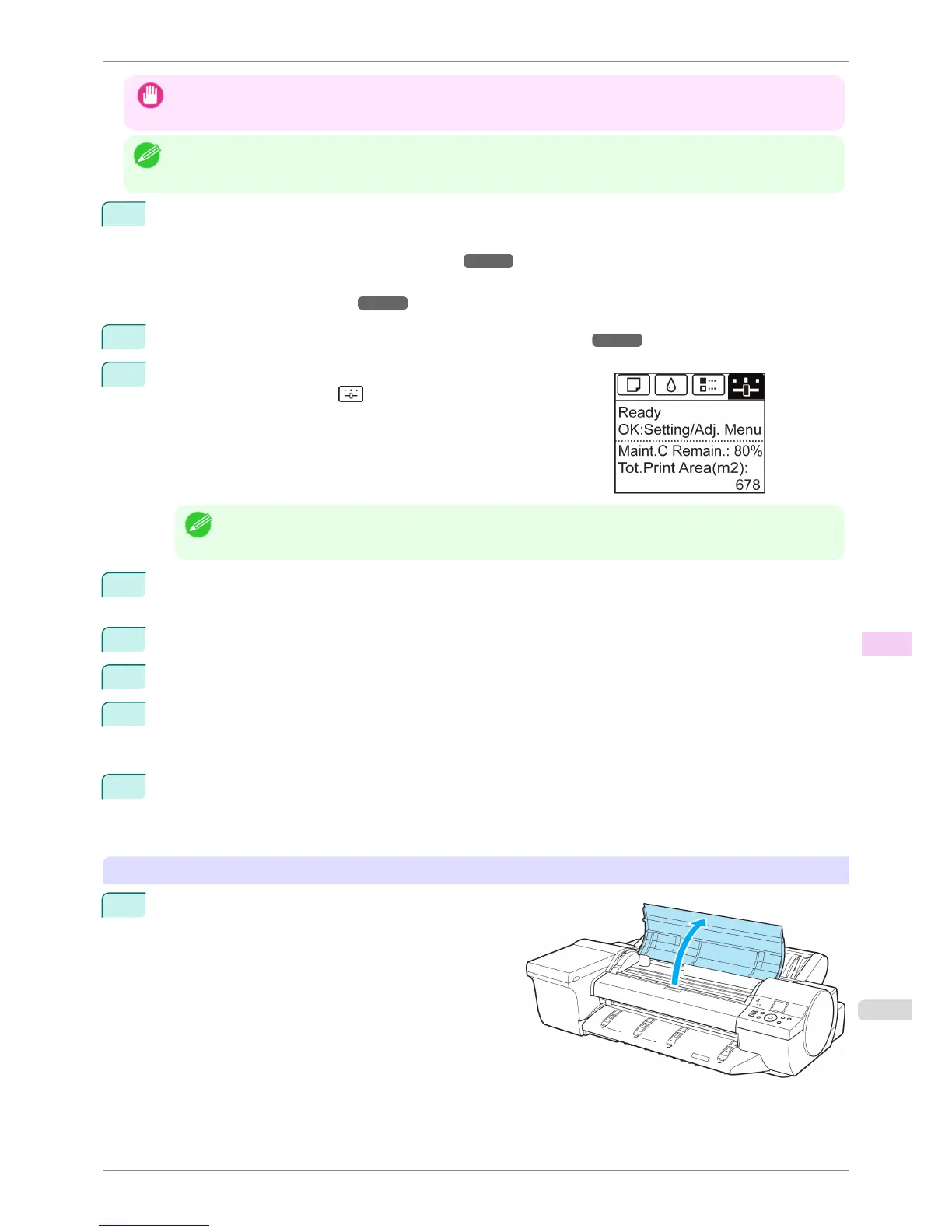
Open the Top Cover.
Instructions are now shown on the Display Screen re-
garding Printhead replacement.
iPF6400S
Replacing the Printhead
User's Guide
Maintenance and Consumables Printheads
827













 To Next Page