Note
• If the Tab Selection screen is not displayed, press the Menu button.
3
Press the OK button.
The Set./Adj. Menu is displayed.
4
Press ▲ or ▼ to select Prep.MovePrinter, and then press the OK button to display the confirmation
screen.
5
Press ▲ or ▼ to select Yes, and then press the OK button.
Once preparations are finished, a message on the Display Screen requests you to open the Ink Tank Cov-
er.
Important
• If consumables must be replaced, the message "Consumables must be replaced. Call for service." is
shown on the Display Screen and preparation is not possible. If this message is displayed, press the OK but-
ton and contact your Canon dealer for assistance.
Remove the Ink Tank
1
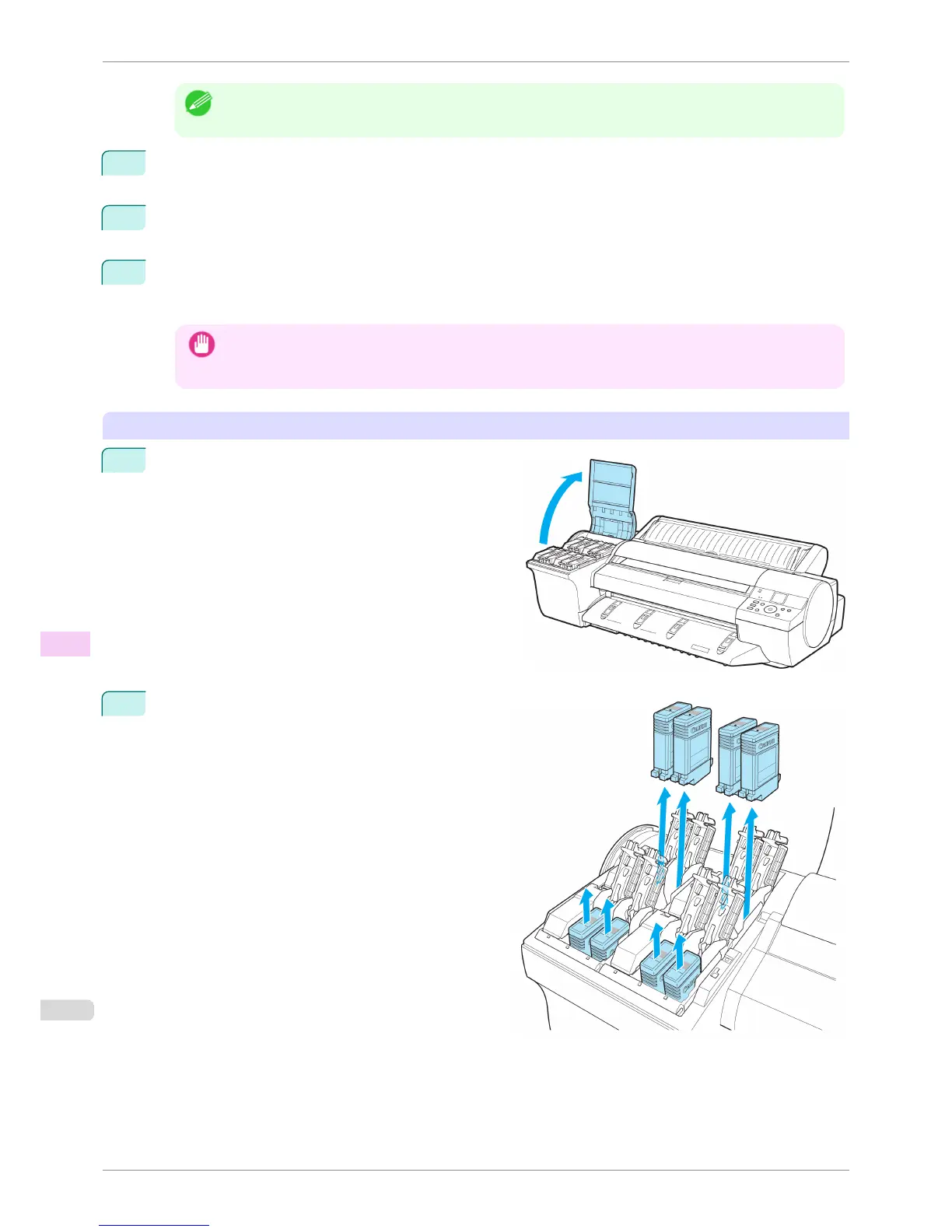
Open the Ink Tank Cover.
2
Lift the ink tank lock levers and remove all ink tanks.
Put the ink tanks in a plastic bag and seal it.
Preparing to Transfer the Printer
iPF6400S
User's Guide
Maintenance and Consumables Other Maintenance
856













 To Next Page