92
Compulite
Chapter 5
To add text tags to chase steps: Press CHASE and select the chase. Then press STEP and
press
1.
2 Press TEXT and type your text on the keyboard or use the soft keyboard on the touch
screen.
3 Press
ENTER or STORE or tap OK.
The text tag appears in the object’s cell on the touch screen.
Setting fade times
Fade times are set using the wheels and options available on the touch screen in time mode.
Default fade time settings
The general default fade time for scenes, cues, chases, and chases is fade in 0:01.0 seconds and no
delay.
The general default fade time can be changed in
System Options Defaults Object Time Scene.
You can also set default fade times for each type of lighting object - scenes, cues, chases, and
chases, See “Defaults” page 165.
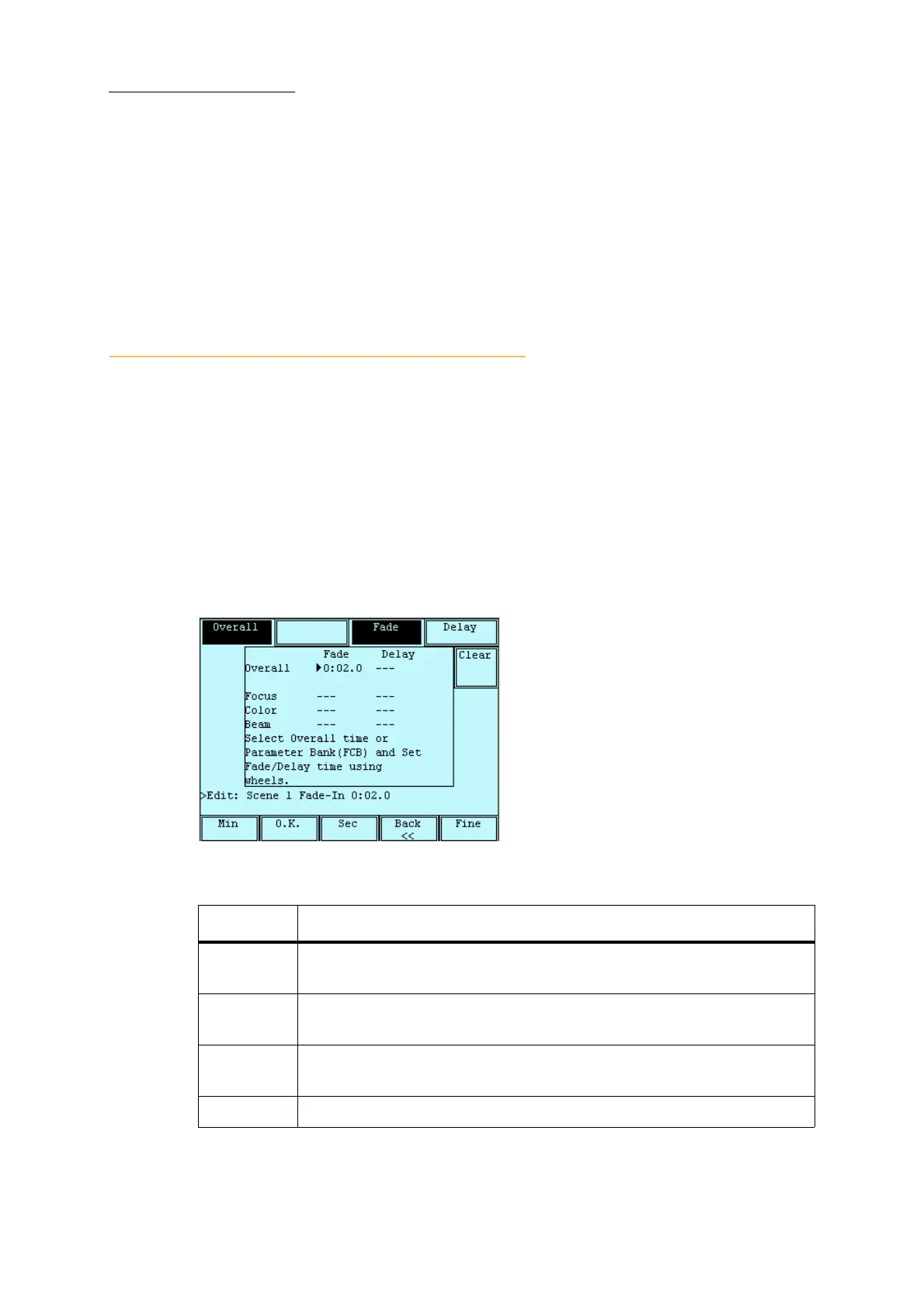
Figure 24: Setting object default times
The options are:
Buttons What they do
OVERALL
Set fade time for the entire lighting object (scene, cue, chase step). This is the
default selection.
FADE
Fade in time for the entire lighting object or parameter bank. This is the default
selection.
DELAY
Delay (wait) time. How long the scene or parameters waits before beginning its
fade.
CLEAR
Resets the selected item to the system default.



 To Next Page