118
Compulite
Chapter 7
Using the grab fader
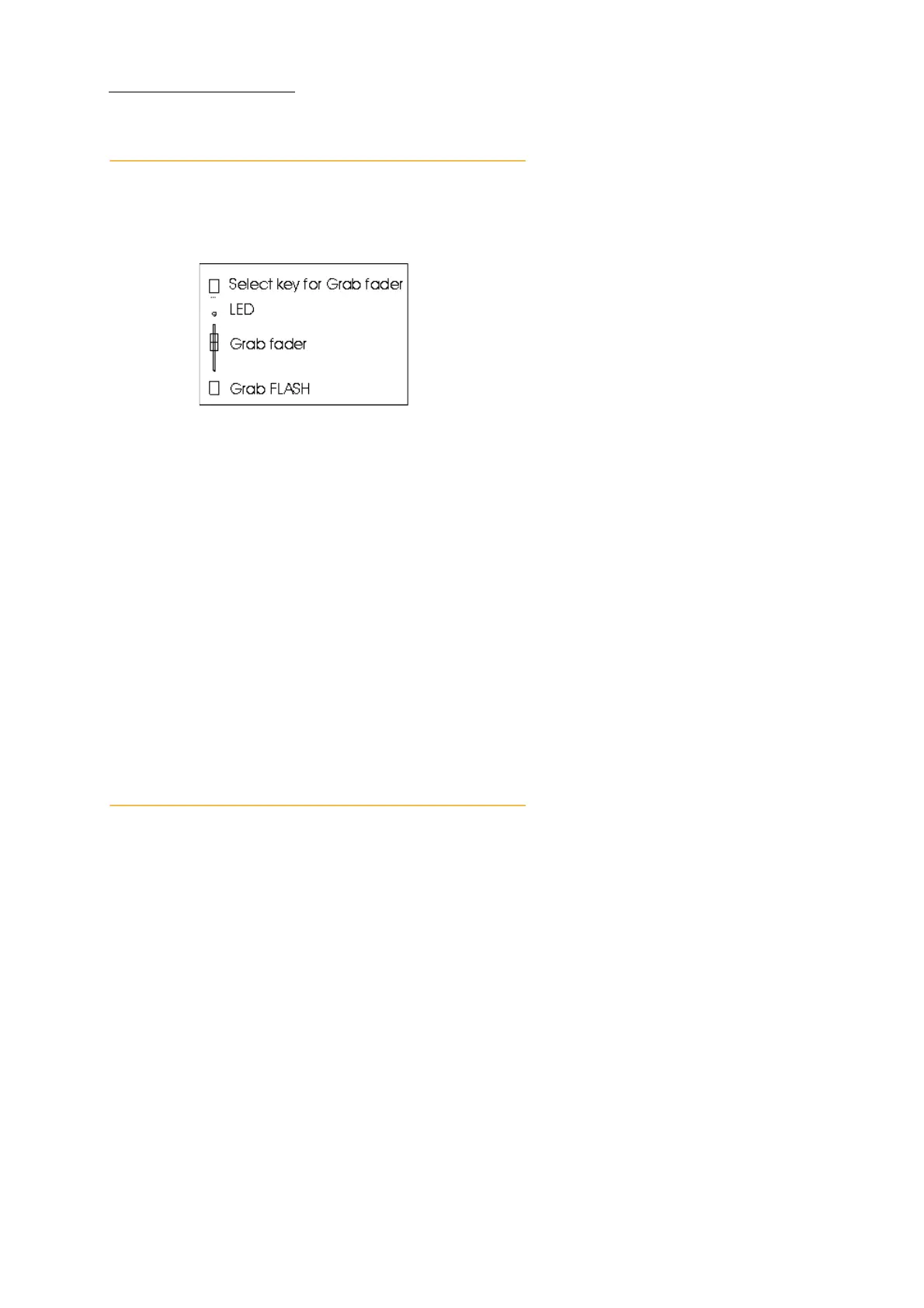
The grab fader captures fixtures and their parameter levels that are active in the editor. The captured
lighting look is temporarily saved as scene 0.
Figure 31: Grab fader
To grab the active editor
1 Select fixtures and set parameter levels.
2 Press
STORE.
The
STORE options are displayed.
3 Optional - choose a store option.
4 Press the grab fader’s
SELECT key.
Temporary scene 0 is load to the grab fader. Control the grab fader’s output level with the
fader handle.
To free the grab fader
1 Press
FREE.
2 Press the grab fader’s
SELECT key.
Faders as editor
When FADERS AS EDITOR is enabled, values from the faders are active in the editor. The levels in
the editor are determined by a fader’s amplitude. Example: In wide mode, fade up channel 1. This
level is now active in the editor. and appears on a white field.
This feature can provide a convenient way to build a lighting look, which can be saved as a scene,
chase step, or cue.
To enable/disable fader as editor
1 Press
SETUP.
2 Tap
System Options.
3 Tap the
Behavior tab.
4 Tap
FADERS AS EDITOR.



 To Next Page