14
Compulite
Chapter 1
Deleting objects
To delete objects
1 Press
DELETE.
2 Select the object type by pressing its key on the editing keypad. Example: Press
SCENE to
delete a scene.
3 Choose the object’s number on the editing keypad.
Or
Select a range of objects. Example:
SCENE # #.
4 Press
ENTER.
Confirmation is requested.
5 Tap
OK or press ENTER.
The object is deleted.
Adding text tags to objects
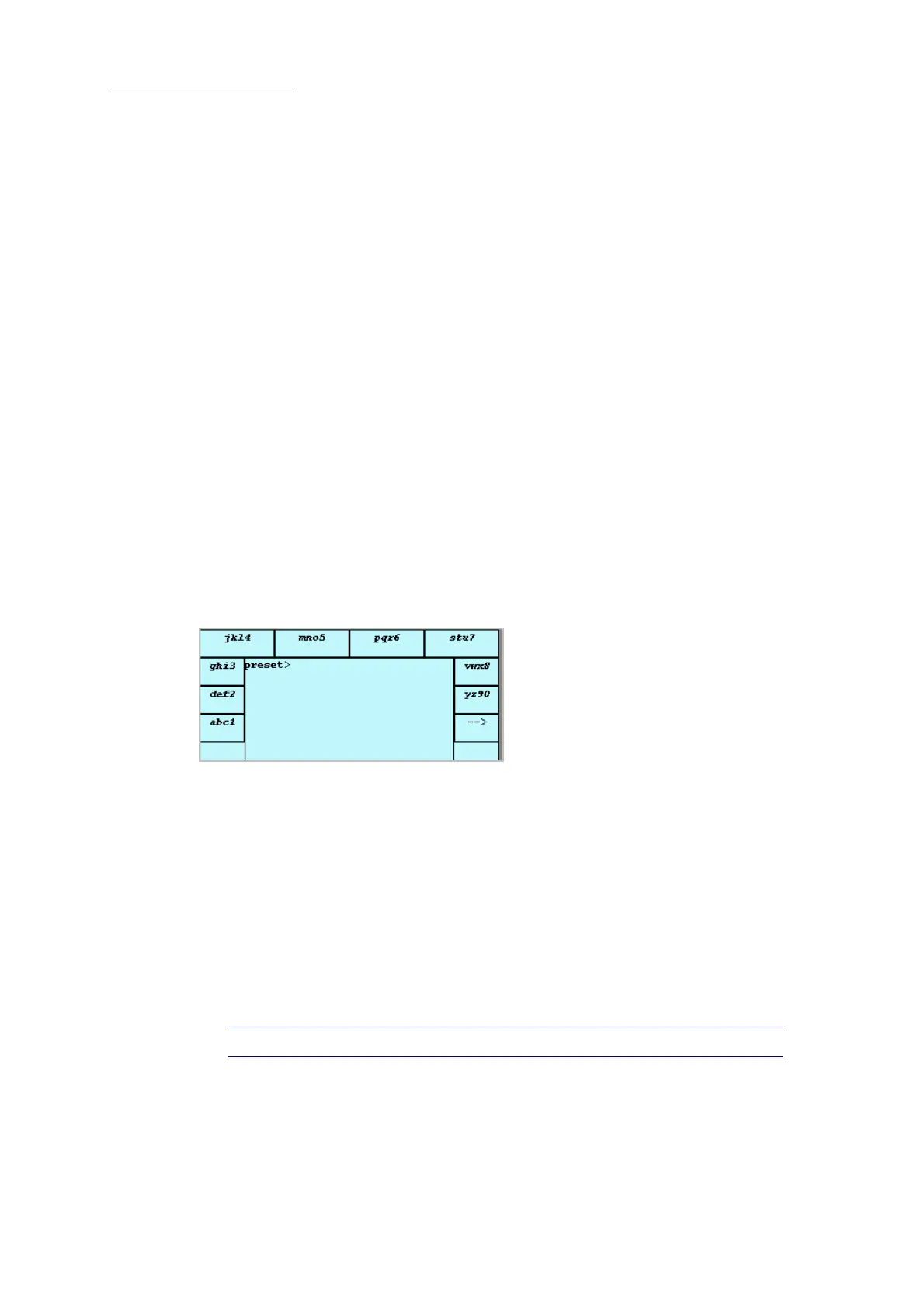
You can tag all objects with text tags for easy identification. Text is entered using the touch screen
text or an external keyboard. The maximum number of characters displayed on the touch screen is
18-20.
Figure 9: Touch screen text “keyboard”
To tag objects
1 Select the object.
2 Press
TEXT.
The text box opens.
3 Type text on the external keyboard or tap the touch screen text characters until the desired
character is displayed in the text field.
4 Tap
OK or press STORE or press ENTER.
The object is stored with its text tag.
Tip! Press SHIFT for capital letters when using the touch screen text editor.



 To Next Page