84
Compulite
Chapter 5
3 Press ENTER.
The scene, chase step, or cue is loaded to the editor.
4 Select the fixtures and set the new levels.
Press
UPDATE.
Updating lighting objects on a range of playbacks
Globally update scenes and cues, output from a range of playbacks, regardless of the type of
lighting object. If the object is a chase step, this procedure creates a new step.
Example: Dlite’s current output is:
To update lighting objects on a range of playbacks
Example: Update the objects on playbacks 2, 3, and 4.
1 Select fixtures and set levels.
2 Press
UPDATE.
3 Press
PB (playback).
4 Press
2 4 to select the range of playbacks.
5 Press
ENTER.
6 The lighting objects output from playbacks 2, 3, and 4 are updated.
Updating lighting objects via the editor
To update scenes, cues, or chase steps
Example: Update Scene 1, or QList 1- cue,1 or Chase 1- step 1.
1 Press
UPDATE.
2 To update scenes: Press
SCENE and press 1 on the keypad or tap 1 on the touch screen.
To update cues: Press
QLIST and press 1 and then press CUE and press 1 (on the editing
keypad).
To update chase steps: Press
CHASE and press 1 and then press STEP and press 1 (on the
editing keypad).
3 Press
CHANNEL, SPOT, or EXTRA to select fixtures.
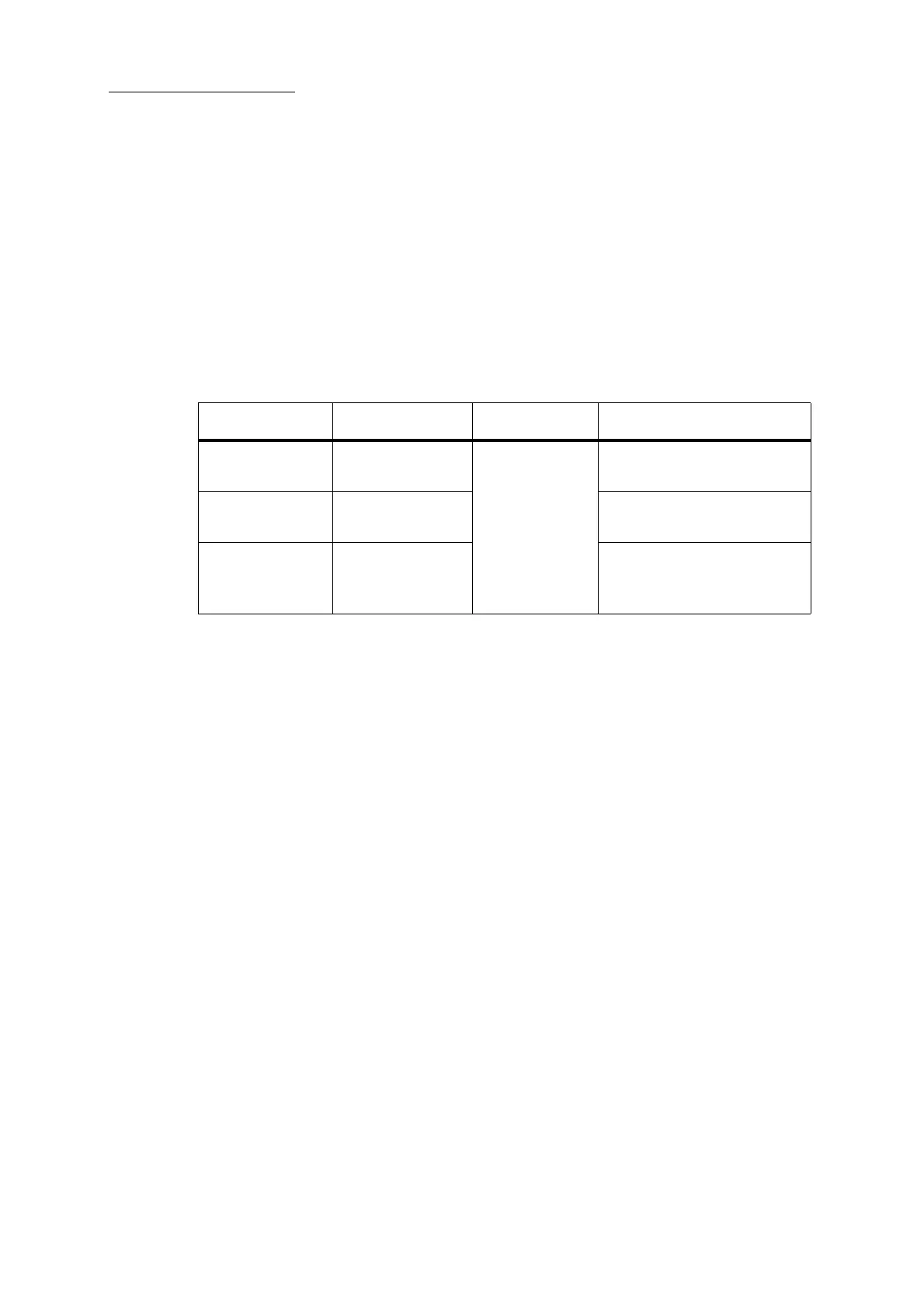
Playback Device Lighting object Editor levels After update
Playback 2
Scene 2
Channel 1 @ 85
Channel 10 @ 75
Channel 21 @ 63
Scene 2 is updated with the
editor levels.
Playback 3
QList 5 cue 5 Cue 5 is updated with the editor
levels.
Playback 4
Chase 6 step 6 Step 7, containing channel 1 @
85, channel 10 @ 75, channel
21 @ 63, is stored.



 To Next Page