8
Compulite
Chapter 1
Paging displays
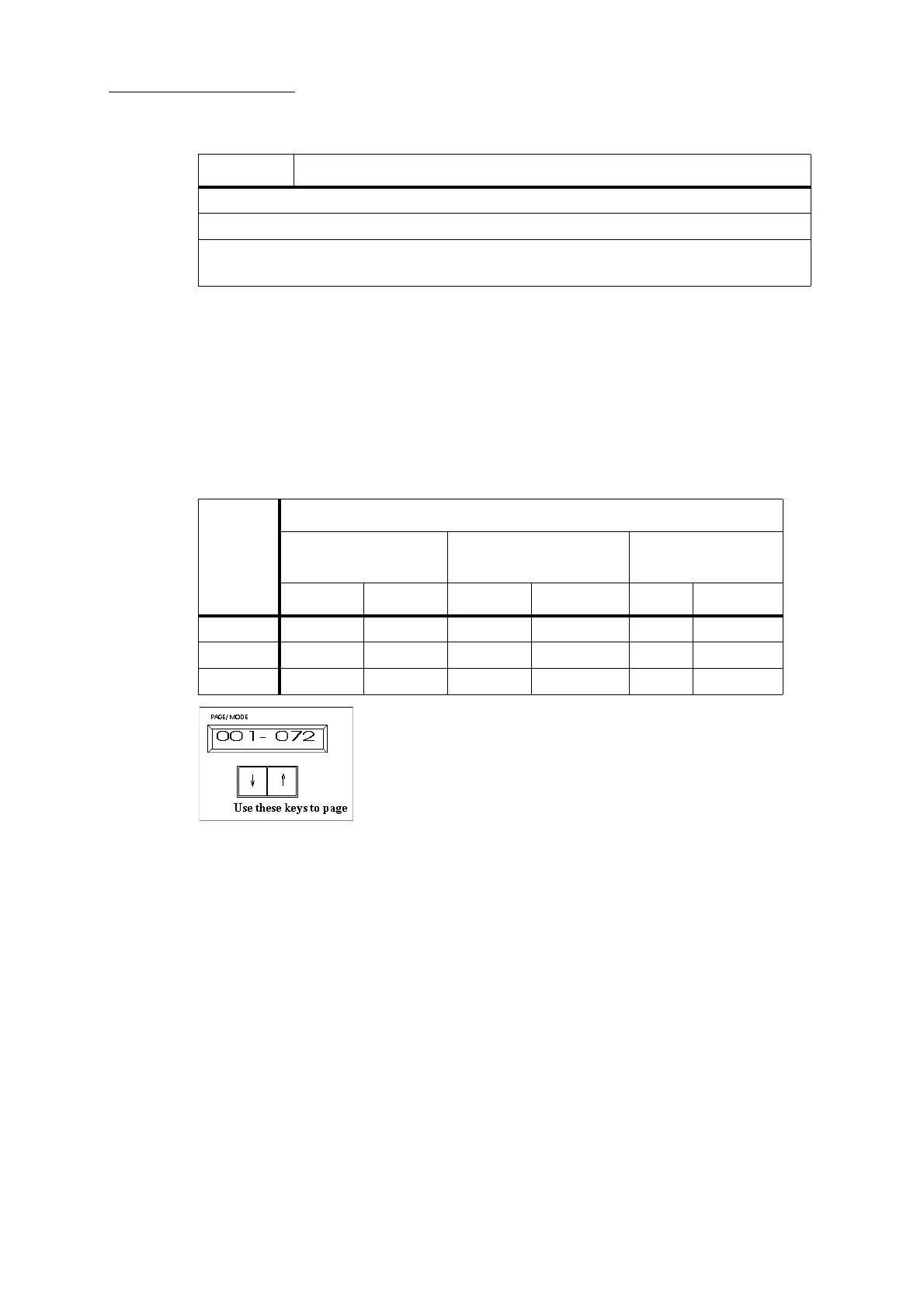
Paging cycles the faders and the touch screen grid display. The range of items on the current page is
shown on the panel display labelled
Page/Mode. Pages cycle from the last page to the first page.
Each page is divided into sub-pages. Each sub-page contains 12 items. Sub-pages refer to what is
displayed on the touch screen object grid and the view on the external monitor. When sub-pages
reach the upper limit of the general page Dlite jumps to the next page. Page size is determined by
the Dlite model you are using. Dlite Compact does not have subpages.
Figure 8: The Page/Mode display showing the current page and the paging keys
To page pages
Press the arrow keys under the Page/Mode display until arriving at the required page.
To page sub-pages
Use wheel 3, when available, or use the arrow keys while holding down SHIFT until arriving at
the required page.
Scrolling displays
When mouse mode is enabled you can scroll the displays on the external monitor. When mouse
mode is operating, the wheels are used to scroll the displays.
Wheel 1 layer 1 - Scroll live spots
Wheel 1 layer 2 - Scroll live extras (Press SHIFT to access layer 2)
Dark Gray Channel levels output from the faders
Light Gray Parameter levels from tracking.
Orange Values output from the faders, in context mode, when previewing scenes, groups,
and other objects. see “preview objects” page 116.
Color Output source and object
Dlite
model
Fader mode
Wide
2 Preset
(channels only)
Context
Page Sub Page Page Sub Page Page Sub Page
36/72 72 12 36 12 72 12
24/48 48 12 24 12 48 12
Compact 20 n/a 20 n/a 20 n/a



 To Next Page