96
Compulite
Chapter 5
7 Press UPDATE.
The lighting object is updated with the new parameter time.
To examine parameter fade times
1 Press
SCENE.
2 Select a fixture.
3 Select a parameter.
The touch screen shows the parameter fade time.
4 Press
TIME to display the delay time.
Note: If the parameter has no fade time, the general cue time is displayed.
To display parameter fade times on the external monitor
Press VIEW and check Display Parameter Fade Time. Then click OK.
Examining objects
Use the EXAM button, which appears on the touch screen to view: cues, scenes, chases, and QLists.
The exam display is shown on the external monitor and is color coded. The exam display has a
green border and
EXAM is shown in the title bar.
To examine cues or chase steps
1 For scenes, press
SCENE AND select the scene number.
For cues, press
SHIFT + QLIST select the QList press CUE and select the cue number.
For chase steps, press
CHASE, select the chase press STEP and select the step number.
For QLists, press
SHIFT + QLIST, select the QList.
2 Tap
EXAM.
The contents of the selected object are displayed.
3 Navigate through the objects by pressing
NEXT and PREV.
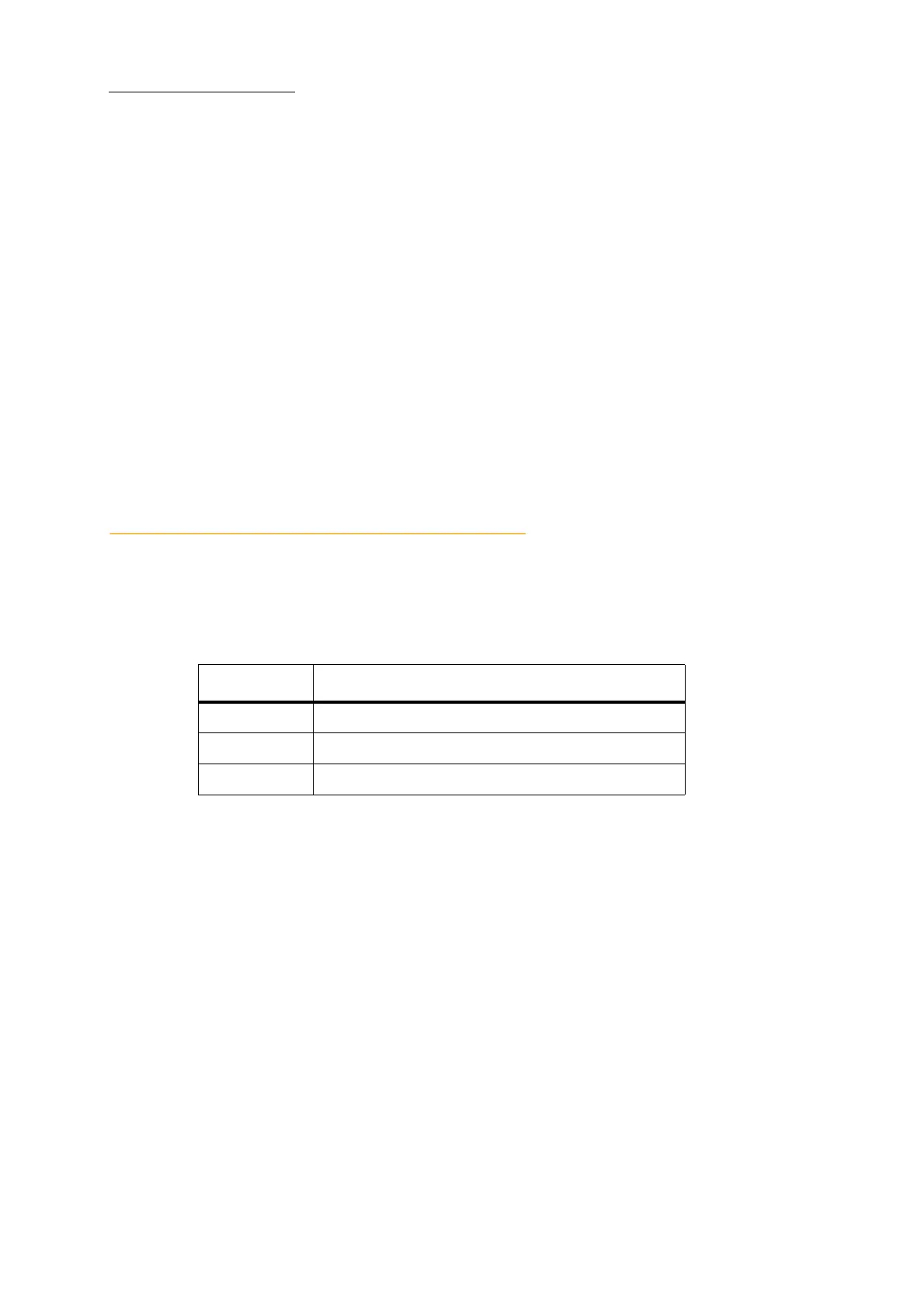
Color What it means
Blue Increasing levels.
Green Decreasing levels.
Red No change from previous scene, cue, or step.



 To Next Page