6
Compulite
Chapter 1
External monitor display modes
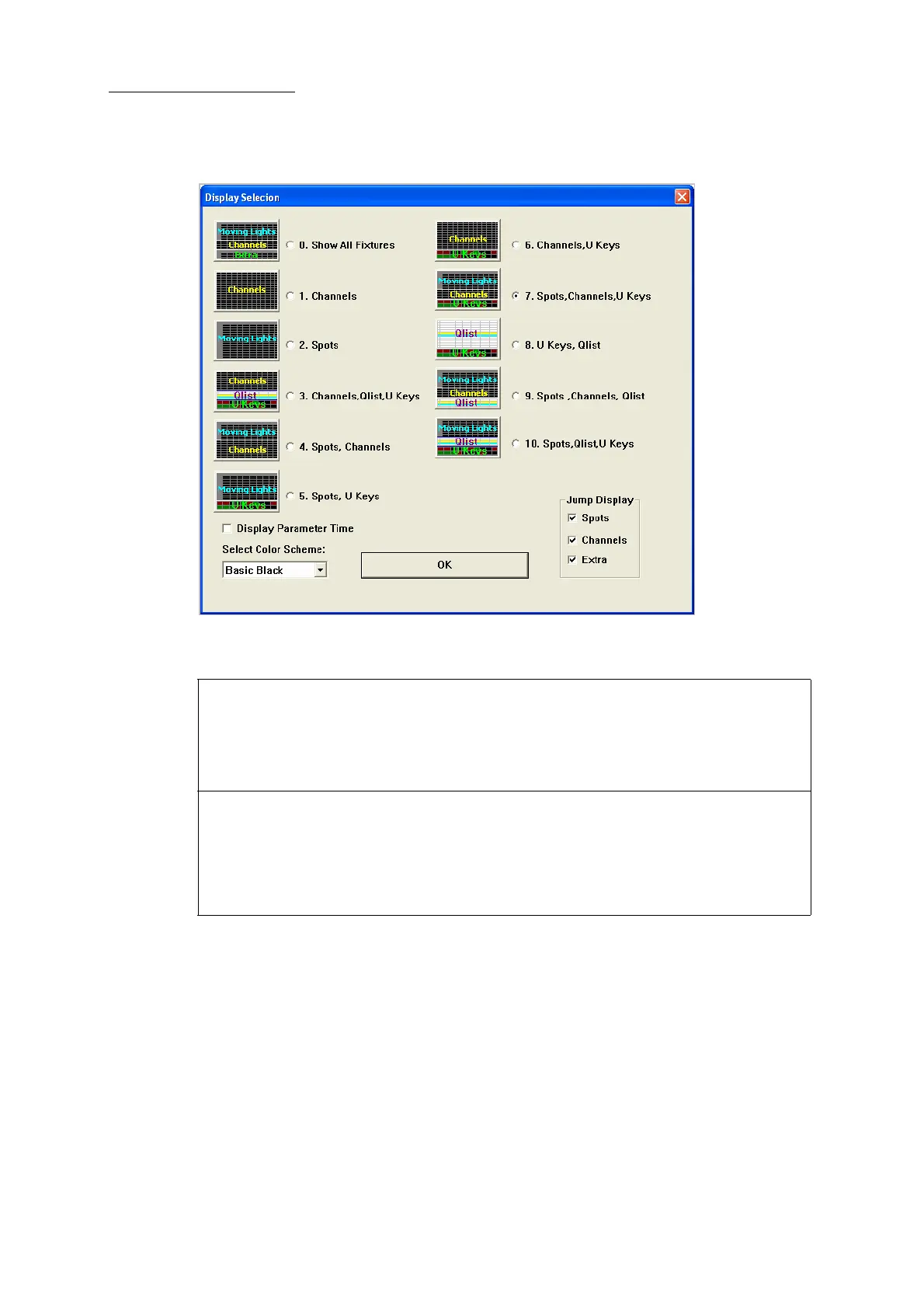
Figure 6: External monitor display dialog box
You can configure the external monitor display to show:
Navigating and selecting displays
You can navigate this dialog box and select the display:
Use the PREV and NEXT keys to navigate. Press the space bar on the external keyboard or z
on the console keypad to select the display.
Enter the display number on the console keypad and click OK to close the dialog box.
Using an external mouse, clicking to select the display. Then click OK to close the dialog box.
Using the trackball in mouse mode. Press the X or Y lock keys to select the display. Then click
OK to close the dialog box.
0. All Fixtures 4. Spots, channels 8. U Keys, QList
1. Channels 5. Spots, U Keys 9. Spots, Channels, QList
2. Spots 6. Channels, Ukeys 10 Spots, QList, U Keys
SHIFT + z selects view 10
3. Extra 7. Spots, Channels, U Keys
Jump display The display jumps to the selected channel, extra, or spot parameter.
Check to enable.
Display Parameter Fade
Time
An extra row, showing parameter fade times, is added to the live fixture
displays. Check to enable.
Select color scheme
Choose standard gray or basic black.



 To Next Page