71
DLITE
Programming Lighting Objects
Using the console keys
Tapping cells on the touch screen grid
Pressing UKs when the faders are in Context mode
Storing QLists and cues on the playbacks and crossfader
QLists and cues can be stored directly on the playbacks and crossfader. If the playback is on, the
cue is immediately output. When using on the crossfader, the stored cue is immediately output.
When storing QLists and cues on playbacks you can specify a QList and cue numbers using the
keypad. If no number is specified, Dlite chooses the first available number.
To store QLists and cue 1 using the playbacks
Example: Store a QList and cues directly on playback 1.
1 Select fixtures and set levels.
2 Press
STORE.
3 Press
SHIFT + QLIST.
4 Optional - specify a QList number using the keypad. If no number is specified, Dlite
chooses the first available QList number.
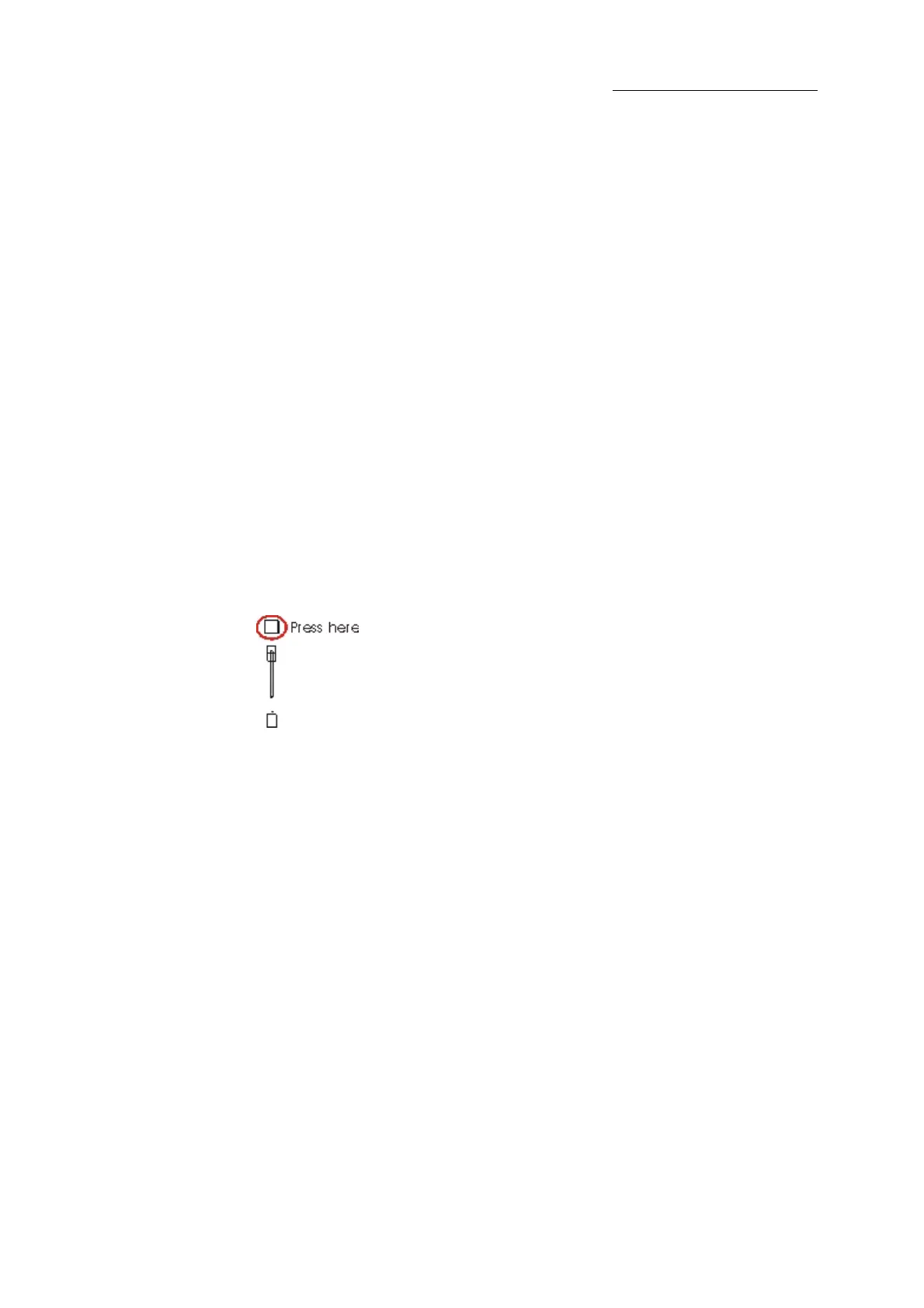
5 Press the
SELECT key for playback 1.
Figure 23: Playback with select key
Cue Stored (#)
is displayed.
6 To store the next cue, select fixtures and set levels.
7 Press
STORE and the same SELECT key.
Cue 2 is stored in the Qlist.
8 Repeat steps 6 through 7 to store the next cue in the Qlist.
Dlite automatically increments the cue number by 1.
To store specific cues directly on the playbacks
Example: Store cue 12 in the QList on playback 1.
1 Select fixtures and set levels.
2 Press
STORE.
3 Press
CUE and press 12 on the keypad.
4 Press the
SELECT key for playback 1.
Cue Stored (#) is displayed.
Note: This sequence is not valid for Dlite Compact.



 To Next Page