7
DLITE
System Overview
To select a display
1 When the editor is idle, tap
DISPLAY or press SHIFT + VIEW.
The view options are shown on the external monitor.
2 Use the external mouse or the trackball in mouse mode, to enable the radio button for your
choice of views or enter the display number using the keypad.
3 Tap
OK, on the touch screen, to confirm your choice.
OR
1 Press
SHIFT and select the view number on the keypad.
Live fixture displays
The live fixture displays show:
Fixtures (spots, channels, or extras)
Fixtures editor status
Parameter levels
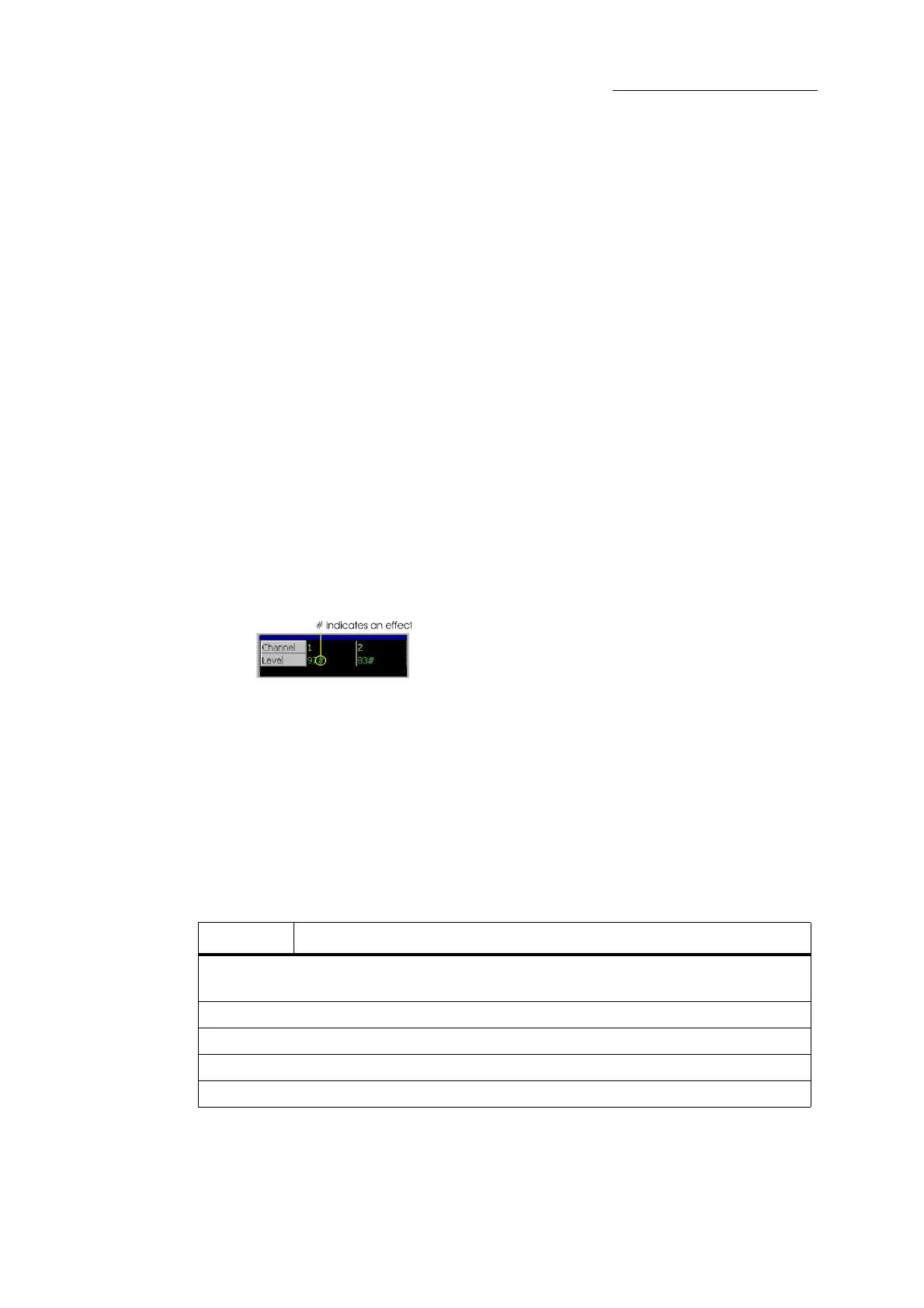
Special characters indicate effects and position libraries
– # represents effects
– * represents position libraries.
Figure 7: Indications on the live channel display
Universal Keys (UKs) display
What appears on the UKeys display depends on the state of the editor and the fader mode
(see “Fader modes” page 115):
When the editor is idle, the UKeys display shows the playback loads.
When the editor is active, the UKeys display shows the objects in the selected category.
Example: If you pressed SCENE, the existing scenes are displayed.
Output source color code on the external monitor
-
Color Output source and object
Dark red Fixture numbers and levels that are selected in the editor and can be edited using
the wheels or keypad.
White Parameter levels in the editor.
Blue Cues on the crossfader or playbacks.
Green Scenes on playbacks.
Red Chases on playbacks.



 To Next Page