11. Tech. Rep. Mode Field Service Ver. 1.0 Aug. 2005
176
bizhub 200/250/350
Adjustment / Setting
11.10 Settings in the Operation Check
11.10.1 ADF
A. Paper Passage
B. ADF Sensor Adjust
C. Backup Data Initialization
11.10.2 Exp. Lamp Check
11.10.3 Scanner
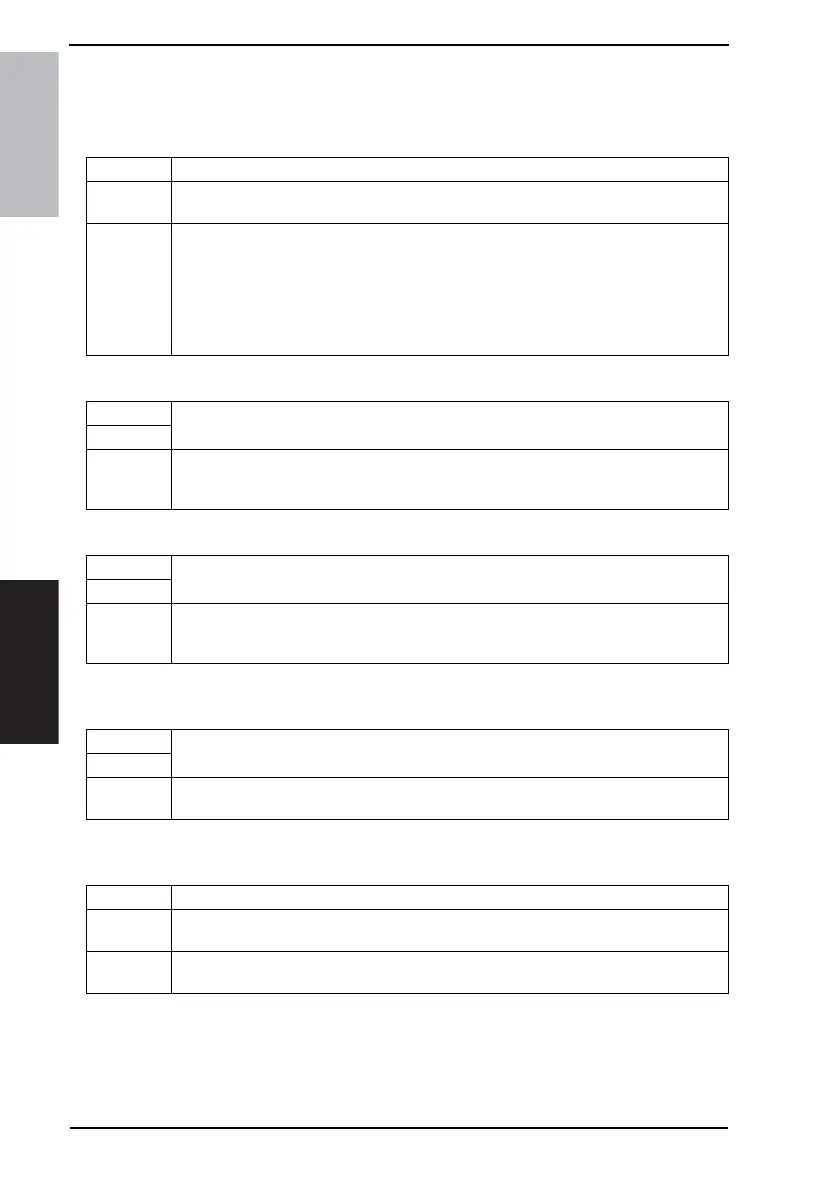
Functions • To let the document loaded in the ADF be fed through under the specified mode.
Use
• 1-sided No Detect
• Double-Sided
Setting/
Procedure
1. From the Tech. Rep. Mode screen, touch [Operation Check] → [ADF] → [Paper Pas-
sage] in that order.
2. Select the mode.
3. Load the document in the ADF and press the Start key.
4. When the Start key is then pressed, the paper passage operation is temporarily halted.
Pressing the Stop key brings the paper passage operation to an immediate stop. The
operation is stopped as soon as all pages of the document have been fed through.
Functions
• To carry out automatic adjustments of the ADF sensor.
Use
Setting/
Procedure
1. From the Tech. Rep. Mode screen, touch [Operation Check] → [ADF] → [ADF Sensor
Adjust] in that order.
2. Press the Start key to begins the automatic adjustment of the sensors.
Functions
• Resets the settings specified with Sensor Auto Adjust.
Use
Setting/
Procedure
1. From the Tech. Rep. Mode screen, touch [Operation Check] → [ADF] → [Backup Data
Initialization] in that order.
2. Select [Yes] and touch [Enter] to initialize the backup data.
Functions
• To check the intensity of the Exposure Lamp in the Image Reading Section.
Use
Setting/
Procedure
1. From the Tech. Rep. Mode screen, touch [Operation Check] → [Exp. Lamp Check] in
that order.
Functions • To check the operation of the Scanner.
Use
• Turns on the Exposure Lamp.
• Moves the Scanner.
Setting/
Procedure
1. From the Tech. Rep. Mode screen, touch [Operation Check] → [Scanner] in that order.
2. Use the Keypad to type in the amount to move, and then touch [Set].










 To Next Page