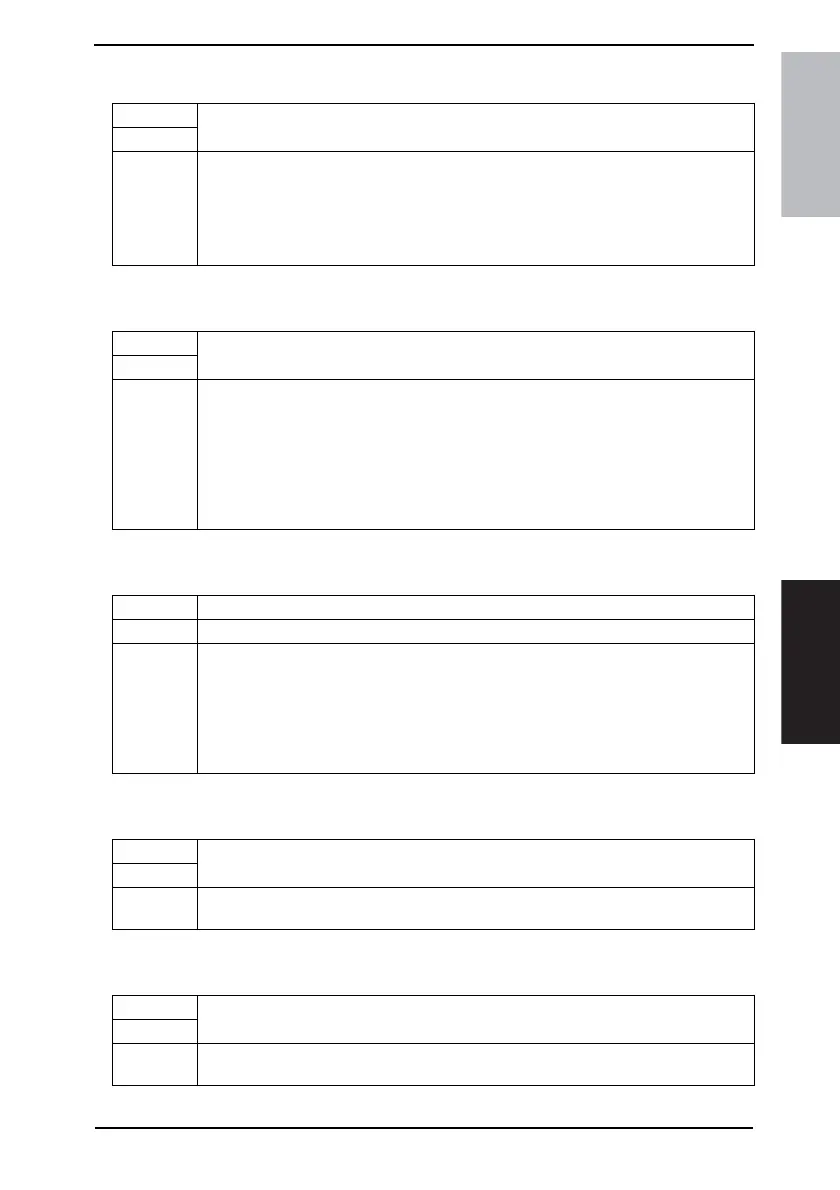
Field Service Ver. 1.0 Aug. 2005 8. Maintenance Mode
29
FK-503Adjustment / Setting
8.3.4 File Dump
8.3.5 Soft Switch Set
8.3.6 Touch Panel Adjustment
8.3.7 Protocol Trace
8.3.8 Service Call Report
Functions
• This outputs a report on the RAM data of MAIN-CPU by specifying its file name.
Use
Setting/
Procedure
1. Call the Maintenance Mode to the screen.
2. Touch the [File Dump].
3. Type the file name from the 10-Key Pad or the keyboard on the screen and touch
[Enter].
4. Touch [Ç] or [È] to change the address to be displayed.
5. Touch [Enter], and the file dump sequence is started.
Functions
• This sets up the soft switches for maintenance.
Use
Setting/
Procedure
1. Call the Maintenance Mode to the screen.
2. Touch the [Mode Select].
3. Enter the mode number (a 3-digit numeral) from the 10-Key Pad.
4. Touch the [Bit Select].
5. Align the cursor using [Å] or [Æ] and define the bit using 0 or 1 of the 10-Key Pad. (To
set using hexadecimal numbers, touch [HEX Selection] and enter the data using the
10-Key Pad and A to F keys.)
6. Touch [Enter] twice.
Functions • To adjust the position of the Touch Panel.
Use • When the Touch Panel is slow to respond when touched
Setting/
Procedure
1. Call the Maintenance Mode to the screen.
2. Touch the [Touch Panel Adjustment].
3. Following the arrow, sequentially press four points (+) on the screen using a pen or
similar object.
NOTE
• Press the very center of each point.
• Use care not to allow the tip of the pen to damage the surface of the screen.
Functions
• To produce an output of a protocol trace.
Use
Setting/
Procedure
1. Call the Maintenance Mode to the screen.
2. Touch the [Protocol Trace].
Functions
• To produce an output of a service call report.
Use
Setting/
Procedure
1. Call the Maintenance Mode to the screen.
2. Touch the [Service Call Report].










 To Next Page