8. Palettes 185
8.2 Using Palettes in Programming
In the Programmer or editor, you can apply a palette by selecting it from its directory window.
The palette will be applied to the current fixture selection, as long as the palette contains
parameter information for the selected fixtures. Doing so assigns the parameter value to be a
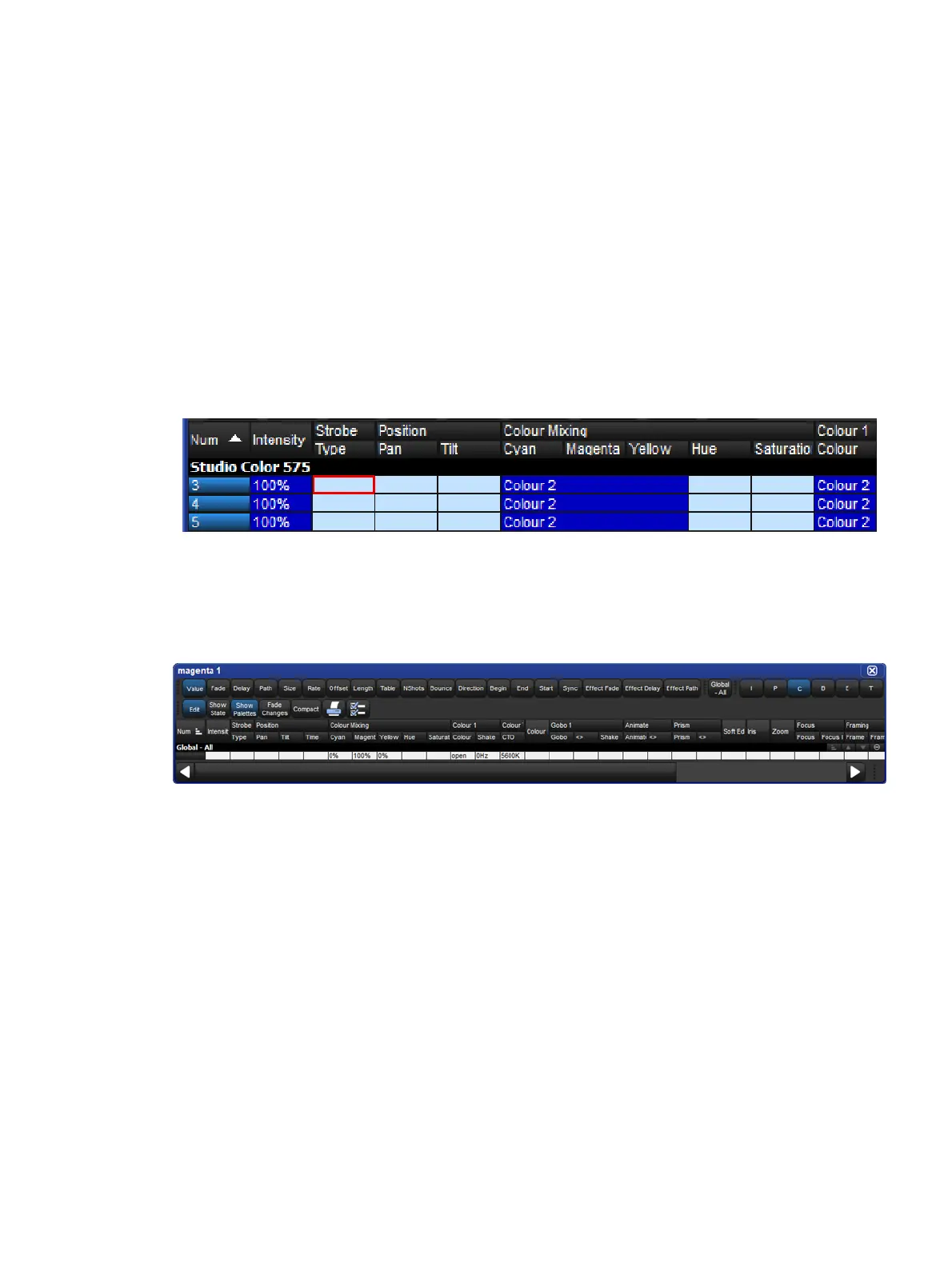
reference to the palette. A palette that puts all Studio Colors in the rig to deep red will
therefore apply this immediately to any Studio Colors that are in the current selection; see
image below.
For example:
1. Open + Colour : open the Co lour Directory window.
2. 3 Thru 5 : select the fixtures.
3. [Colour 2 ] : select the palette from the Colour Directory window.
4. Or, using the command line:
5. 3 Thru 5 Colour 2 Enter
8.3 Editing Palette Contents
You can change the parameter values that are applied when a palette is referenced during
playback by editing the palette's contents in an editor window, see image below.
For example, to open Colour Palette 2 for editing:
1. Open + Colour : opens the Colour Directory.
2. Open + [Colo ur 2] : opens the palette editor for Colour Palette 2.
3. Alternatively using the command line : Colour 2 Open
4. Press the Edit button in the editor window to select this as your current editor.
Within the editor, you can assign fixture parameters and timing in the same way as in the
Programmer; see Individual Parameter Timings. Press Upd ate after editing to save the
changes to the palette. For more information on working with editors, see Editors.











 To Next Page