356 Hog 4 Operations Manual
18.7 Template Page
The template page specifies which cuelists will appear on specific masters for every page
without physically having to load them onto the same masters on all pages. For example, you
could have a primary cuelist containing the commonly used cues of the show, which you
want available on the same master, regardless of which page you are on. When you move
this cuelist to a master on the Template page, it will then appear on the same master of all
pages. If a normal page and a template page have a cuelist on the same master, the normal
page's cuelist will override the template page's cuelist.
To make a page into the template page:
1. Open + Pa ge : opens the Page Directory window.
2. Right-click on the page, and select Set As Templa te Page from the menu.
To turn off the template page, right-click on the template page and select Clear Temp late
Page from the menu. There can only be one template page; assigning a new template page
will restore the previous one to a normal page. The template page is shown by a symbol
in the directory window.
Since the template page typically does not relate to a specific portion of your production (a
song for example), template pages are never loaded from the Next Page key. When cycling
through pages with this key, the template page will be skipped. You can always directly load
the template page using either the page directory or the command line.
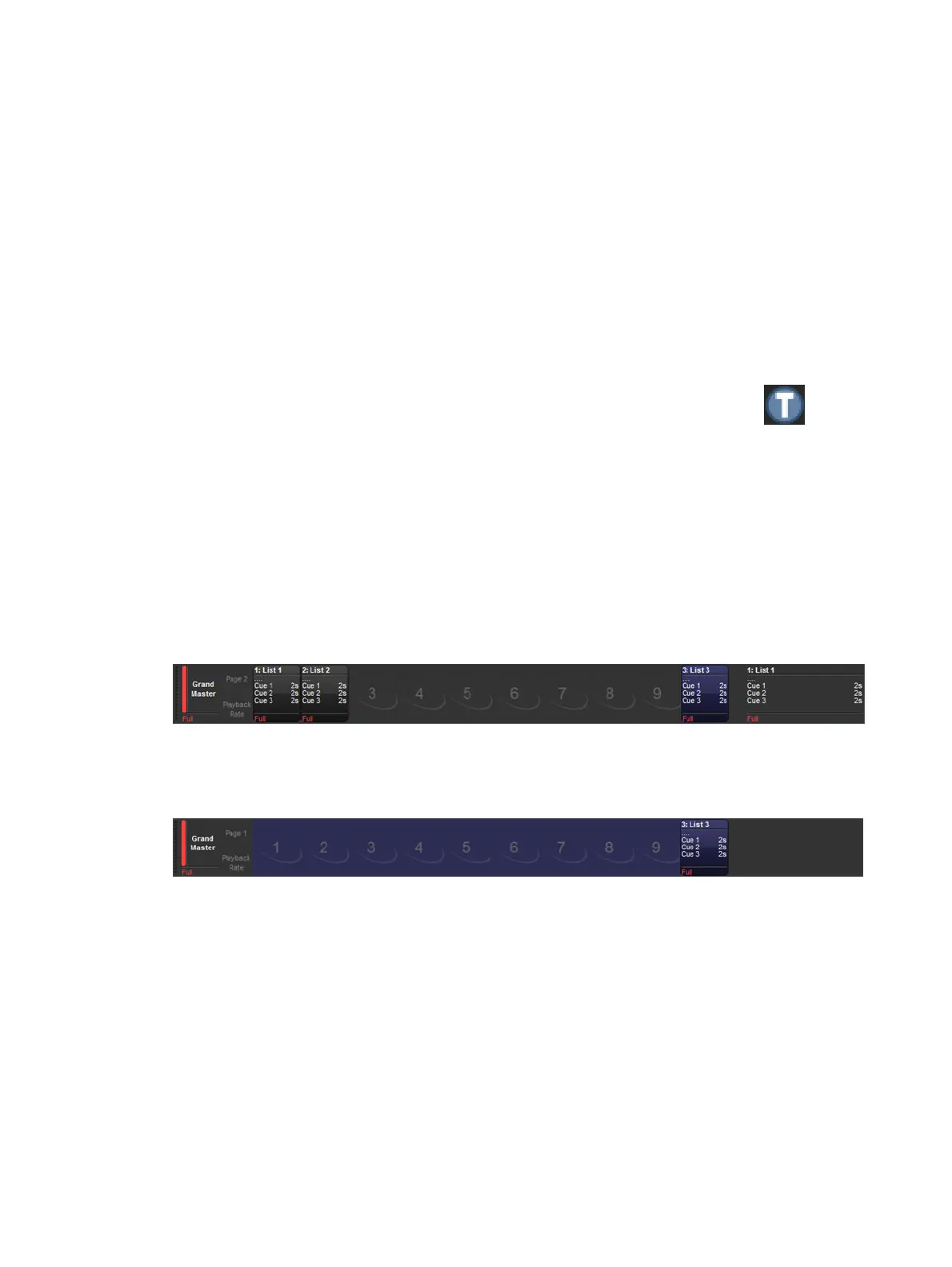
Cuelists, scenes and group masters that appear on a master of a page because they originate
from the template page are shown in blue on the Playback Bar. This is shown in the image
below. This feature can be turned off in Setup → Prefe ren ces → Misc and deselect
Highlig ht Template.
If the template page is the current page, the entire Playback Bar, including empty masters,
are also shown in blue. This is shown in the image below.











 To Next Page