17. Playback 327
17.8 Understanding Feedback
There are several ways in which you can tell the status of the console's output:
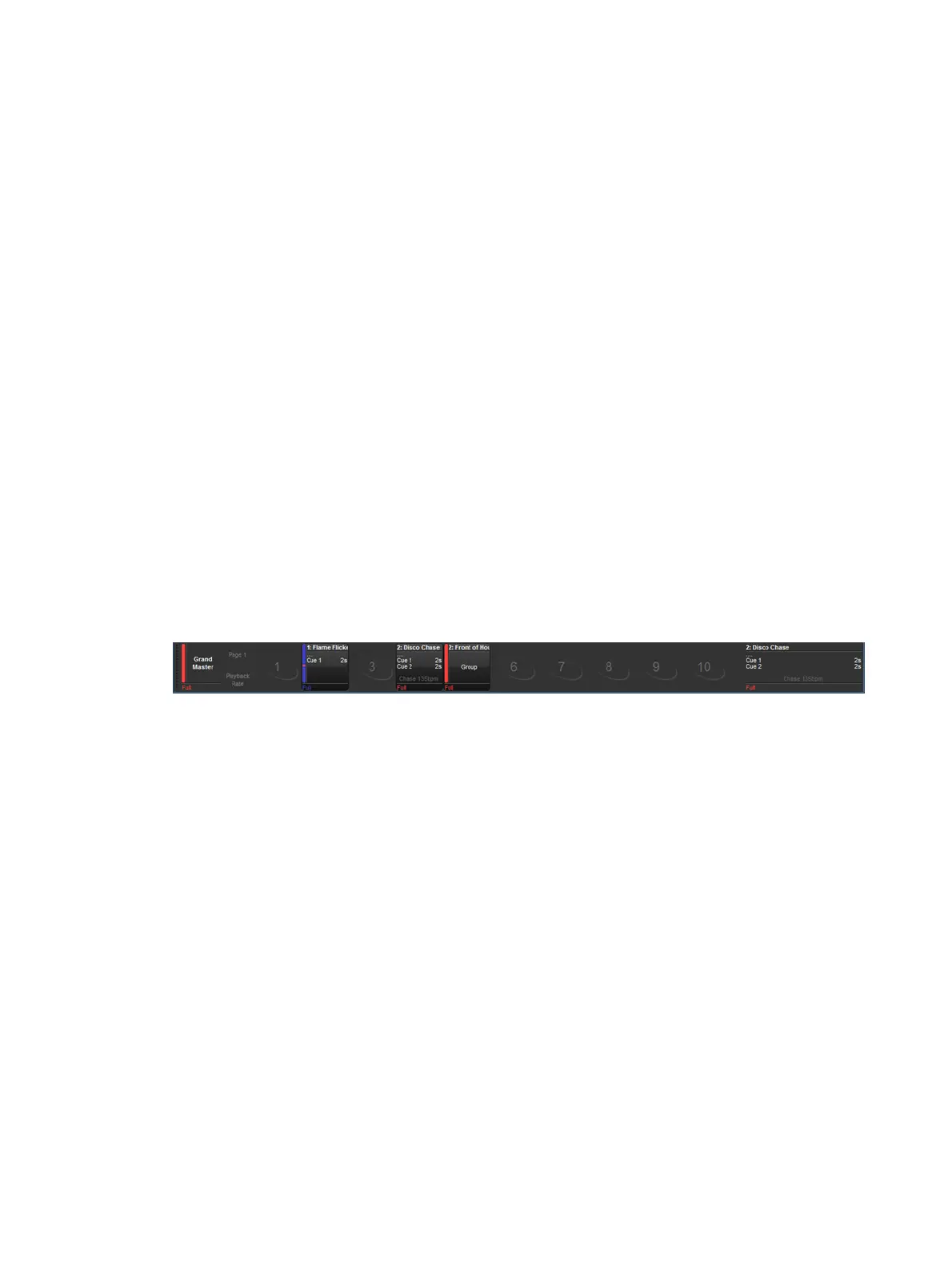
The status of masters is shown by the playback control key LED's and the on-screen
Playback Bar.
You can use a master window to follow the progress of running cuelists.
The total output of all fixtures' parameter values is shown in the Output window, and the
total output of all fixture's intensities is shown in the Levels View window.
17.8.1 Control and Playback Toolbar Feedback
Playback Control LEDs
The LEDs of the playback controls give information about the cuelist's status:
Go key (Green): When solidly lit, indicates that a forward cross-fade is in progress.
When flashing, indicates a forward crossfade has been paused.
Pause key (Red): When solidly lit, indicates that the master is active and controlling
parameters. When flashing slowly, indicates that its control of parameters has been
overridden by other playbacks. When flashing quickly, indicates the master is
releasing.
PlayBackwards key (Green): When solidly lit, indicates an active cross-fade to the
previous cue. When flashing, indicates that a crossfade to a previous cue has been
paused.
Flash key (Red): When solidly lit, indicates that this playback is controlling intensity.
When flashing, indicates that its control of intensity has been overridden by other
playbacks.
The Playback Bar
Playback Bars are typically displayed at the bottom of the left touchscreen and give feedback
for the objects assigned to each physical master. For each master, the Playback Bar
displays the following information:
If a master is empty, its master number is shown.
The number and name of the cuelist, scene, group, or batch assign to the master. This
is shown in blue if the master has been held over after a page change; see Options
When Changing Page. The name and number will appear in lavender if the master is
from a template page; see Template Page.
For lists: the current cue and its overall time followed by the next few cues and their
times. If you want to see more cues, click and drag the top of the Playback Bar
upwards to make it larger. When a cue in a list is crossfading, it is displayed in green
text and the time counts down. If the cuelist has been released, then .... is displayed,
with the next cue shown below.
For scenes: the scene and its overall time. When a scene is cross-fading, it is
displayed in green text and the time counts down. If the scene has been released, then
.... is displayed, with the scene name shown below.
For groups: the text "Group" will be written in the master cell. Groups assigned to the
playback bar are commonly referred to as Inhibitive Masters as they can inhibit the
intensity of all fixtures in that group based on the master's fader level.











 To Next Page