486 Hog 4 Operations Manual
30.3 Operation
30.3.1 Using the Hog 4 PC Interface
Hog 4 PCWindows
When Hog 4 PC opens the Start window will be displayed along with the splash screen. Once
a show file is loaded or opened, the two Hog 4 PC default screens will be displayed.
The Front Panel Interface
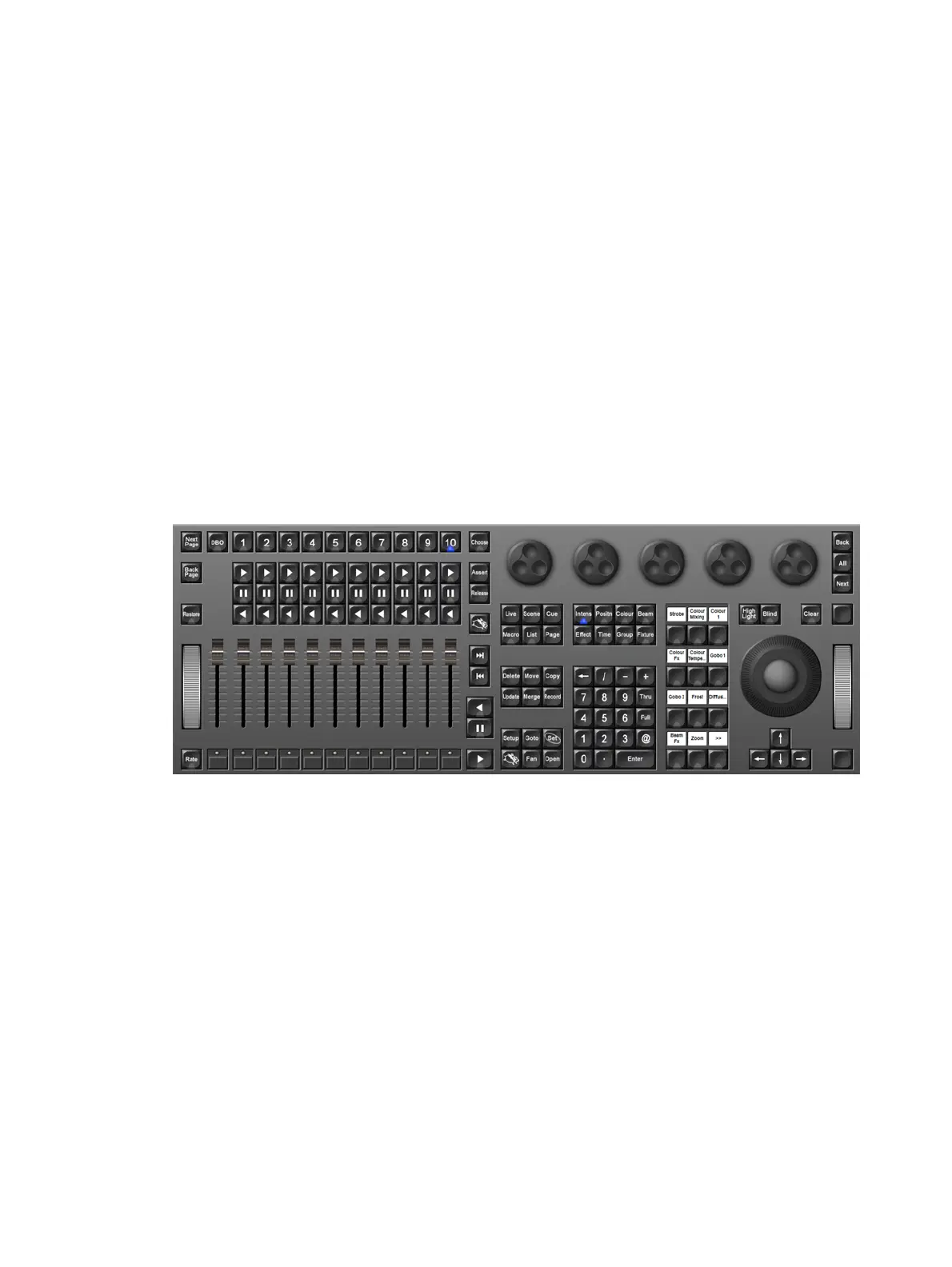
The front panel of Hog 4 PC looks and behaves very similarly to the front panel of the Hog 4
console. An image of the front panel interface is shown below. You can click on buttons to
simulate pressing keys on the console. You can also click and drag to alter the various
encoders or faders. In addition, when you right click on the trackball, it will illuminate blue
allowing you to then left click and drag on the trackball to adjust the pan and tilt of the
selected fixtures.
To hold down a single key and make another selection, simply press and hold Shift on your
computer keyboard when you click the key. As long as you are holding shift, this key (and
subsequent keys) will remain held down. You can then click on another key, button, cell, or
encoder to access further functions.
Right Click Menu
When right clicking in most portions of the Hog 4 PC application, the following options are
displayed:
Workspaces: opens a sub-selection allowing various portions of the front panel to be
displayed.
Default Positions: restores all Hog 4 PC screens to their default location on the
Windows desktop.
Lock Front Panel Position: toggles the ability to move the Hog 4 PC Front Panel on
the Windows desktop.
Toggle Front Panel: toggles the Front Panel on/off.
Show All: restores all Hog 4 PC screens to their previous size.
Minimize: minimizes the current Hog 4 PC screen.
Minimize All: minimizes all Hog 4 PC screens.
Maximize: maximizes the current Hog 4 PC screen and hides the title bar.
Quit: immediately logs off the show











 To Next Page