3. Setting up the System 61
3.2 DMX Processor 8000 Setup
To set up a DMX Processor 8000 first plug in mains power at any voltage between 100 and
240V AC. The DMX Processor 8000's most fundamental settings are available using the built
in front panel menu system.
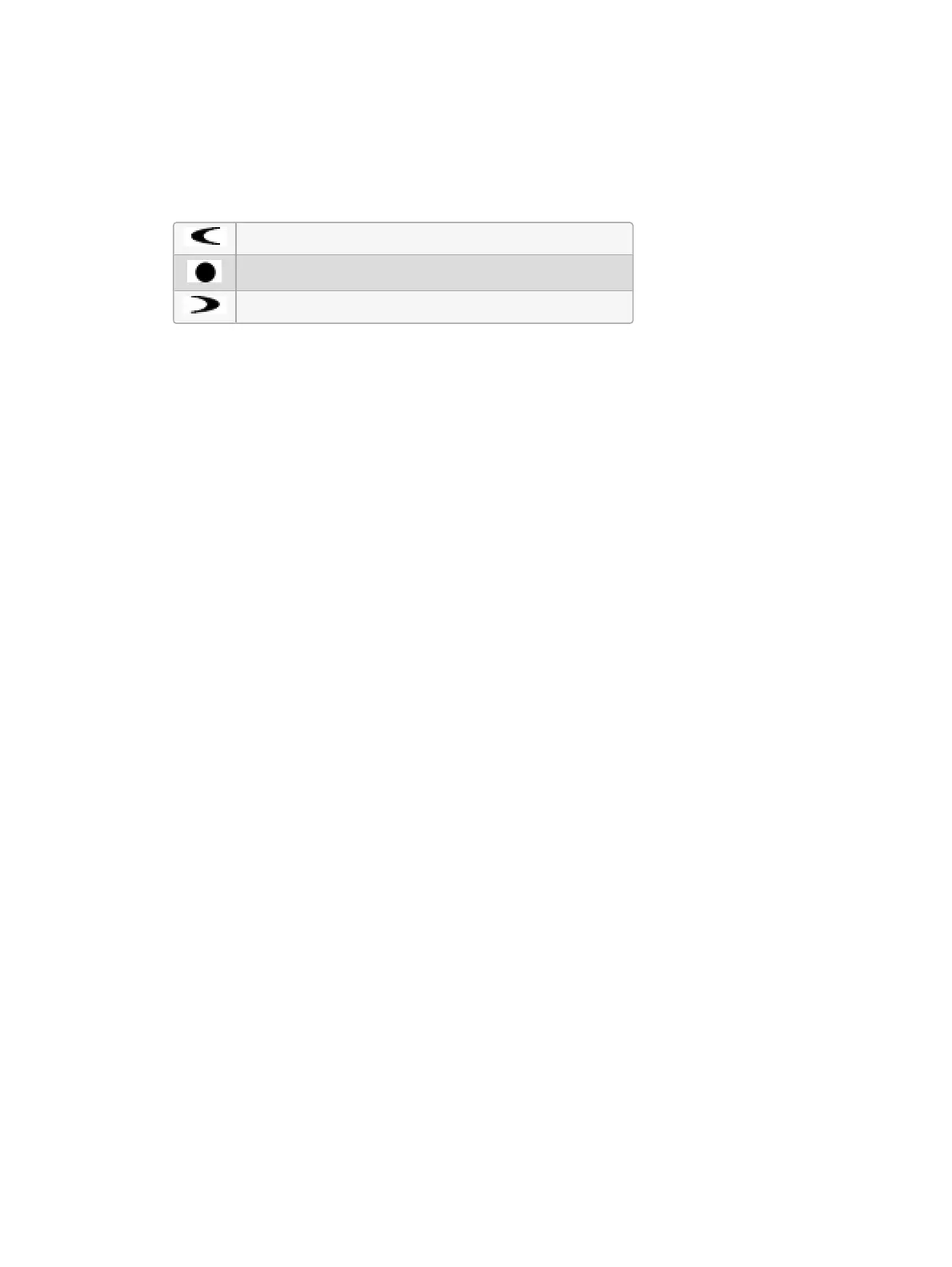
To navigate through the front panel menu system of the DMX Processor 8000:
Move the cursor through the options backwards.
Select the option currently highlighted by the cursor.
Move the cursor through the options forwards.
3.2.1 Setting the Net Number
The net number is displayed on the main screen of the DMX Processor in the top right-hand
corner. To assign the net number:
1. Main → Network : navigate to the Network Configuration screen.
2. Assign the net number to any value between 01 and 99.
3. OK : return to the Main screen.
3.2.2 Setting the Port Number
To assign the Port Number:
1. Main → Network : navigate to the Network Configuration screen.
2. Assign the Port Number as required.
3. OK : return to the Main screen.
3.2.3 Setting IP Addresses for the HogNet Adapter on a DMX
Processor 8000
By default, DMX Processor 8000s are set to use DHCP to get an IP address automatically
from a Hog console. You can turn this off in the IP Config screen:
1. Main → Network → Console → Conso le L ink Co nfig : navigate to the IP Config
screen.
2. Set DHCP On or Off.
3. OK : return to the Console Link Status screen.
4. Close : return to the Network Configuration screen.
5. OK : return to the Main screen.
You may want to assign a fixed or ‘static’ IP address, perhaps if the Hog system is sharing a
network with non-lighting devices such as personal computers. You should contact your
system administrator to determine the optimum settings for your network.











 To Next Page