252 Hog 4 Operations Manual
13.3 Individual Parameter Timing
When you record a cue, all of the fixture parameters in the cue are assigned the default fade,
delay, and path values. Similarly, when you assign timings to a cue after recording, the timing
value is applied to all fixture parameters in the cue. However, you can assign fade, delay, or
path values to individual parameters in the Programmer, and these settings are then included
when you record cues and scenes, and (optionally) palettes. You can also assign timings to
parameters in the cue, scene and palette editors. Note that you can only assign timings for a
parameter that has a value in the editor.
To display parameter fade times, delay times, or paths in an editor, select the Fad e, Delay,
or Path buttons from the top left of the editor window.
You can assign the individual timings of parameters using the parameter wheels, the
command line or directly in editor windows. You can also assign timings to all parameters of
a fixture using the parameter wheels or the command line.
Important: If you assign individual timings for parameters and subsequently assign an
overall cue time, then the individual parameter timings will be replaced by the overall cue
time
13.3.1 Assign Parameter Timings using Wheels
To assign fade and delay timings to all the parameters of a fixture:
1. Select the fixtures that you want to assign timings to, making sure that they have been
given parameter values.
2. Press the Time key.
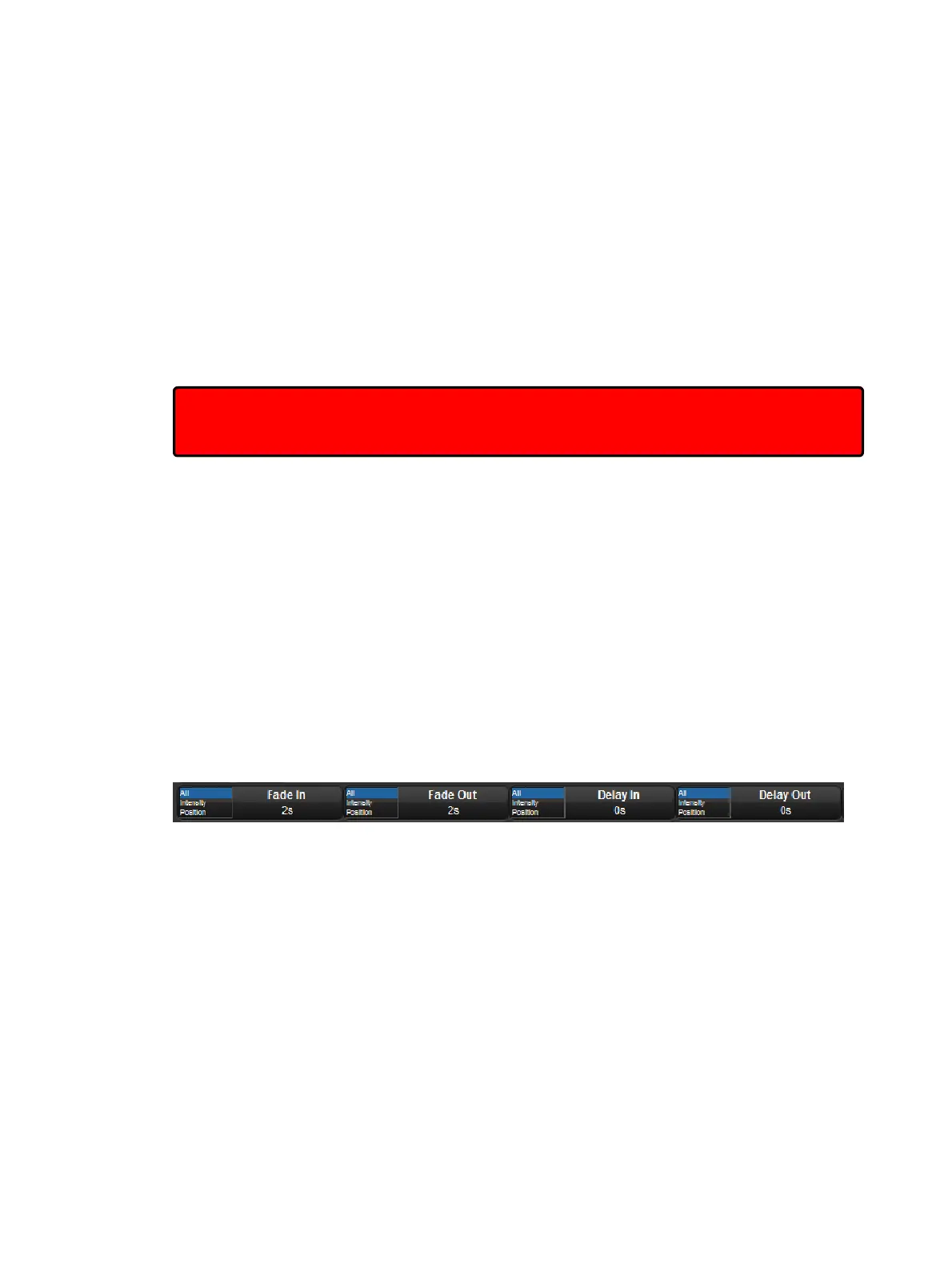
3. The Wheels Toolbar will show the available timing types (Fade In, Fade Out, Delay In,
and Delay Out) together with their current settings.
4. Use the parameter wheels to assign the desired Fade In, Fade Out, Delay In, and Delay
Out.
Note that if you want to see the timings that you have assigned in the editor, you can select
the Fade or Delay views using the buttons in the top left of the editor window. You don't have
to be in these views to assign timings, however.
To assign fade and delay timings to specific parameter types:
1. Select the fixtures that you want to assign timings to, making sure that they have been
given parameter values.
2. Press the Time key.
3. The Wheels Toolbar will show the available timing types.
4. Click on Fade In, Fa de Out, De lay In, or De lay Out and select a parameter type.
5. Use the parameter wheels to assign the desired timing.











 To Next Page