13. Timing 253
To assign a path to all the parameters of a fixture:
1. Select the fixtures that you want to assign a path to, making sure that they have been
given parameter values.
2. Press the Time key.
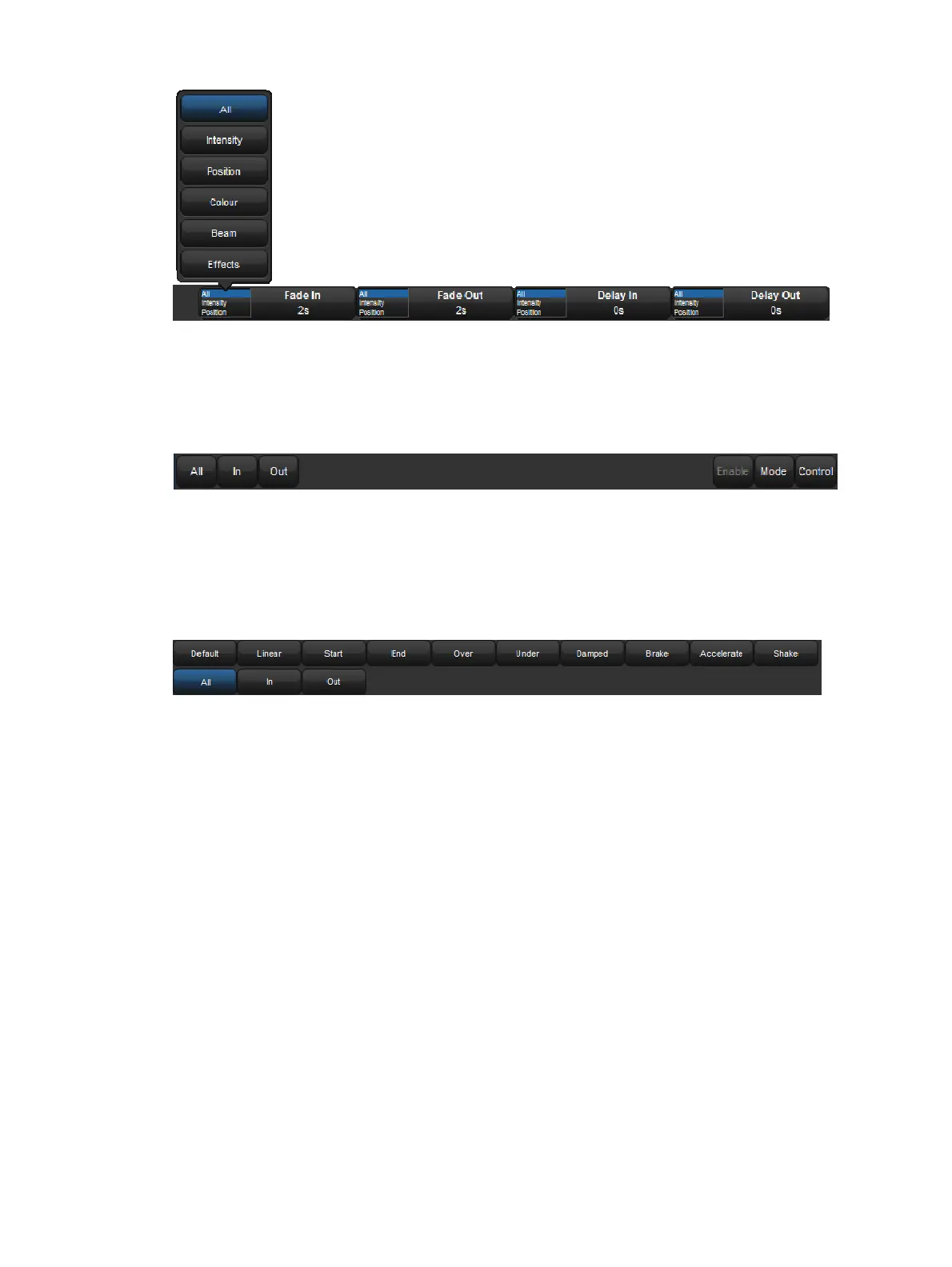
3. The Slot Toolbar will show buttons for All, In and O ut
4. Choose In to assign a path to be applied to the parameters when the fixture they belong
to is increasing in intensity during the cross-fade. Choose O ut to assign a path to be
applied to parameters when the fixture they belong to is decreasing in intensity during
the cross-fade. Choose All to assign a path to be applied to parameters of fixtures
irrespective of whether their intensity is increasing or decreasing.
The Paths Toolbar will open , as shown below.
5. Select the desired path from the Paths Toolbar. The different types of path are
explained in Paths.











 To Next Page