2. Hog OS Fundamentals 37
3. Alternatively, click on Cho ose to select a custom colour from a colour wheel or click
Non e to select the standard grey colour. Click on Auto to have palettes in the Colour
directory automatically determine the button colour based upon the dominate colour
value recorded in the palette.
Tip: You can select multiple buttons or cells by clicking and dragging to assign the same
colour to multiple items.
2.8 Spreadsheets
Similar to Excel spreadsheets, many windows in the Hog 4 OS such as the programmer,
output window, and cue editors are presented as spreadsheets.
All of the spreadsheets in the Hog 4 OS share a common set of features:
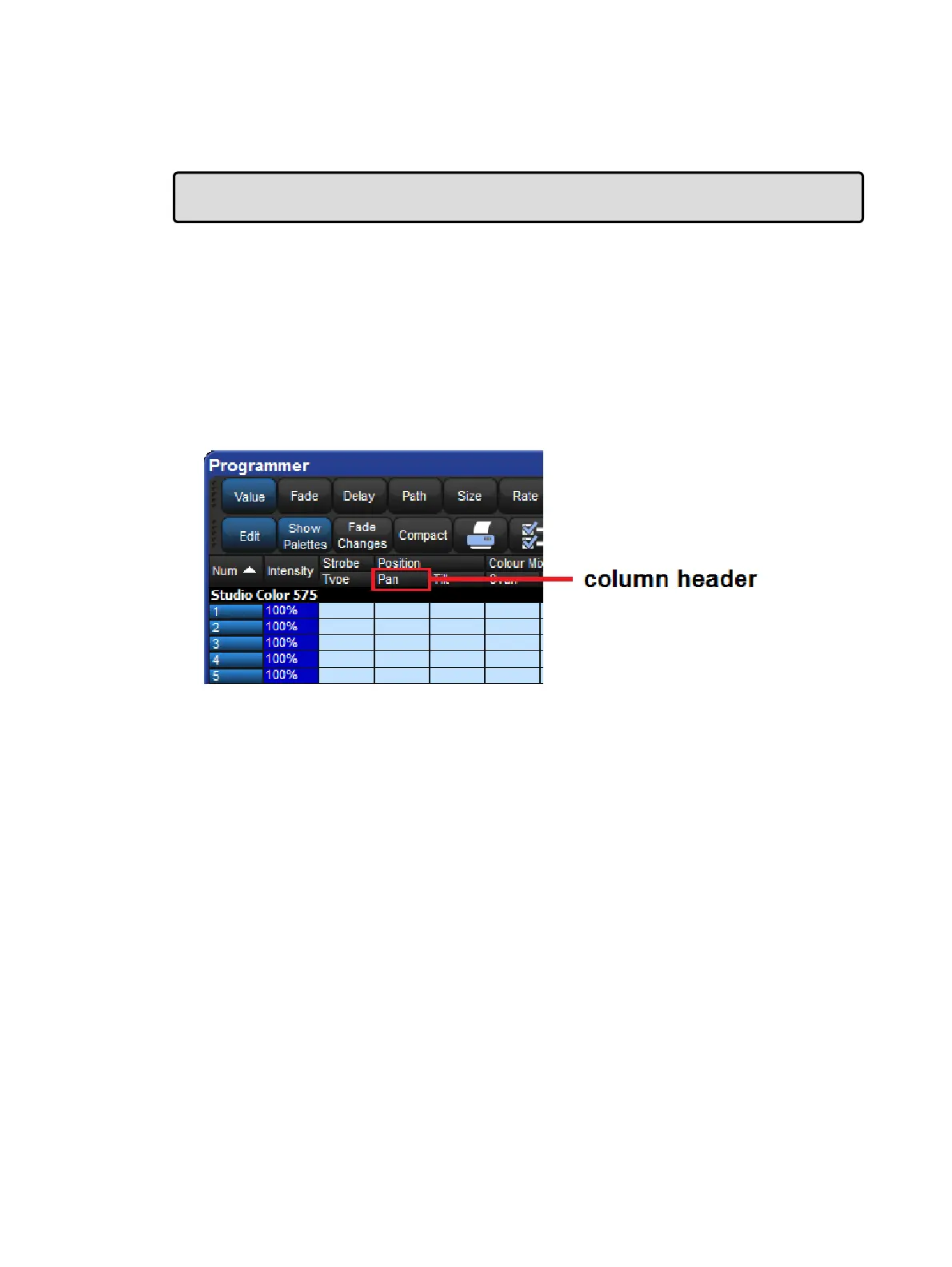
To re-size a spreadsheet column: Place the cursor over the right-hand edge of the
column header. The cursor will change to a double-ended arrow. Click and drag to
resize the column.
To move a spreadsheet column: Click and drag on the column header.
To hide a spreadsheet column: Right-click on the column header, and choose Hide.
To show a hidden spreadsheet column: Right-click on a column header, and
choose the name of the column from the menu.
To sort the spreadsheet: Right-click on a column header and select Sort to sort the
spreadsheet by the values in that column. Select Sort again to the reverse the direction
of the sort. You can also right-click on a column header and select Sub-sort to assign a
second level of sorting. For example, if you sort the Fixture window by fixture type, and
sub-sort by Patch, then all the Desk Channels will be shown grouped together, in the
order of their patch address.
To select all the cells in a spreadsheet column: Double-click on the column header
at the top of the spreadsheet.
To select a single spreadsheet cell: Click or press in the cell. You can use the
cursor keys below the Trackball to change which cell is selected. If the cell is editable,
it will have a red border.
To select a range of cells in a spreadsheet: You can click or press and then drag
across a range of cells to select them all. Alternatively, you can click in the first cell,
press and hold Thru, and click in the last cell; this is useful if you want to select a large
range and need to scroll the window.











 To Next Page