36 Hog 4 Operations Manual
2.7.2 Colour Coding Directory Items
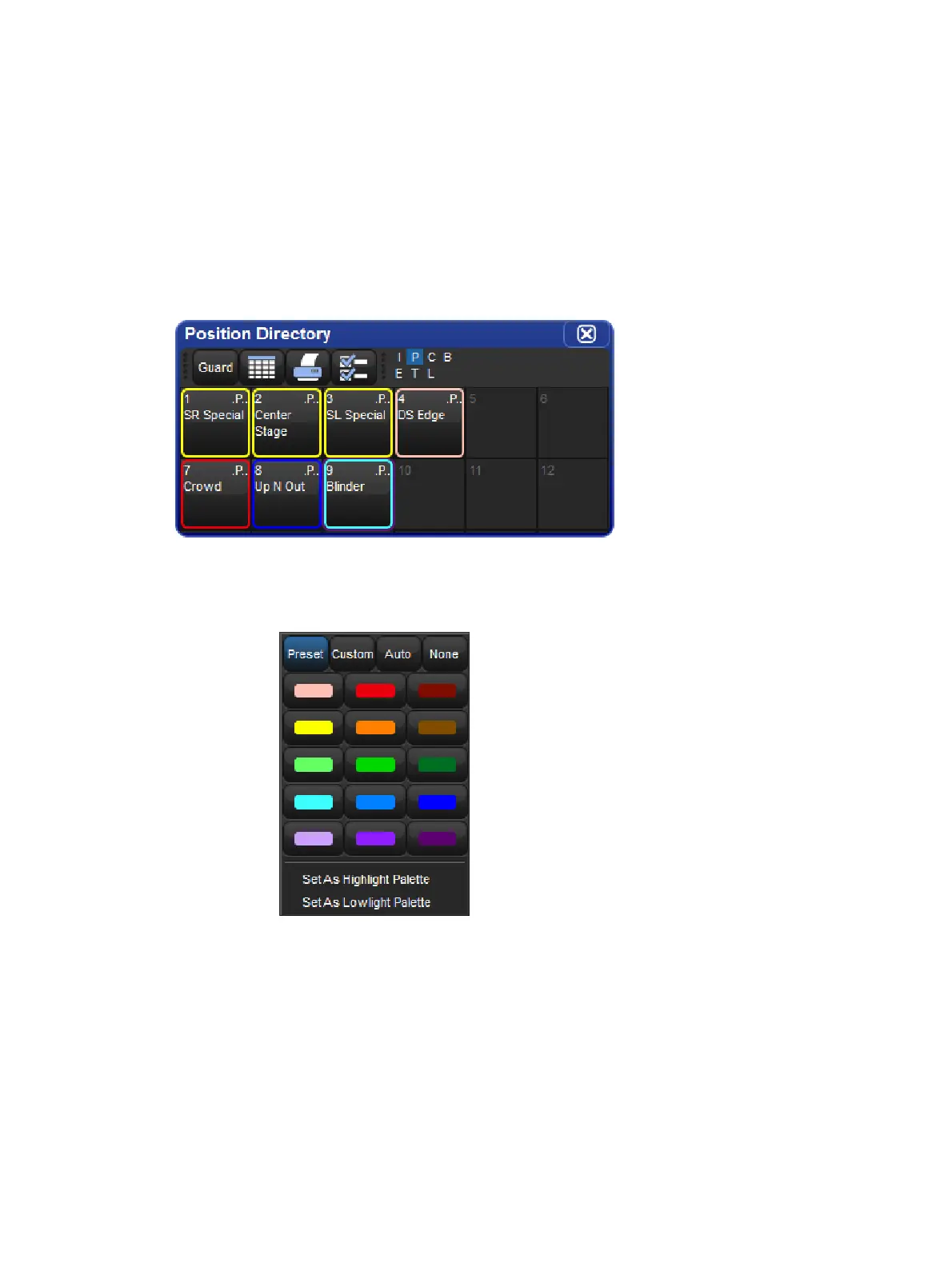
Each directory window allows for unique colour coding of each button within the directory.
The default colour for new directory items is standard grey. When you copy a directory item,
the console will automatically copy the directory item's custom colour as well.
Note: The playback bar, view toolbar, and commands keys automatically reflect the colour-
coding of the objects that they display. Colour-coding for these objects can only be changed
in the directory and the is thus reflected everywhere that object is shown.
Example of Colour Coding of Directory Items
To customize a directory item in button view:
1. Using the mouse, right click on the directory button to open the right click menu.
2. Click on one of the 15 options to assign the directory item this colour.
3. Alternatively, click on Custo m to select a custom colour from a colour wheel or click
Non e to select the standard grey colour. Click on Auto to have palettes in the Colour
directory automatically determine the button colour based upon the dominate colour
value recorded in the palette.
To customize a directory item in spreadsheet view:
1. Select the Colour cell and press Set to open the colour selection menu.
2. Click on one of the 15 preset colours to assign the directory item this colour.











 To Next Page