186 Hog 4 Operations Manual
Tip: When you open a palette for editing, you may only appear to see one fixture when you
recorded several. This is due to the way palettes can be ‘global’, with a single set of
parameter values that can be applied to any fixture; see Global, Per Fixture Type, and Per
Fixture.
8.3.1 Updating Palettes with Different Parameter Types
Palettes contain one or more parameter types. If you edit a palette and add values for
parameters of a type that was not previously in the palette, and then update the palette, these
values will not be stored. If you want to change the parameter types that a palette contains,
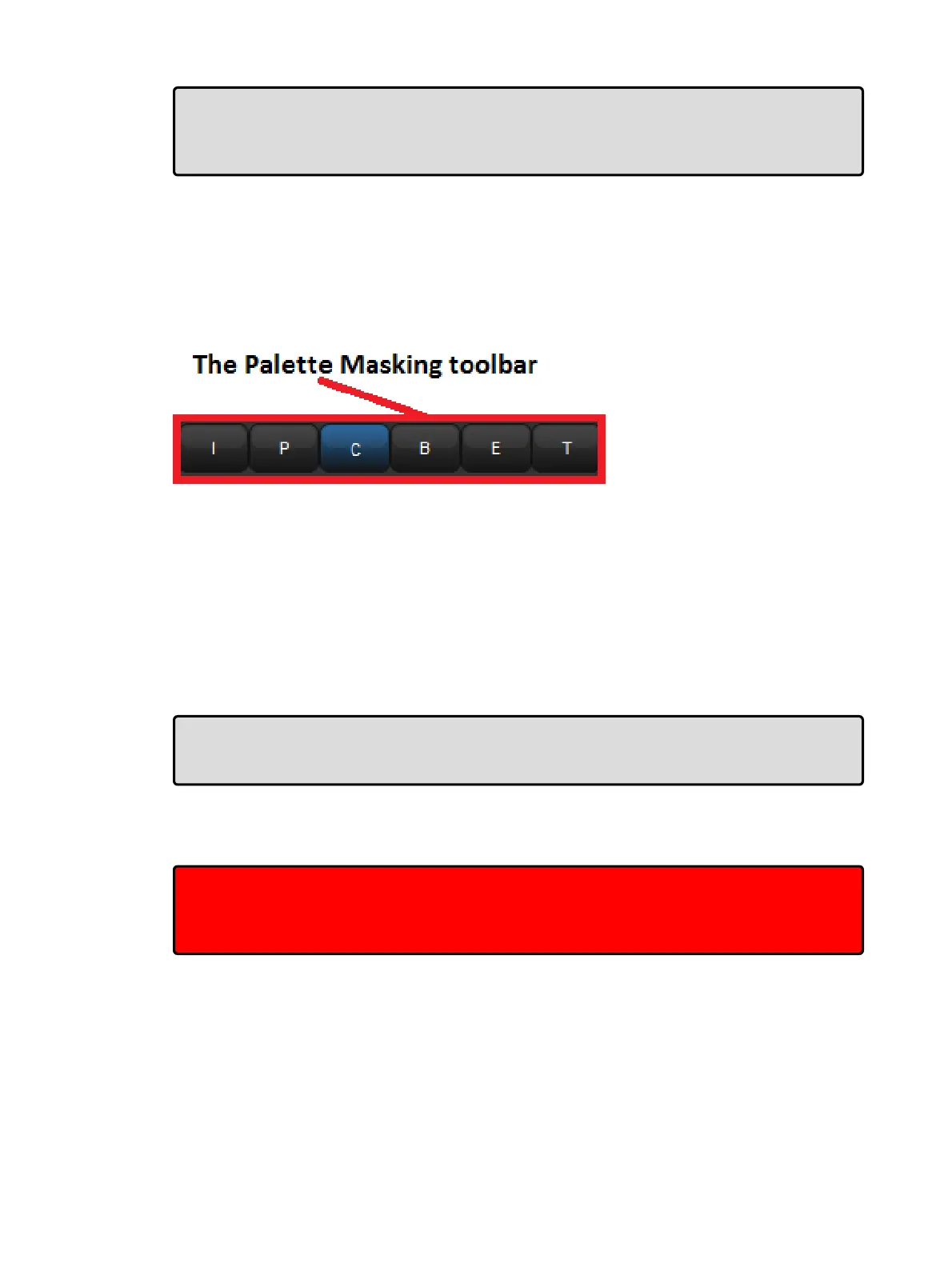
you need to select the type from the Palette Masking Toolbar:
For example, suppose that you wanted to add a gobo (a beam parameter) to the existing
Colour Palette 2:
1. Open + Colour : opens the Colour Directory.
2. Open + [Colo ur 2] : opens the palette editor for Colour Palette 2.
3. Press the Edit button in the editor window to select this as your current editor.
4. Select the B (Beam) button on the Palette Masking Toolbar.
5. Edit the fixture parameter values to assign the required gobo.
6. Press Upda te to save the changes.
Tip: You can also use the Palette Masking Toolbar to quickly remove all values of a
particular parameter type from a palette by deselecting the appropriate button before
updating.
8.4 Deleting Palettes
Important: Deleting a palette will remove all references to the palette that have been
recorded in cues, scenes and other palettes, and replace the references with numerical
parameter values. Creating a new palette in the same location will not replace the
references, which are removed once the palette is deleted.
To delete a palette using the command line:
1. Co lour 1 Delete : deletes Colour Palette 1.
2. Click OK to confirm the delete.
Or, from the palette directory:











 To Next Page