146 Hog 4 Operations Manual
6.1 Selecting Fixtures
There are three ways to select fixtures: using the command line with the numeric keypad,
visually selecting and clicking on the fixture's number in the programmer, or by selecting
groups from the groups directory.
6.1.1 Selecting Single Fixtures
To select a single fixture visually in the programmer or other open editor, click on the fixture's
number in the Num column of the spreadsheet.
To select a single fixture using the command line type the fixture's user number using the
keypad and then press enter. For example, to select Studio Color number 1. If more than one
fixture in the show file has the same user number then you must first specify the fixture type
as demonstrated below.
For fixtures with dotted user numbers enter the whole number part of the user number to
select all user numbers that match the whole number. If you want to select a specific dotted
numbered fixture enter the entire user number including the whole number, the dot, and the
part number. For complete details on selection syntax with dotted user numbers see
Selecting fixtures with dotted user numbers.
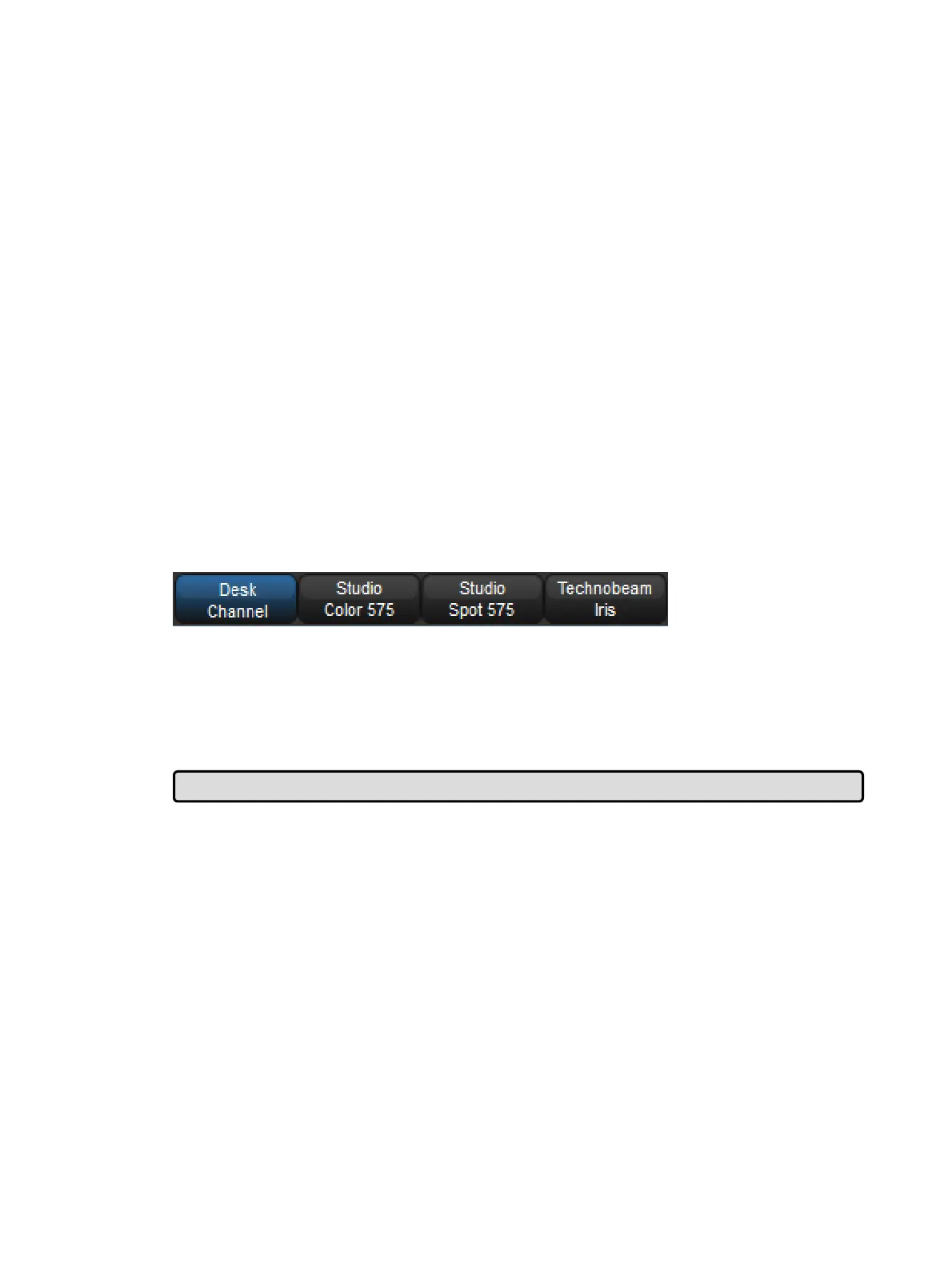
Fixture, [Studio Color 57 5], 1 : when you press the Fixtur e key, types of available
fixtures will appear at the bottom of the right hand touch screen, where you can select
Studio Color 5 75:
Hog 4 OS maintains the type of the last fixture selected. If, for example, Studio Colors are
selected then all fixture numbers entered into the command line will refer to Studio Colors
until a new fixture type is selected.
Tip: Repeated pressing of the Fixture key will cycle through the available fixture types.
Note that throughout this manual, the examples generally assume that you have assigned
user numbers so that they are unique.











 To Next Page