258 Hog 4 Operations Manual
13.4 Wait Timing
In addition to manually pressing Go to execute you can also automate the triggering of a cue
by assigning a wait value for the cue. The wait value for a cue is assigned in the wait column
of the cuelist window. To assign how long a cue timing:
1. L i s t 1 O p e n : open the cuelist.
2. Select the W a it cell for the desired cue, and press Se t.
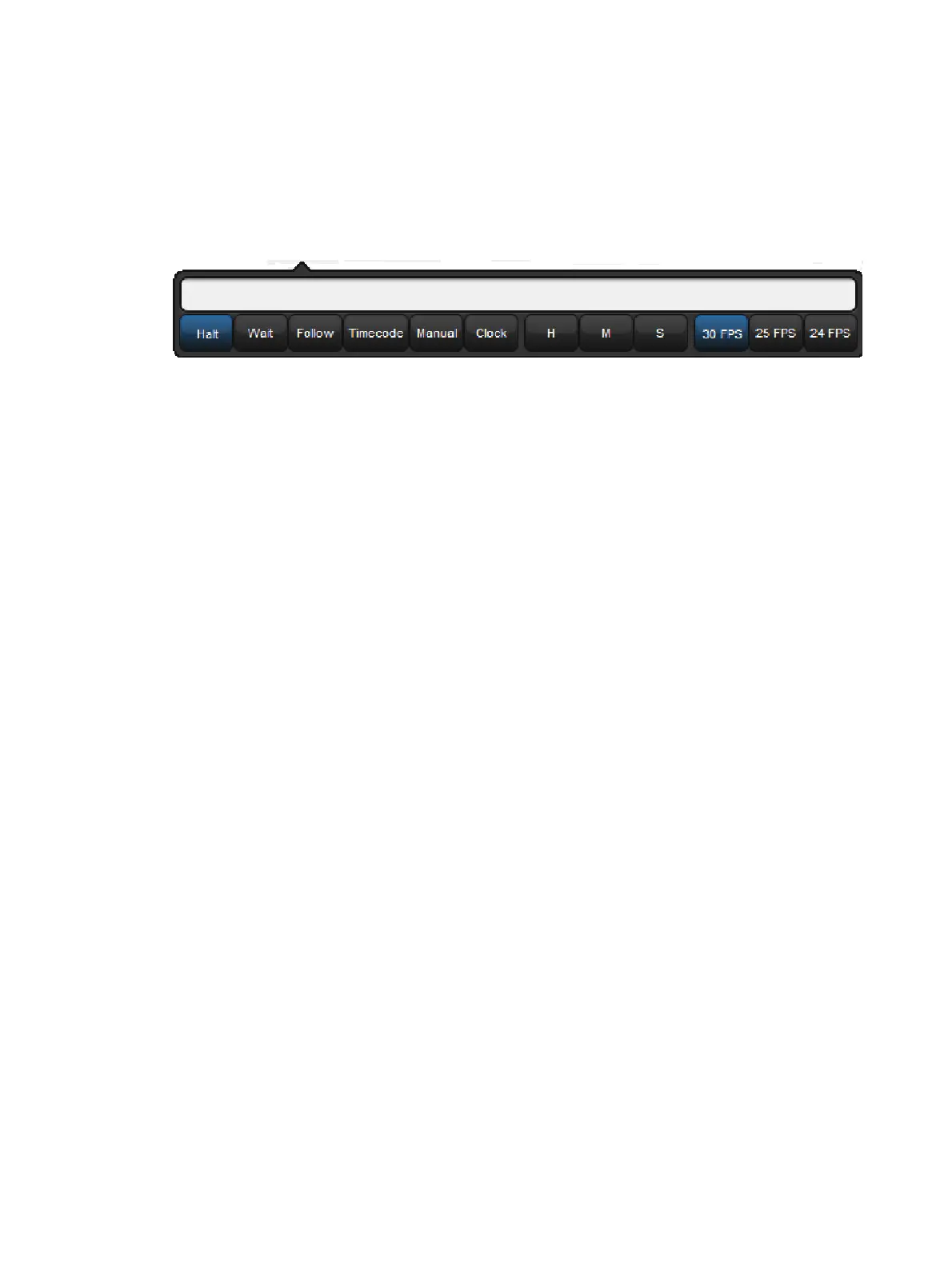
3. The T r ig g e r To o l b a r will appear below the Wait cell. Select an option from this.
The Trigger Toolbar
A cue's wait column options are:
Halt: Does not allow the cue to be triggered automatically unless a timecode value later
in the list causes the cue to be jumped. In all other cases the G o key must be manually
pressed to execute this cue. Halt is shown by an empty Wait cell and it is the default
wait column value for newly created cues.
Wait: Triggers the cue after the specified time has passed from the triggering of the
previous cue (either automatically or by pressing Go). It should not be confused with
the Delay, which is the time between the cue being triggered (after a Wait if there is
one) and the fade starting. The Wait time schedules cues within the cuelist, whereas
the Delay time schedules the fades of each parameter within the cue. A cue can
contain multiple Delay times, but it can only have one Wait time. See Timing Basics for
more information.
A wait is displayed as the time value in the Wait cell.
Follow: Triggers the cue once the previous cue has completed all its fade and delay
times. You can enter a time after pressing the Follow button, which determines the time
between the previous cue completing and the follow cue being triggered. See Timing
Basics for more information.
The follow is displayed in the Cuelist window as ‘Follow + [time]’.
The follow time should not be confused with the wait time. The follow time controls the
time between the end of one cue and the triggering of the next, while the wait time
controls the time between the triggering of one cue and the triggering of the next.
Timecode: Triggers the cue when the specified timecode value is received. See MIDI
Timecode. The timecode value will be displayed in the wait cell.
Manual: A manual cue can only be triggered by pressing the Go key. This means the
cuelist will stop until the Go key is pressed, irrespective of any wait, follow or timecode
triggers that later cues in the list may have.
Manual cues are useful because the word ‘Manual’ appears in the Cuelist window to
remind the operator that they need to press the G o key. They are also useful to prevent
times being recorded into the Wait column when using Learn Timing.
Clock: Triggers the cue when the specified real-world time and date is reached on the
Hog 4 OS built in clock; see Clock Triggers.











 To Next Page