2. Hog OS Fundamentals 41
Right-click to access copy / paste context menu
Touch and hold to access copy / paste context menu
Pig + Copy to copy
Pig + Move to paste
2.9 Editors
Editors are windows where you can view and assign the parameter values of fixtures. The
most important editor in the Hog 4 OS is the programmer which acts as the default active
editor for all parameter changes when no other editors are open or active. Individual cues,
scenes, and palettes can all be opened in editors. Editing parameter values works in
essentially the same way for all of editors; see Selecting Fixtures and Modifying
Parameters.
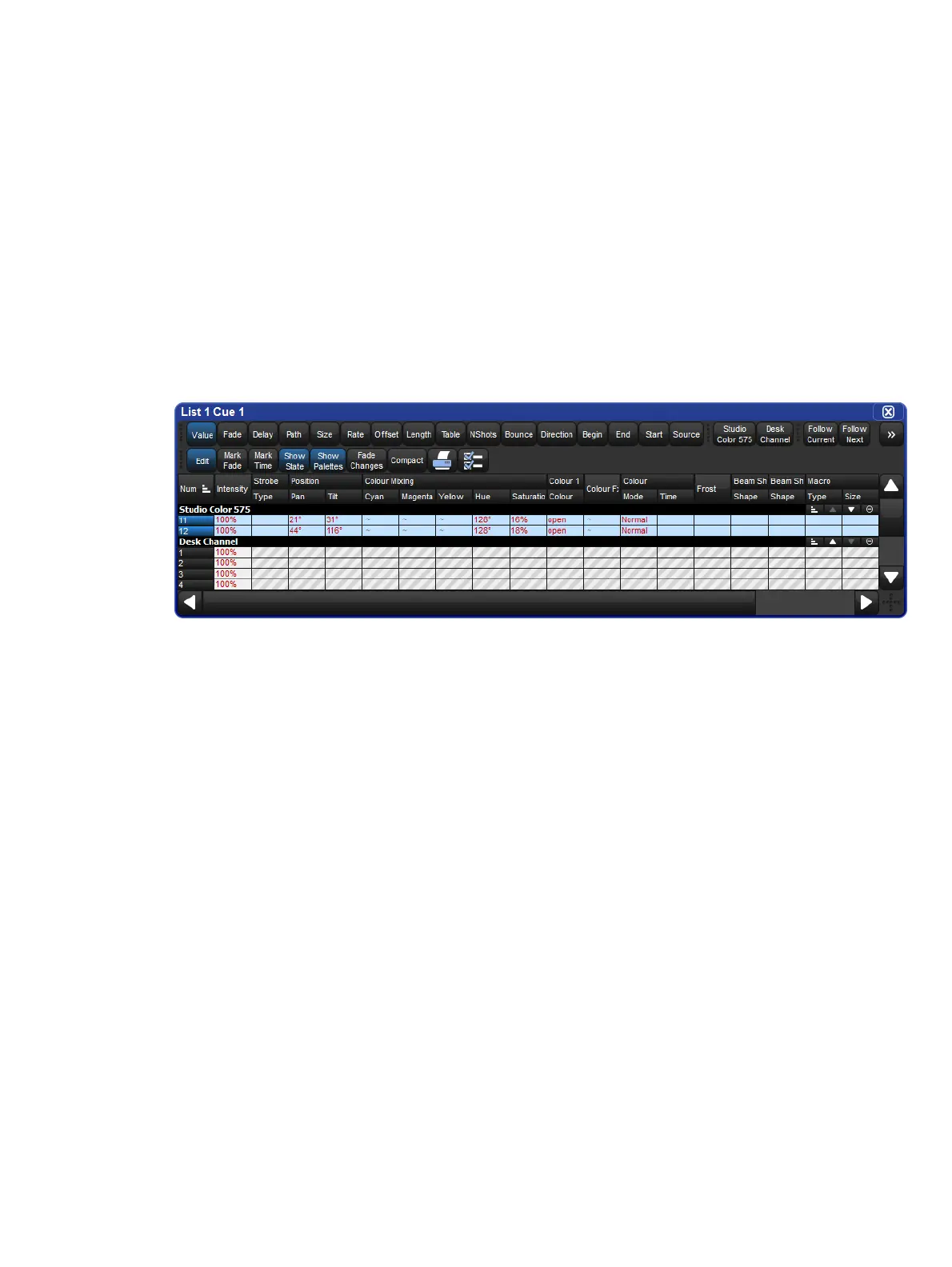
A Typical Editor
You can open an editor window for any cue, scene or palette by holding down the Open key
and selecting it from its directory window. Alternatively, you can use the command line:
Cue 1 Open : opens an editor for Cue 1 and makes it editable.
2.9.1 Editor Window Controls
The main part of an editor window shows the fixture parameter values in a spreadsheet view,
with each row representing a single fixture; see Spreadsheets.
At the top of the window there are three tool bars with buttons: the Editor Values Toolbar, the
Editor Toolbar, and the Jump Toolbar. The following sections describe the buttons that are
common across all editors; some editors have additional buttons that are specific to that type
of editor, and these are described in the relevant part of the manual.
The Editor Values Toolbar
The Editor Values Toolbar has buttons for: Value, Fade, Delay, Path, Size, Rate, Offset,
Length, Table, and N Shot. Use these buttons to display the different kinds of information
associated with the fixture's parameters; see Fade, Delay, and Path.











 To Next Page