314 Hog 4 Operations Manual
17.3 Choosing and Selecting Masters
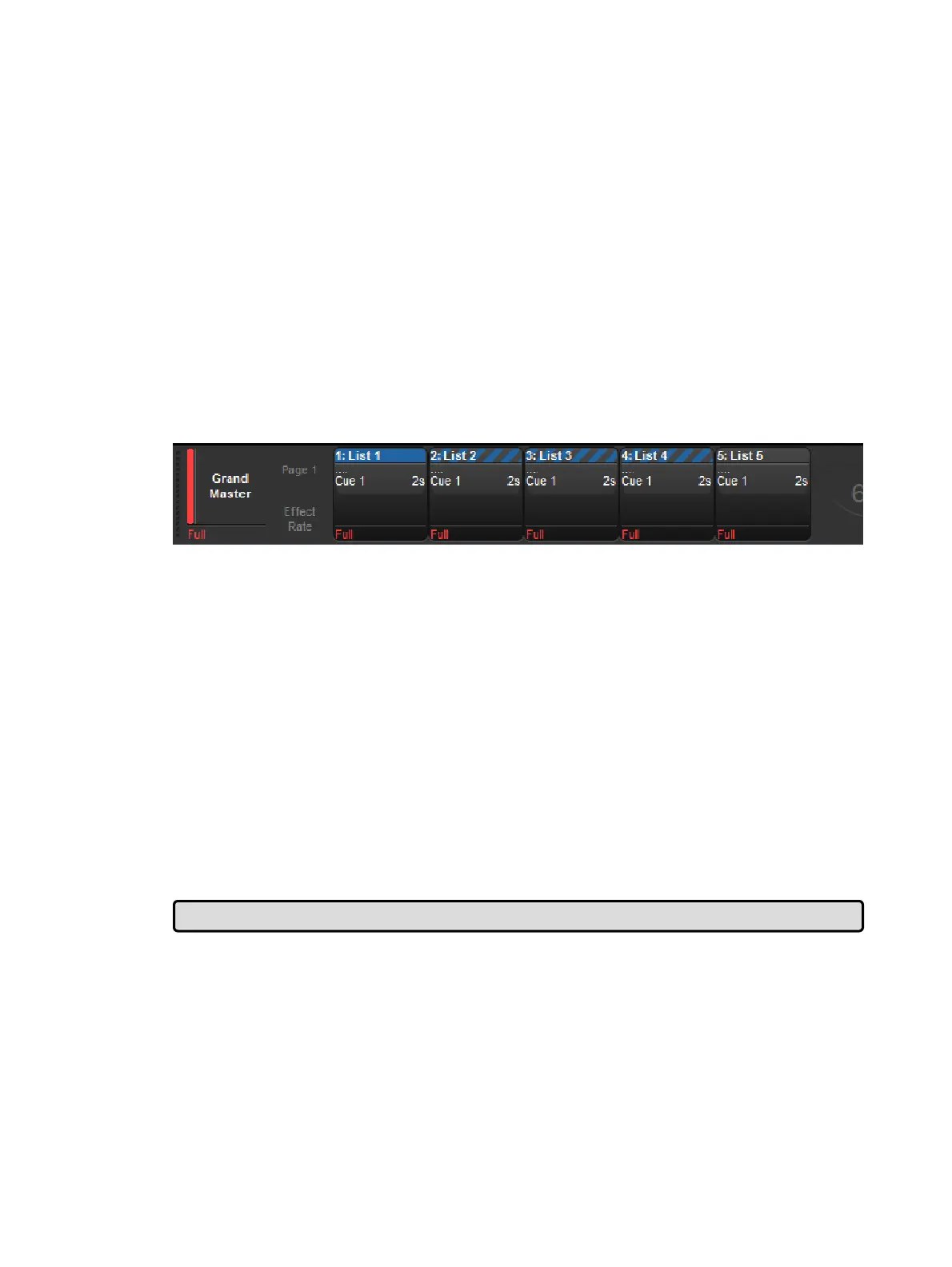
At all times one of the physical masters of the console is chosen. When a master is chosen
its choose LED will be illuminated, the title of the master will be shown on the playback bar
with a blue background, and the master's name will be announced on the main toolbar. The
chosen master can be controlled using the Play, Pause, Go Back, Skip Forward, and Skip
Back keys in the main playback section of the console. The chosen master also directly
receives commands from the command line such as record, goto, and delete when a
destination is not otherwise specified. There can only be one chosen master at a time. To
choose a master simply press the choose button associated with that master.
Masters can also be selected. Selected masters respond to rate wheel changes and the main
playback controls but only the chosen master will receive commands from the command line.
To select a master hold down the choose key of one master while pressing the choose keys
of other masters. When selecting multiple masters the last choose key to be released will
become the chosen master. When a master is selected it's choose LED will flash and the title
of the master will be shown on the playback bar with a striped blue background.
17.4 Releasing Masters
Releasing a playback object such as scene or cuelist relinquishes its control of all fixture
parameters programmed into that cuelist or scene.
To release a cuelist or scene that is assigned to a physical master:
1. Press the choose key for the physical master that you wish to release.
2. Press the Re lease key located in the main playback section of the console.
Or:
Release + Choo se : use the Choose key of the master with the cuelist you wish to
release.
When a cuelist is released its current cue indicator will remain on the last cue played so that
when the cuelist is played again it will playback the same cue as when it was released.
To have the cuelist return to the first cue in the list when it is released turn on the reset on
release option. See Resetting Cuelists on Release.
Tip: You can release all playbacks at once by pressing Pig + Release
If no other cuelists or scenes are active when you release a cuelist or scene, then releasing
returns all fixture parameters to their default values. A fixture's default parameter values will
be determined by the Fixture Library; you can change the default values in the Edit Fixtures
window, see Assigning a Custom Default.
If you have other cuelists or scenes active, then control of fixture parameters may be
transferred to one of them; see Latest Take Precedence (LTP).











 To Next Page