212 Hog 4 Operations Manual
10.6 Renaming and Customizing Preview Images
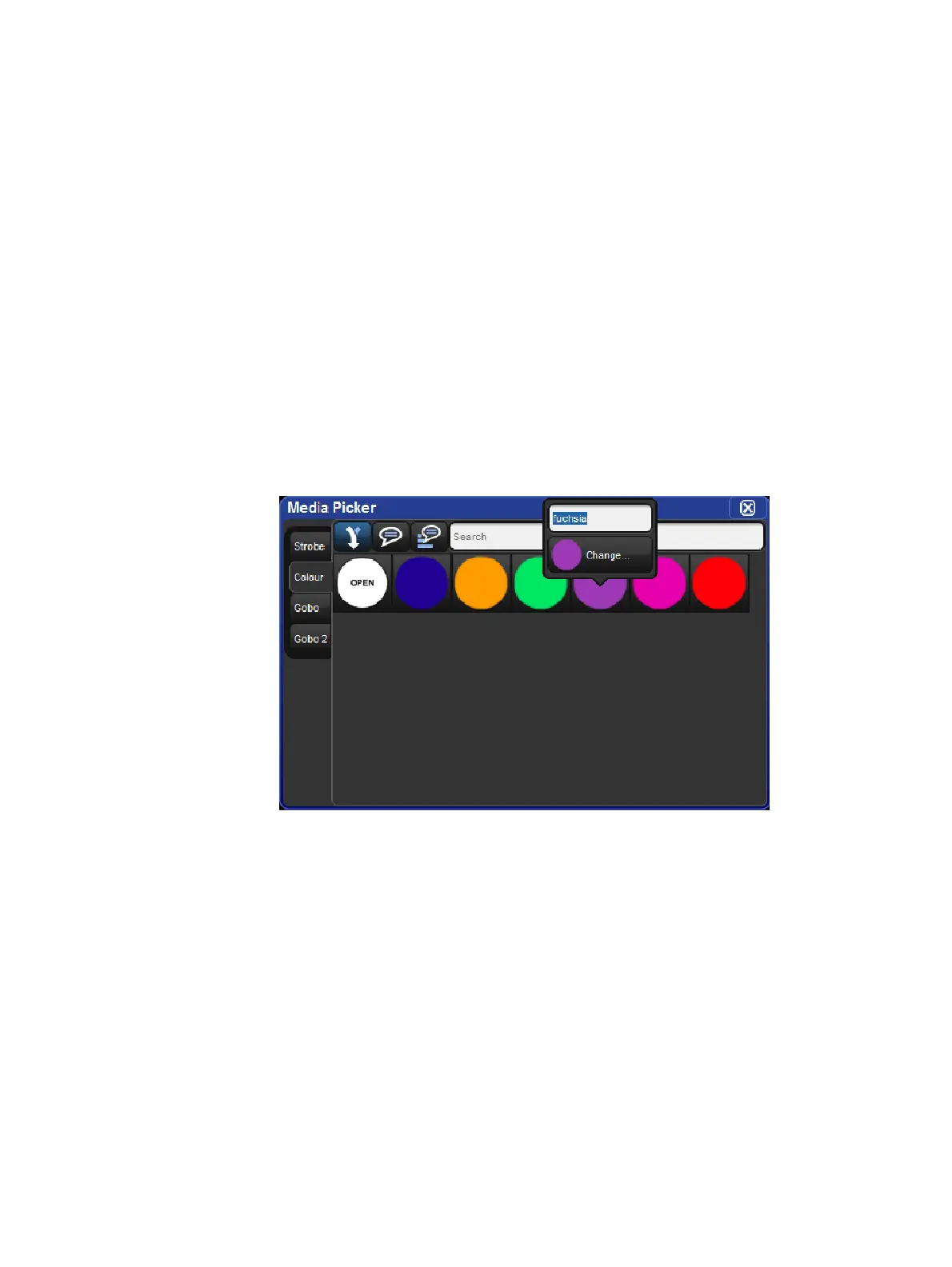
Users can define custom names and images for fixture previews using the media picker. For
example, if a fixture in the rig has a custom gobo installed the user may want to change the
library defined preview image to a custom image or change the library defined preview name
to a custom name in order to better represent the custom gobo being used in the rig.
Customizing preview images and/or names in your show can be done using the follow steps:
1. Open the media picker window
2. Select the fixture(s) you want to customize
3. In the media picker window select the preview you wish to change
4. Hit the [set] key
5. Use the text field to rename the preview and/or click on the "Change..." button to
browse for a custom image. Images can be imported from a USB flash drive or chosen
from the thumbnail library folder on the console. (supported image formats: JPEG,
PNG, GIF)
6. The custom preview name and image you chose will now appear anywhere that preview
is presented in the show such as on the slot toolbar, in the media picker, and in direct
entry menus.











 To Next Page