318 Hog 4 Operations Manual
17.5 Master Playback Options
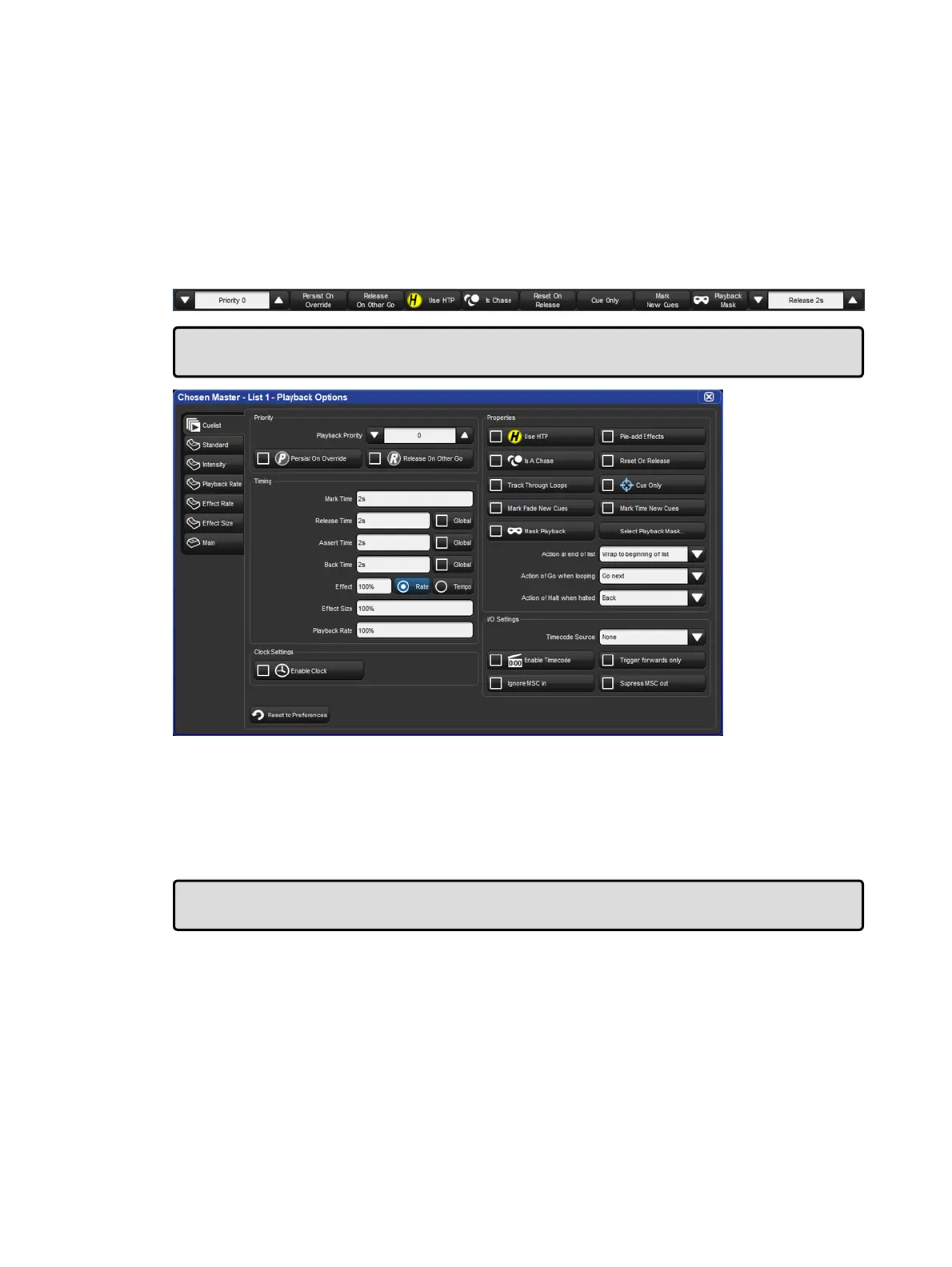
The priority, timing, and other various properties of a master that affect how it is played back
are configured using the master's Playback Options window. This is the same for all master
types (cuelist, scene, batch, group).
Open + Choo se : opens the Master window.
Option s : opens the Master's Playback Options window.
Alternatively, you can quickly access many of the master options from the options toolbar by
holding down the Ch oo se key of the master:
Tip: You can quickly open the playback options for a master by holding the Pig key and
pressing the master's Ch oose key.
You can configure the default playback options for new cuelists, scenes, and batches in the
User Preferences window:
Setup → Preferences , select the Cuelist, Scene, or Batch tab
You can also customize the function of each of the master controls and main controls; see
Physical Master Playback.
Tip: You can revert all of the playback options of the Cuelist, Scene, or Batch tab by
pressing the Re set to Defaults button in the bottom left corner of the window.











 To Next Page