11. Cue and Cuelists 221
11.6 Editing Cue Contents
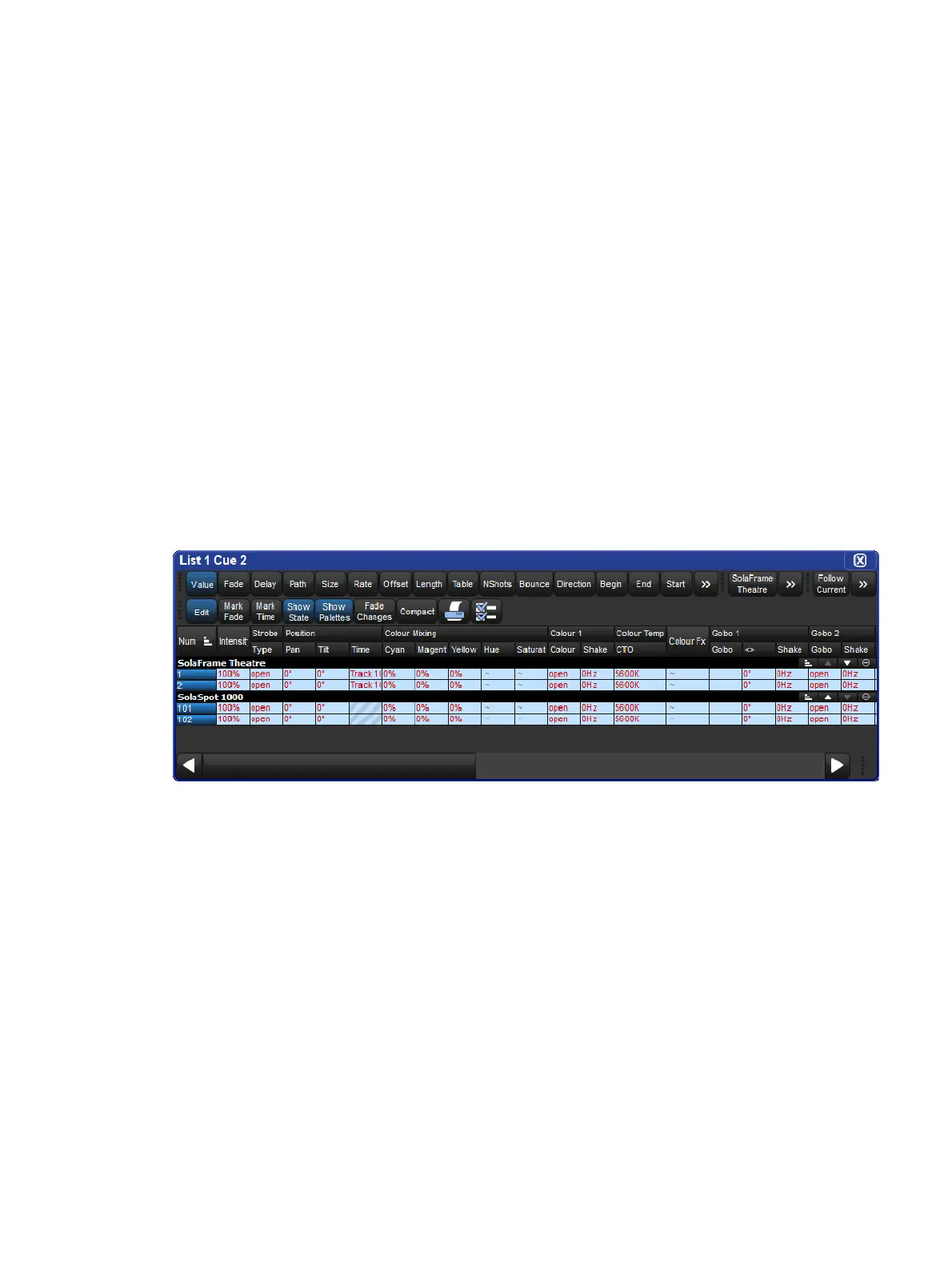
You can edit the contents of a cue in an editor window as seen below. To open the current
cue of the chosen master:
Cue , Op en
Or:
Cue , Cue
To open a specific cue in a specific cuelist, for example Cue 2 of Cuelist 1:
1. Open + L ist : opens the Cuelist Directory window.
2. Open + [Cuelist 1] : opens the Cuelist window for Cuelist 1.
3. Open + [Cue 2 ] : opens the Cue Editor for Cue 2.
Alternatively, using the command line:
List 1 Cue 2 Op en
You can also preview a cue using Vie w Cue in the Cuelist window; however, you will need
to press the Ed it button in the Cue Editor window to select this as your current editor in order
to make any changes.
If the cue to be edited is on stage, selecting Edit will enable blind mode until changes are
updated, or Edit is deselected, see Blind. You can leave the mode otherwise by pressing the
Blind key.
Within the editor, you can assign fixture parameters and timing in the same way as in the
Programmer. See Selecting Fixtures and Modifying Parameters. Once you have made
changes be sure to press the Update key to save them, the Cue Editor will then automatically
close.











 To Next Page