364 Hog 4 Operations Manual
20.3 Editing Plots
Five types of objects can be added to a plot: fixtures, gangs, PixelMaps, show items and
shapes. In this section we will review how to add, remove, and edit these different types of
objects.
20.3.1 Fixtures
To add fixtures to a plot:
1. Open the plot (Pig + Fixture, #, O pen )
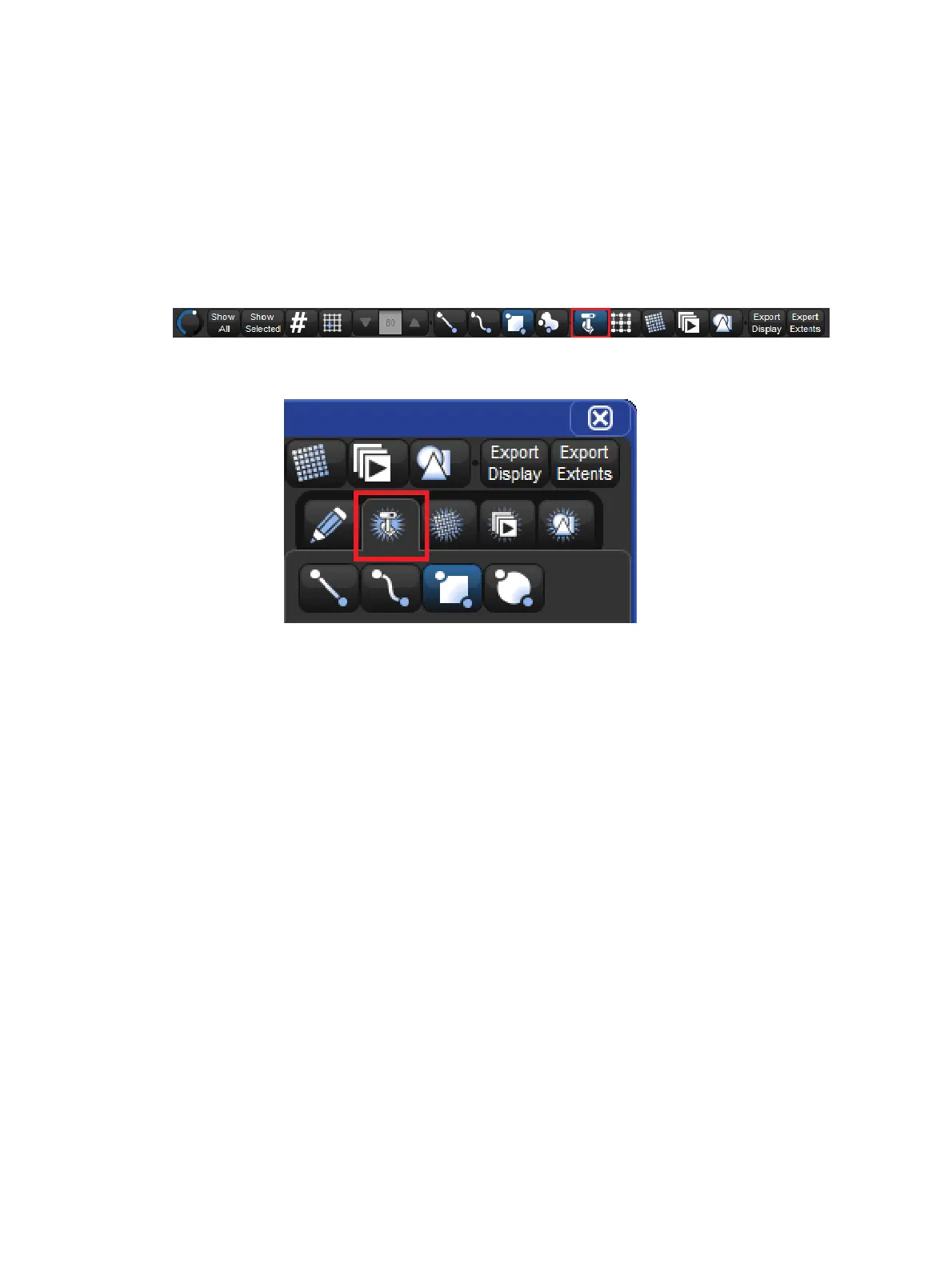
2. Enable the fixture edit button at the top of the plot window.
3. Click the add fixtures tab of the properties pane located on the right side of the plot
window.
4. If you are adding multiple fixtures then use the buttons listed under the add fixtures tab
to choose a gang arrangement.
5. Make a fixture selection.
6. Touch (or left click) and drag across the plot window to add the fixtures.
7. The fixtures are now added to the plot using the selected gang type.
To remove fixtures from a plot:
1. Enable the fixture edit button at the top of the plot window.
2. Select the fixtures in the plot you wish to remove (fixture selection can either be done
directly in the plot window or by using the command line or groups).
3. Press the De lete button in the properties pane located on the right side of the plot
window.
To edit a fixture (change its properties):
1. Enable the fixture edit button at the top of the plot window.
2. Select the fixture(s) you wish to edit.
3. Use the properties pane located on the right side of the plot window to adjust the
fixture's position and/or rotation, icon type/size, and colour-coding. You can also
reposition a fixture by using the mouse or touchscreen to click and drag the fixture into
position. Note: fixtures that are attached to gang must first be detached (dragged off
the gang) in order to be custom positioned. Also be aware that changing the icon or
colour-coding for a fixture in one plot will change the assigned icon and colour-coding
for that fixture in all plots as this property is shared show-wide.











 To Next Page